How to Find All Your App Reviews in ios

App Store Reviews That You’ve Written Aren’t Easy to Find

If you’ll be writing any App Store reviews, it’s probably a good idea to keep a copy of them somewhere if you think that you’ll ever want to find them again. That’s because Apple doesn’t make it easy to find those reviews after you’ve written them.  There are 3 methods that I know of to find them which I describe below.

Using the App Store App | 2 Methods

App Store Method 1

App Store Method 1

You can use this method in the App Store app to search for them…but it’s a little tricky and you’ll need to know exactly which apps you wrote reviews for.  The pros to using this method are that when the other 2 methods don’t work this one usually does!

  • If you know the name of the app just open the App Store, use the bottom menu to go to your purchased apps and type the name of it in the search bar.  (On iPhone Purchased apps and Updates are merged…so go to Updates then swipe down on the next screen that displays results…to find the search bar at the top.)
  • Tap on the name of the app your looking for and when it opens tap on Reviews.
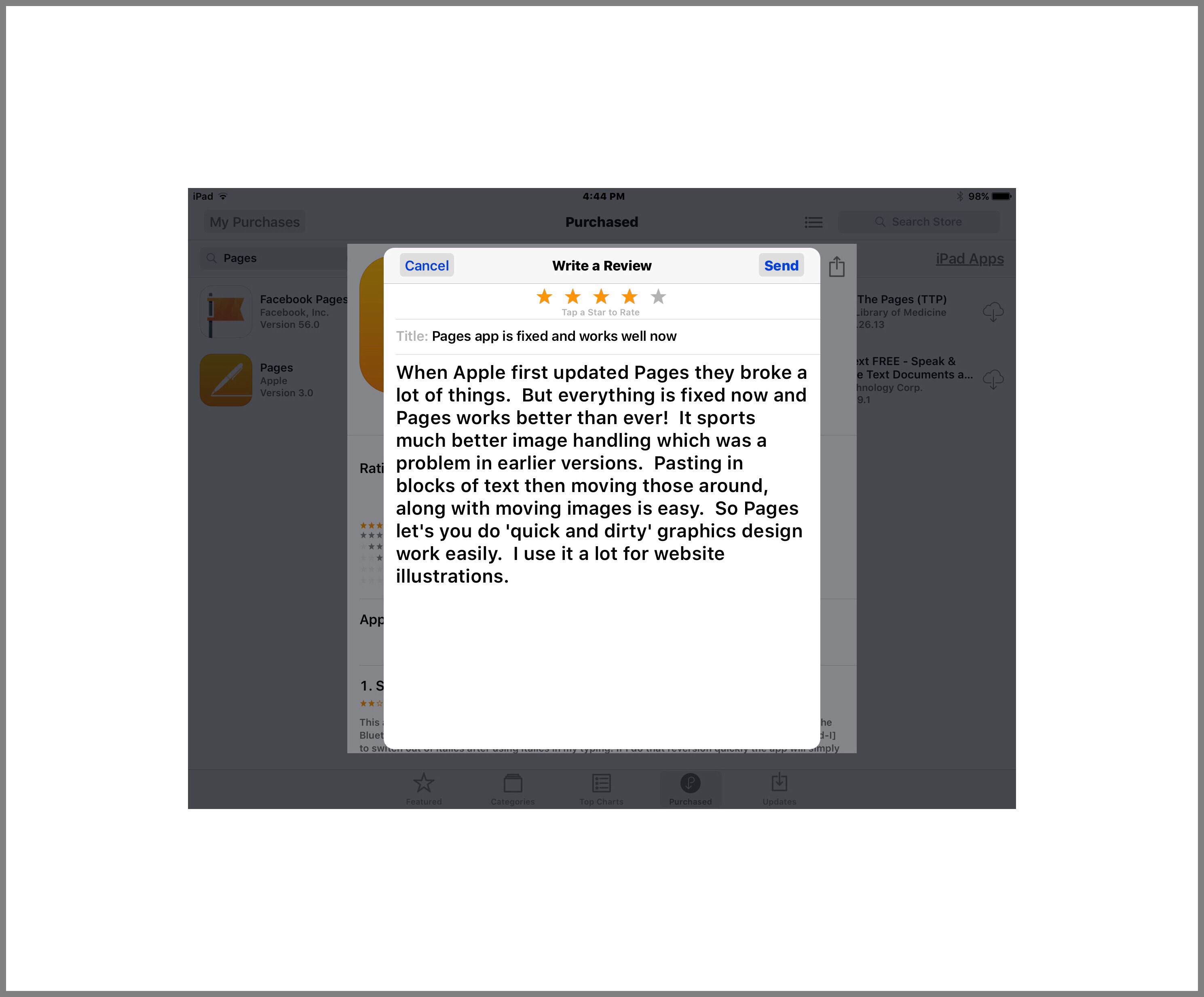
  • When Reviews are displayed, tap on ‘Write a Review’…if you’ve written a review for that app previously it should be displayed shortly. For some reason this seems to take longer than say a normal web search…but it should display your review within a about a minute.

tap on Write a Review to see yours
My last review is displayed
App Store Method 2

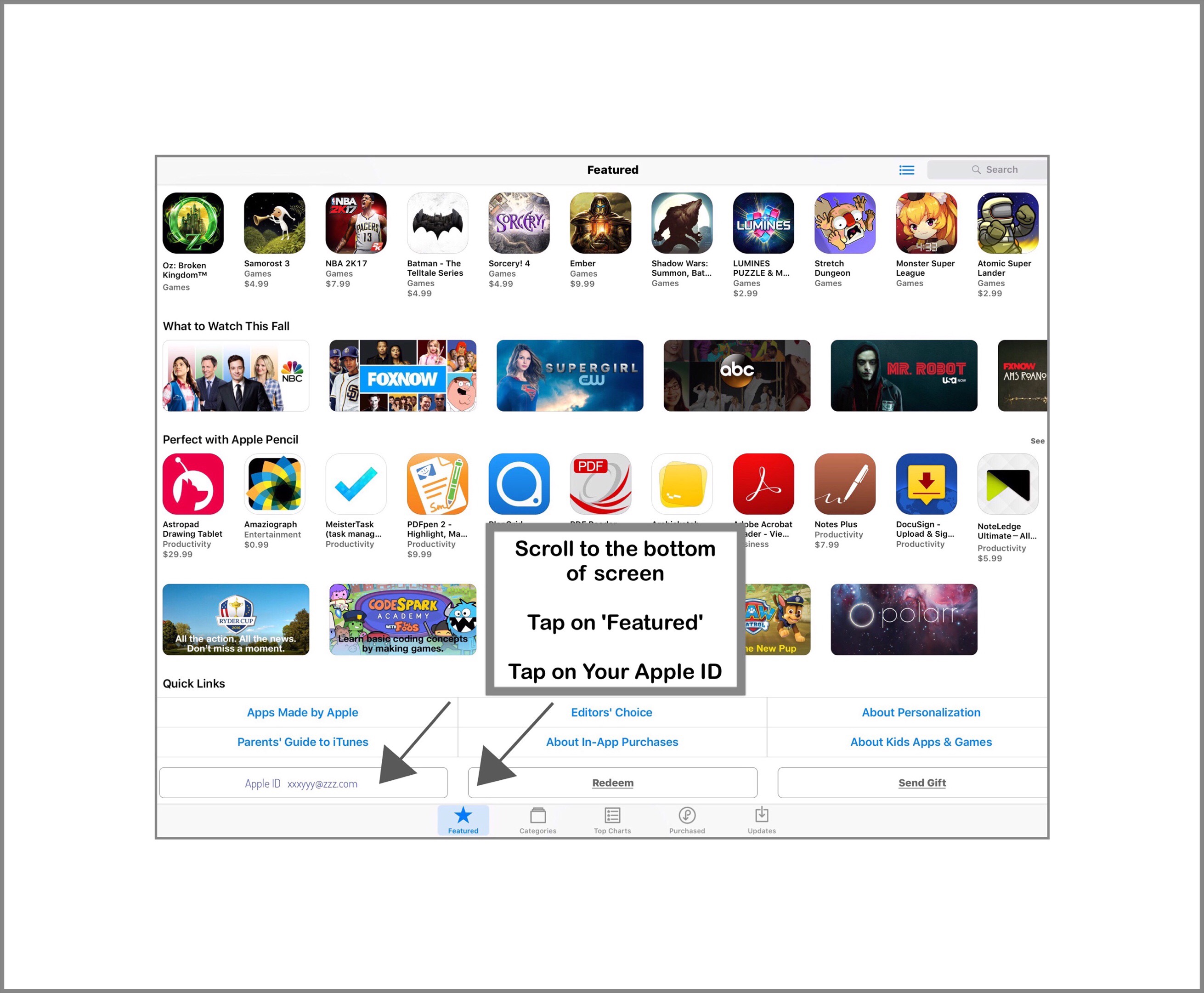
  • Open the App Store app and scroll down to the bottom of the page where there are menus
  • Tap on ‘Featured
  • Tap on your Apple ID (see the screenshots for Using ios Settings a little further down the page for examples of additional screens)
  • You’ll be asked to enter your Apple ID Password
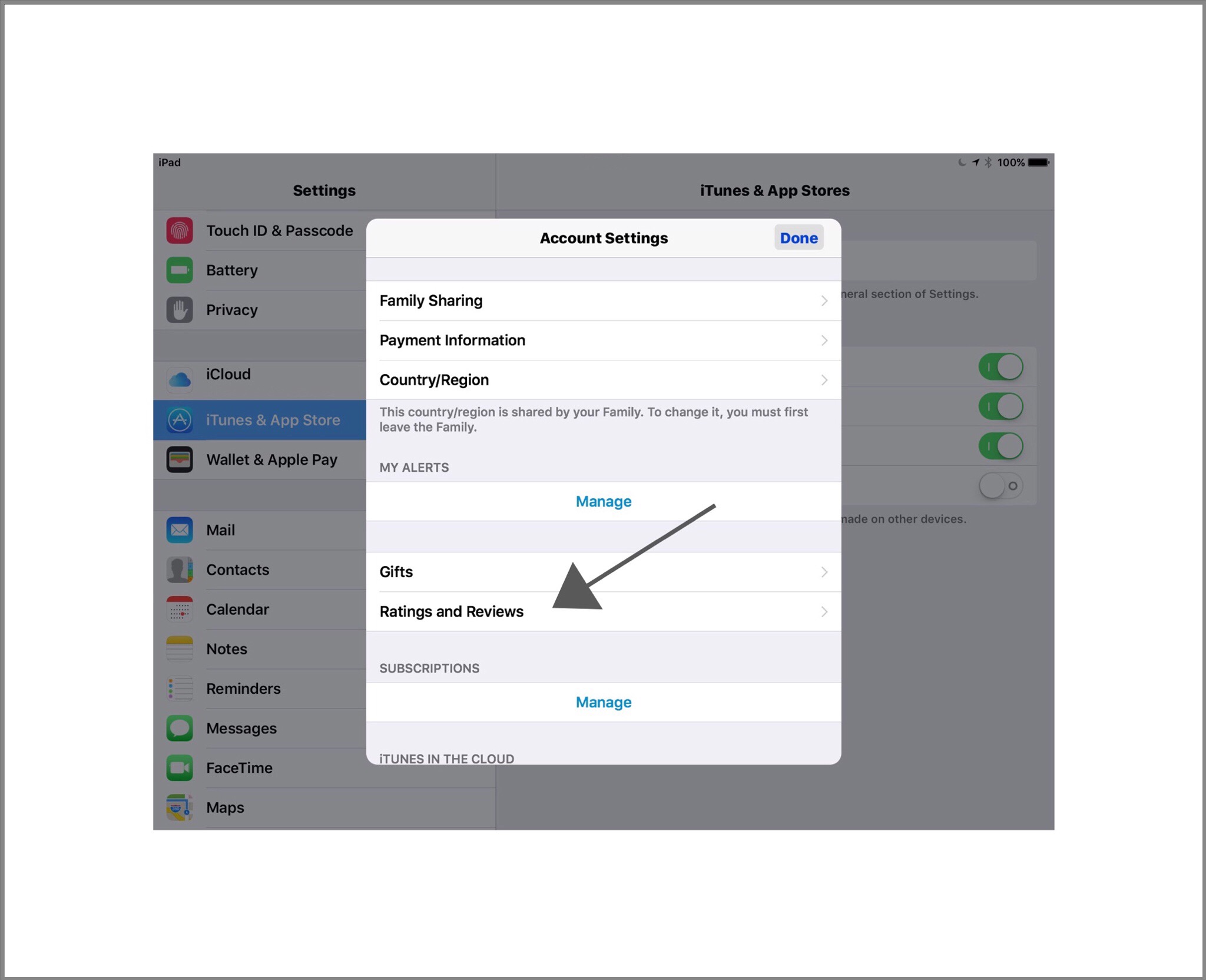
  • The next screen that is displayed shows you several different alternatives for managing aspects of the App Store and it’s integration with you, your devices and your family’s devices. Scroll down until you see ‘Ratings and Reviews.’
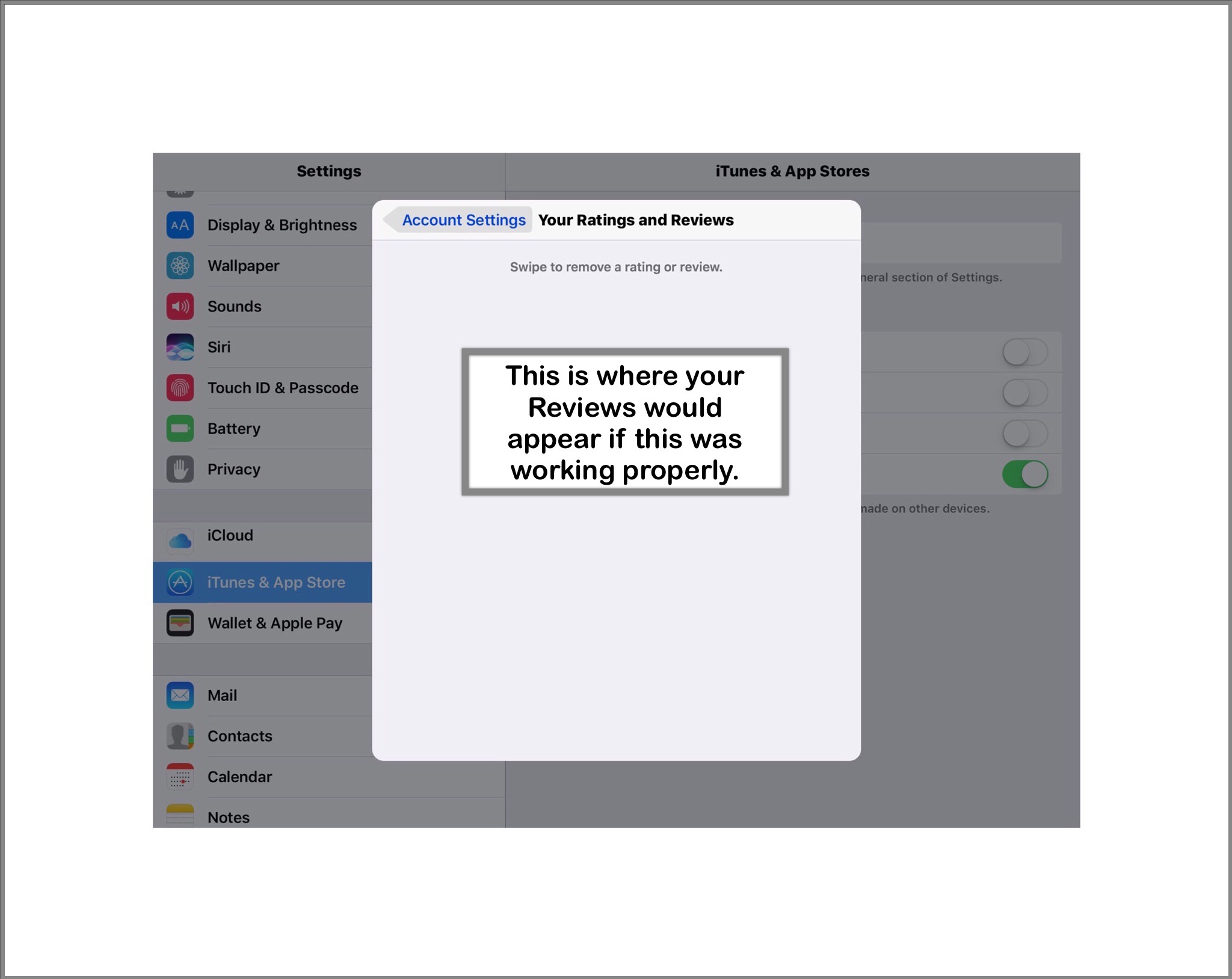
  • Tap on Ratings and Reviews and wait a moment until the next screen displays your Reviews.
  • This method generally won’t work when the Settings method  (#3) described below isn’t working.  So usually, if one doesn’t work, the other doesn’t either.  Then the only method left to use is the App Store Method 1 which means that  you’ll need to know the names of the apps and you’ll look for them one by one.
App Store Method 2

App store Method 2

Method #3 | Using the ios Settings Method

The above method # 1 is all well and good if you remember which apps you’ve written reviews for…but I know that I’ve written many of them on a whim which I’ve probably forgotten about. So using the individual search method by app name in the App Store would be prohibitively time consuming…if not impossible.

This is a much faster method (along with the App Store method 2)...when it works!  Currently it’s not working, but I trust that Apple will fix it soon!  I think the reason it’s not working has something to do with the release of ios 10…which may require many app developers to update their apps.  This in turn moves whatever reviews were recent ones into an older bucket by placing them in the ‘past versions‘ category…maybe..I think.

This Settings Method Works Off & On

  • Open Settings
  • Open iTunes & App Store
  • At the top of the page on the right hand  side, tap on your Apple ID, and then on View Apple ID in the pop up window.
  • You’ll be asked to enter your Apple ID password, so do that
  • The next screen that appears will give you several different alternatives for managing various aspects of the App Store and it’s integration with you, your devices and your family’s devices.  Scroll down until you see  ‘Ratings and Reviews’
  • Tap on that line and wait a moment.  A new screen will display showing recent reviews you’ve written…when it’s working of course.
The Screenshots Below Depict the Steps for Method # 3 | the ios Settings Method

ios settings method
tap on view my Apple ID
enter your Apple ID password
tap on ratings and review

Typically all your Review should appear in the empty box below…trust me…this usually works!

where your reviews should appear

Comments

How often do you write app reviews?  I’m really curious to know. I write them a lot because I rely on them a lot. I figure it’s a mutual courtesy kind of thing. My husband doesn’t read or write reviews  very often. So maybe those who write them most often are the same people as those who who rely upon them?  

Please feel free to let me know what you think.  Especially if I’ve missed a method,  or how often you write reviews and or what motivates you to do so…or really anything at all you think readers might be interested in, in the Comments section below.  It’s easy because it’s totally anonymous!

← Back

Thank you for your response. ✨

Posted in Apps, ios, ios apps, Tech Tips | Tagged , , , , | Leave a comment

Duplicate Mailboxes ios | How to Delete an Email Mailbox

Fix A Duplicate Mailbox Problem on iPad & iPhone

I’m not entirely sure why I have duplicate mailboxes on many of my email accounts that I use on my ios devices.  But I do…and so does my husband and several friends. I suspect it has to do with how you setup the email account in Apple’s Settings – Email.  It’s probably where you designate mailbox behaviors.  I’ve discovered that IMAP email is actually quite complex in the way that it functions. I’ve tried to understand certain aspects, but really I only understand a very small portion of how IMAP email actually functions…and realized recently that I don’t really want to know more! I’ll leave it to the experts like my email server support department!

So the part I’m dealing with is how to fix it…how to get rid of the duplicate mailboxes. But of course, a little background information is necessary.

Below screenshot:  Apple ios – Settings – Email – Account – Advanced

img_2626

Background:  How this problem cropped up for me…

Apple’s ios Email App Keeps Improving

My favorite ios 10 email improvement

Each year the email app gets a little boost in productivity. This year my favorite new feature is that when I move an email to another mailbox for archiving…the email app pulls up the correct notebook and suggests it before I can even leave that page to find it myself!  This saves me a lot of time!

Cleaning up & organizing my mailboxes

With all my newfound time I spent a few minutes working on a never ending job…cleaning up my email accounts and their mailboxes!  I have quite a few email accounts and I try to use automation as much as possible…but too inch automation can cause problems too.  I learned that the hard way!

While moving emails today I realized that I had a problem I kept ignoring…or I thought I must have been ignoring it.  Because, it’s unlike me to leave unnecessary things lying around.  Yet in each of my email accounts I had duplicates of several mailboxes.

Some of my duplicate mailboxes were:

  • Sent
  • Trash
  • Drafts
  • Spam

Yet the duplicates vary by the type of email account it is…for example Gmail accounts are different from straight vanilla IMAP accounts which are different from iCloud accounts.  Regardless of the variety…the deletion steps are the same.

I Bet That You Have Duplicate Mail Boxes Too That You Don’t Even Know About!

I’m adding this section because my husband just came home from work and claimed that he didn’t have any duplicate mailboxes on the one email account that he uses on his ios devices. He thought that my post didn’t pertain to him! I told him I was certain that he was wrong. We began to wager on our positions. I’m happy to report that he was wrong and I’m now the proud owner of one clean kitchen after dinner tonight!

My husband actually had 2 duplicates on his Pop email account that he never even noticed!

So, it’s very possible that you too have duplicate mailboxes that you don’t even know about! If you’re using Apple’s email app on an iPad or iPhone, I’m even willing to wager on it!

Here’s why…Apple mail automatically sets up system wide mail boxes for:

* Inbox
* Drafts
* Sent
* Junk
* Trash
* Archive

You can tell the difference between system mailboxes and application ones by their icons. The system ones each have a unique icon related to their function. Application ones are always folder shaped. If you refer to the screenshot Step 1, you can see what I mean.

These duplicates bother me for more reasons than that they are just plain unnecessary and they take up valuable real estate on my screen. Sometimes they can make it harder to find old emails…did you ever search sent emails knowing that you sent an email but couldn’t find it again? Well…if you have 2 Sent mailboxes on one email account…that could explain why!

This is just one of the many reasons that I forward important emails to Evernote (and why I wrote about how to do that a few days ago!)

Plus that, duplicates can be downright confusing! Really, what is the difference between Trash, Junk, Spam and Infected Emails. For those of you who know the actual answer to that question…OK, I do know that there really are differences…but for the majority of users it just doesn’t make sense to have all of these…much less to have 2 mailboxes named Trash, 2 named Sent etc. on the same email account! Which is exactly why I wrote this post :-)


My First Attempt to Delete a Mailbox

I just today realized today that this seemingly simple task is not that simple after all!  Which is why I have these straight to book a mail boxes laying around. I remember now…I have tried to delete them in the past…but they just keep coming back!  

That’s because I didn’t actually delete them.  Maybe I checked maybe I didn’t. But the mailboxes I had attempted to delete in the past were still there. I know this because I tried to delete them today and couldn’t. But remember I had that extra time today… so I was unusually persistent. When only one mailbox was successfully deleted on my standard vanilla IMAP account I decided to go to my iCloud account and to see if I could delete one there.  Lo and behold I could!

For some unexplainable reason I noticed that when I pressed on the word delete this time the ‘delete’ word flickered just a little bit…it was a very faint flicker. So I tried this with another email account that I rarely use but, for whatever reason, I still keep on my iPad (because there were no more mailboxes left to delete on the iCloud account.) I found that if I pressed harder on the word delete rather than just tapping on it…the mailbox successfully deleted!

So, that’s the key to answering the question of how to delete unwanted mailboxes.


*****

Don’t tap on the word delete when you’re deleting a mailbox rather, long press on the word delete.

*****


Best Method:  Steps to Delete a Mailbox

I illustrate the complete set of steps for deleting a mailbox in the annotated screenshots below.  Begin in the email app where a list of all your mailboxes are displayed.

Step 1 to delete mailbox
Step 2 to delete mailbox

Step 3 to delete mailbox

Step 4 to delete mailbox

img_2620

← Back

Thank you for your response. ✨

Posted in ios, ios 9 Quick Tips, ios apps, iPad, iPhone | Tagged , , , , , , , | 4 Comments

Cutting the Cord to Cable TV | Part 1 | $$ Cost Savings

Updated May 2018

This is Part I of my 3 Part Series

Part I Examines Our Reasons to Cut The Cord
Cutting the Cord Notes & Research

Above:  Our New Samsung 4K TV


Introduction to the 3 Part Series on “Cutting the Cord”

‘Cutting the Cord’ has become kind of a catch phrase which means ending the relationship with your current TV and oftentimes Internet service provider.  The second part of this implies that you procure your own hardware to provide similar services.  The state of technology has finally improved enough to make this possible for TV service…Internet service however, is still a service that generally requires an outside provider.

  • Part I | Our Current Environment & How Much it Costs Us

Part I is a fairly detailed analysis of what we currently pay and what we get for our money. It’s an overview of our services and usage, as well as a bit of historical information to set the context. I’ve also included detailed data about how much we currently pay, some of the problems we experience, and how much we could potentially save. Future posts will include:

  • Part II | How to Cut the Cord | A Step By Step Plan 

Part II will look at the whole process, from start to finish. First I tell our story of how we went about the cord-cutting process.

Next I discuss HD antennas. This is a long section because if you want to watch network television this is your best, least expensive option for doing so. But everything hinges off of the antenna you choose!

In Part II  I also examine OTA DVR’s. Which are recording devices to capture and record the network TV shows you’ll receive OTA (over the air) from your antenna. While I don’t do a thorough review of all the products out there, I do a quick one. Then I spend much more time discussing the DVR we chose to use, look at the cost of it, how it gets installed, and the benefits we get from it.

I also do a brief overview of Internet Streaming alternatives. Discuss the alternatives we use and why we’ve chosen them.

Then there’s a 2nd long section where I explain how to approach the process, how to plan for it, the steps involved and how to use them, and finally what kind of outcome you can expect to experience.

The TV I want

The TV I want

  • Part III | A More Detailed Look at Streaming Alternatives We Use

Part III  is still tentative. since Part II is ending up becoming really long…think ebook long…I’m not sure if I’ll actually write a Part III. I will if I get feedback indicating it would be useful.  My main idea was to look much more closely at our streaming alternatives. Since there,s a huge variety even within a certain manufacturer’s brand, I intended to look at some of the models I like the most, why I do, and their costs.

Then I planned on discussing the software for each, and what kinds of capabilities the software provides you.

Last I thought I compare the pluses and minuses of each, because there are definite distinctions there, and possibly take a closer look, at the rapidly evolving DVR market for cord cutters too.


Part I | Why We ‘Cut the Cord’ | Our TV Viewing Sources Before & Detailed Cost Analysis for ‘Before’

In this article I describe in fairly intricate detail (probably in way too much detail!) what out current setup  is for cable television and Internet service.  Our provider is Time Warner Cable (TWC) and I’m going into this kind of detail so that we as well as other people can recognize many of the hidden costs involved, and also so everyone can understand what they should really expect to receive from a cable provider.  Our circumstances are fairly normal I think, therefore relatable to most families in the US.

Photo credit: mhiguera via Visual Hunt / CC BY

Photo credit: mhiguera via Visual Hunt / CC BY

Background |

We’ve been considering ‘cutting the cord‘ for several years now.  Why?  First & foremost because our cable bills are ginormous!

Currently our combined cable television and internet service runs about $300 a month.  (TWC) Time Warner Cable is the only cable provider in our area.  Other than TWC we have DIRECT TV and Dish as the 2 satellite dish alternatives here.  There aren’t really alot of other choices.  AT&T does offer a UVerse option, but it’s extremely limited in both TV and Internet options.  Also AT&T merged with Dish not too long ago, so that may dramatically change the environment.

The really sad news about our ginormous monthly cable bills is that currently we’re operating under an annual discount program!  That program will run out very soon, (maybe in 2 months time) and our bills will jump up to almost $350+/month  when our plan ends.

What Do We Get For $300 a Month from Time Warner Cable?

  • 3 DVR’s – these are ‘whole house’ DVR’s which essentially cost double the price of a typical cable box. You need to have a box of some kind to be able to order any ‘on demand’ content, like ‘Pay per View’ movies…although we rarely use this feature.  The DVR’s are supposed to work together to share recorded content across our whole house.  In reality it’s a very buggy, glitchy system which has never worked well.  We waste so much time trying to get the DVR’s talking to each other. Also several DVR’s don’t allow us to fast forward through commercials anymore…kind of defeating the purpose!  (When we try to do it the show goes back to the beginning!)  We spend too much time meeting with repair guys and the end result is always the same…nothing changes!
  • ‘Ultimate-High Speed’ Broadband Internet –  our published speeds should be 50 Mbps down and 5  up

That’s it!  That’s what we get for our $300 (soon to be $350) a month expenditure!  Oh…I forgot, we have HBO too.  We should cancel that since we really don’t use it anymore.

Cool ceiling

How Much $ Money We’d Save:

  • According to our extremely confusing bills we pay nothing for our ultra high speed internet!
  • According to online price advertisements this probably should cost us around $65-75 per month.

Ultra-Conservative Estimate

So if we take the higher (more conservative) $75 per month estimate, we’d save at least:

  • $225 per month
  • $2700 a year
  • So in just 5 years we’d save $13,500
  • $27,000 is how much we’d save in 10 years time assuming no price increases by TWC (Time Warner Cable)

That of course is a worst case scenario…in reality we’d be saving much more. Because don’t forget our discount package is running out…and prices just keep going up even when nothing changes.  So in a still safely conservative estimate of $350 per month the final numbers are even more significant.

Truer Reality-Based Estimate

  • $275 a month savings
  • $3300 a year savings
  • $16,500 for 5 years
  • $33,000 over 10 years (that’s assuming no other price increases…which is clearly not going to happen!)

I think I’ve just convinced myself…WE NEED TO CUT THE CORD!

a commecial on our tv

How Did Our Monthly Bill Get So Big?

Prior to our ’empty nesting years’ we slowly added services.  As our kids got older they wanted or needed better internet speeds for gaming and homework or TV’s in more rooms for viewing alone or with friends.  But now we don’t need all that, so in recent years we’ve cut back our services just to lower our bills.  It used to be that $200 per month was the breaking point for me…now apparently it’s become $300 per month!

I HAVE NO IDEA WHEN THAT CHANGED!  

The whys and how’s of it elude me too!

It seems like I took my eyes off of it for a brief moment and BAM!!!  $200 changed to $300!  So we’ve eliminated some DVR’s.   But now there’s not much left that we can get rid of…we have 3 TVs that we use.

  • Our main floor has a family room and a study.  We got rid of the family room DVR the last time we needed to get our bills below $300….so now we just have the study DVR left.  This is the DVR that we use the most…at least once per day.

The other 2 TV’s are used less but we really like having them.

  • One DVR is in the basement in our work out area…it’s a huge incentive to actually work out, and if we removed it I think our physical fitness might deteriorate.  Watching TV makes working out bearable!
  • The 3rd DVR is in a room we call the library…it’s sort of like a 2nd family room really.  It’s a place someone can go to watch something if someone else is watching the main TV in the study.  The basement workout room is less desirable for general TV viewing…especially since the mice moved in! (ok, I began writing this a while ago…the mice problem is solved!)

Personally, I don’t think 3 TV’s is an excessive number.  Growing up we had more and my elderly parents also use 3  TV’s.  But they do live in a condominium association that includes ‘free’ cable for everyone.  We don’t.

Details About Our Free Ultra High Speed Internet Service

Our internet plan is the highest bandwidth plan offered by TWC in our area.  It’s stated speeds are 50 Mbps Up and 5 down.  In the screenshot below our plan is the top one on the left…its currently $65 per month but I’m going with $75 because TWC always adds on a ton of extra charges on top of their basic rates…so even $75 per month is probably a conservative estimate.

TWC Internet Plans 2015

Hidden Costs Related to Hardware |

TWC is widely known for publishing online prices which don’t bear any resemblance to reality!  In addition to nickel and dime’ing their customers for every minute charge they can think up, they also pass on mind boggling small amounts that accrue to become big ones which they attribute to ‘government fees and surcharges’.  Existing TWC customers know that the $64.99 shown above is really just a suggested starting point for TWC to build upon for billing purposes.

They charge for every piece of equipment that you may use and oftentimes there’s a separate monthly charge for each little bit of code or software that runs each.  Knowing this we decided to purchase our own modem rather than renting theirs.  An added benefit was that ours would allow better speeds overall (improvements to our throughput were noticeable) and reduced costs even more.

My Side Note (you can easily skip)

TWC employees, in general, seem to be cut from a very unique kind of cloth.  Rarely have we failed to be impressed by the innovative solutions suggested to us by their field reps and sometimes even their phone support!  I think that the kind of people who last there have learned the ins and outs of working within the confines of the massive corporation.  So, while I’d like to take credit for the modem idea…it wasn’t mine…it’s really attributable to one of their employees.

A cool TV ad

Actual Internet Speeds | General Factors Which Impact ISP’s Speed

Neighborhood Factors |

You may be wondering why we need the highest level of service that TWC offers for just the 2 people.  The first reason is that we tend to have visitors frequently…so the ‘2 people rule’ doesn’t always apply.

But the main the reason why is because the published speeds we should receive aren’t actually our reality.  Meaning that oftentimes those published speeds don’t even remotely resemble our actual speeds. Below is my highly simplified explanation for the actual speeds that we get from our plan.

Roughly 10 years ago TWC buried a humongous cable in our backyard that connects to the closest telephone pole serving cable to our neighborhood,  At the end of this monster cable they put a little lock box.  There are maybe 5 to 6 neighbors that all hookup to the connection in this lock box…at least that’s what we’ve been told…in discussing this with neighbors there are some discrepancies making us think that this may not be entirely true.  But, there are at least some other households sharing our cable lines…even if we don’t know exactly how many that may be. So the main cable serving what originally was intended to be just our house is now immediately divided up several ways…quite possibly up to 5 or 6 ways.

Furthermore, there’s a huge and noticeable difference in speed depending upon the time of day. The most noticeable difference occurs between daytime hours when schools are in session and the hours after school kids have arrived home.  This difference averages around 50%, meaning that our daytime speeds are roughly double what they are in the late afternoon and evening hours when kids are home from school.

The Beatles Show Las Vegas

Internal Factors | What Impacts Speed Most Inside Our Home |

Hardware Firewall Appliances |

Everything on our home network runs through a hardware firewall.  The overall impact is this takes another big hit to the speed that we ultimately experience. Our actual speed, also called our real throughput by the firewall people, is almost halved by our firewall.

Why do we use a firewall?  Because the firewall blocks most viruses, malware, crypto locking stuff as well as lots of other dangerous things that typical antivirus software might not recognize. These bad things never even make it to our antivirus software…because they are blocked from entering our home network at the main gateway. This is by far the safest scenario possible to operate a home or small office computer network in.

Anyone who’s ever experienced a major network intrusion be it a botnet, a network-wide virus or crypto-locking event in which their data is locked an attempt to exhort a fee to unlock it…understands why a hardware firewall makes sense.  But it does adversely impact speed from the get go…that main gateway is sort of a bottleneck because every bit and byte has to be examined before its allowed to enter.  We understand the consequences and feel that they are well worth it for reasons much to lengthy to get into here.

Wired Versus Wireless Connections |

Back to speed issues…next of course our speed is further reduced by splitting it up amongst several devices. Those devices that are lucky enough to be hooked up with an Ethernet cable (called hardwired connections) enjoy the fastest speeds or throughputs. Those that connect up to our network wirelessly, using the wireless network created by access points which connect to our firewall (or most people’s modem in a more typical environment) lose some additional speed because data traveling through the air is slower than data which travels through wires.

Since we primarily use iPads at home, we are generally connecting via the wireless network.  Thus on any given day when most kids are home from school, our network throughput averages about 11 Mbps.

So, as you can see, although 50 down and 5 up is what we pay for, that’s not even close to the speeds we actually experience.

Photo credit: Waldo Jaquith via Visualhunt / CC BY-SA

Credit: Waldo Jaquith via Visualhunt / CC BY-SA

Speed Test We Used

SpeedOf.Me Lite speed test   This is how I measured our average speed.
Additional Costs Buried Within Billing Statements |

More Hidden Costs in TWC Bill’s |

I’m certain that companies like TWC who provide comprehensive services, go out of their way to make their bills as confusing and frustrating as possible.  If customers can’t even read and understand their bill, they tend to not question them. They don’t want to come off looking ignorant by asking questions about it. That plus the fact that it’s just plain time consuming is the reason that most people won’t bother to call big corporations out on their obnoxious billing practices.   We use the ‘1/2 day rule’ as our general rule-of-thumb in deciding whether or not we should call up TWC to discuss any problems…if we don’t have at least 1/2 of a day available, we don’t call or we’ll wait until we do.

Additional Outside Costs Incurred  |

Netflix, Amazon Prime, Hulu & Showtime

These are the extra costs we incur above and beyond what we pay to TWC on a monthly basis.  We subscribe to Netflix streaming which costs us $7.99 per month.  We pay from Amazon Prime which costs $99 per year, or $8.33 per month.  We just subscribed to the new standalone Showtime streaming service which, after our 30 day free trial will run us either $9.99 or $11.99 a month…that’s a little unclear.  More recently in anticipation of our realizing our ‘cord cutting’ goal, we subscribed to the commercial free Hulu plan which costs us $7.99 a month.

The total monthly costs we pay for outside streaming services are $34 per month.

In any given month our extra fees for on-demand viewing, which are primarily incurred via Amazon or M-Go (M-Go is another streaming service that’s become pretty popular amongst Roku users for streaming TV shows and movies on demand…but is also available via Samsung TV’s and others I’m sure,) are around $10-20 per month.

Apple Logo
Apple TV – currently $0 per month…but we just began using Apple TV so we’ll see how that works out over time.

Additional Considerations | 

If the services that we receive from Time Warner Cable were exemplary I don’t think that we’d have as much of a problem shelling out $300+ a month to watch TV and have an Internet connection.  Unfortunately, the services that we receive from TWC are far from exemplary.  I wish I could say that things are generally great…but that’s just not true.
We have such slow internet speeds that frequently we find it to impossible the stream something from HBO or Showtime.  In the last 2 months there have been a few times when even Netflix said it couldn’t stream!

As a General Rule:  Your Internet Speed Has to be Really Awful for Netflix to Grind to a Halt!

Outside Factors Impacting Recent Speed Problems |

We believe that many of our recent speed issues are directly due to Apple and how iCloud aggressively hogs bandwidth inside our home. But even knowing that, if our actual speeds remotely resembled the published ones that we pay for, iClouds aggressive tactics would become a non-issue…or at least less of an issue!

Historical Information | Deterioration of Internet Speed Over Time |

Prior to TWC’s burying the monster cable in our back yard the cable to our house was buried under a very thin layer of rock and dirt on a little private road leading to our house.  Frequently when large and heavy trucks drove down our road (and over the buried cable) it was severed…which meant that we had no internet and no television service until it was spliced and buried again.  Most often this seemed to happen late on Friday afternoons so we entered many, many weekends with the knowledge that we’d have no TV and no internet until at least Monday…but more often until the following Wednesday or Thursday when a service person could be sent out.

Our setting is what I call metro/rural. We’re in a semi-remote suburb of a large city, surrounded by a lot of trees and woods in an area that’s generally flat topographically.  The only other environmental factor that’s somewhat unique is that we’re bordered on one side by a Great Lake, so that cuts out one direction of potential service provider options.

The lightly-buried cable situation drove us nuts!  It took perhaps 5 years for TWC to ultimately remedy that situation…but when they did, their efforts appeared to be impressive.  They needed a special truck which arrived from a town located about 3 1/2 hours away which they used for burrowing beneath the ground going through or around tree roots and rocks, and, you name it…that truck burrowed under anything it seemed…to our back yard.

Initially we were thrilled to finally have a cable that wasn’t subject to the whims of heavy trucks…but overtime our service began to decline. Through a combination of decreased speed for unknown reasons, the addition of neighbors to our line and a new intermittent problem which arose…which appeared as deteriorated speeds or complete interruption of service during inclement weather (rain or snow) our situation degraded rather rapidly.

So, as it stands right now…if all of our neighborhood’s kids are in school and it’s not raining or snowing outside, we experience so-so Internet speeds.

Photo Credit: minoru karamatsu(柄松 稔) via Visual hunt / CC BY

Photo Credit: minoru karamatsu(柄松 稔) via Visual hunt / CC BY

A Few More Problems with our DVR’s |
One additional problem that cropped up with our whole house DVR system began about a year ago and its continued to frustrate us to no end for about a year.

When we were watching a television show that was recorded, we couldn’t pause the program.  If we tried to pause it, when we tried to resume it, the screen flickered for a moment and then we were knocked out of the show entirely.  When we went back and attempted to find where we’d left off, it was impossible to determine the point in the show that we had been at.  There was no history showing us how much of the show we’d already viewed,

We had 2 different Time Warner repair people out to look at the problem, taking 2 entire afternoons of my time, yet they didn’t seem to have a clue as to what caused the problem.  Yet both concurred that we would need to return or exchange all of our DVR’S to remedy it!

Those are really drastic measures for what seemed to be a minor problem!  Exchanging all of our DVR’S isn’t something we wanted to do because we’d lose all of our recorded content.  And it wasn’t just one DVR…they said it had to be all of them.  Everyone at TWC feigned ignorance of any knowledge of this problem outside of our home.  We were told no one else in the entire TWC universe had ever experienced this problem…nor did any internet searches pull up additional information…so we kind of believed them.

However, a short time later, all of the software on our DVR’S was updated extensively…lo and behold, the problem disappeared!

This tells me that TWC acted in an Apple-esque manner.  They denied a known problem leading us to believe that we were the only ones experiencing it. They provided only one drastic solution…a complete wipe of all data…and then they secretly fixed it after they figured it out!

Sadly, it wasn’t too many months later when our next problem arose.  The one I mentioned earlier that doesn’t allow us to fast forward through TV commercials.

So, it’s those kinds of tactics and situations that really, really bother us.  We deal with those types of tactics daily from Appple, and the knowledge that that’s how TWC operates too gives us even more fodder for advancing the argument that we need to cut the cable, and we need to do it asap.

enlight1-2

 ••••••••••••••••••••

 ••••••••••••••••••••

Conclusion:

We could keep our same internet speed from Time Warner Cable  and we’d save about $3300 per year if we cut the cord from using their television programming aka Cable TV.

 ••••••••••••••••••

 ••••••••••••••••••

Links to More Information:

Part 1.5 in This Cutting the Cord Series…Our New Hardware 

A great article from the San Diego Union Tribune ‘It’s Not Me, it’s you!  Breaking Up With Cable’  

PC Magazine’s The Ultimate Cord Cutter’s Guide

Comments

I really love getting feedback from my Readers. If you feel inclined, you can leave me your comments in the little box below my bio. 


Posted in Cutting the cord, Internet Providers ISPs, Internet Speed | Tagged , , , , , , | Leave a comment

Quick Tip | Use Evernote to Save Important Emails | Enable Fast & Easy Access for Finding Emails Too

E-Mail

Synopsis

This post discusses how to create Evernote notes using your emails as the note’s content. More importantly, I discuss how you might benefit by using this feature. 2 major reasons include: It’s a great way to backup your important emails. Your Searches become super-charged because you’re now taking full advantage of Evernote’s renowned Search utility.  Finding important emails becomes fast & easy…even if you’re offline! Read on for additional ideas.

Introduction

Many friends have asked me what I use Evernote for. My answer is that Evernote is an extension of my brain. It helps me to process large amounts of data in ways that I never thought were possible. They usually don’t find that answer very helpful, so I thought I would write posts about the different ways that I use Evernote and the methods I use for each.

How I Use Evernote To Backup Important Emails

One frequent way that I use Evernote is to forward important Emails that I’ll need to access again. This is essentially a backup of the original email.  I always move emails I intend to save into an email folder with a corresponding name…say Travel, for example. Since I use ios mobile devices almost exclusively and since I have around 6 email accounts that I need to regularly monitor (for my website’s, YouTube Channel and things) finding emails can and does present some challenges.  

These problems may be inherent to Apple devices, or to Apple mobile devices, or maybe just to mobile devices in general.  I’m not entirely sure. I do know that they don’t arise very often when using Windows desktop or laptop devices. It’s also possible that they can arise more frequently because most of my email accounts use my own domains.  I use domains that I ‘rent’ along with a domain email server that I pay for annually.

That sounds way more complicated than it actually is. It’s really a simple easy system that gives me complete control over my own email accounts for a very small annual fee (by small I mean less than $35 annually.)  I really love the control I have and how simple the whole process is, and ultimately I’ve never been more happy with an email setup than the one I have now. I’ll include a little more information about that at the end of this post. But if anyone’s interested in my writing a more detailed guide to how to go about setting up your own email accounts using a rented server, let me know and I’ll write a post on just that.

So oftentimes I encounter problems finding emails that I know I’ve saved in folders on my iPads, especially…that’s my primary reason for frequently forwarding important emails to Evernote. Evernote’s search utility is much, much better than any I’ve ever run across. Since finding emails has always been such a frustrating task…using the power inherent in Evernote for that purpose is a powerful marraige of utilities.

stylized Evernote logo

Here are some of my other key reasons:

  1. I want to save the information contained in an email in a specific subject folder (really called a notebook in EV.)
  2. The email is a Reciept and I keep one notebook where I store all of my digital receipts…slowly I’m switching everything to digital with my Fujitsu scanner, but I’m not quite there yet.
  3. The email contains a ticket such as a recently purchased airline ticket
  4. The email contains a reservation # such as for a car rental
  5. The email contains notes I need for upcoming events…like the date, time and location of our next book club meeting and the book we’re reading
  6. The email contains articles or links to current projects we’re working on…like right now we’re remodeling our kitchen, and our landscaper will be planting some replacement trees for many we’ve had to take down due to disease.

Evernote & Email

How to Forward Email to Evernote

Step One |  Find out What Your Evernote Email Address Is

  • Discover your Evernote email address on ios devices (iPhone & iPad)

On ios open Evernote Settings by tapping the Gear icon in the upper left hand corner.

Go to General – and scroll down to Evernote Email address

Tap on the right pointing carot and a menu opens that displays your EV email address. From here you can tap on the ‘Copy To Clipboard‘ or ‘Reveal in Contacts‘ options to save this email address to your contacts.

On ios devices I save this email address on my own Contact Card and I change the label for it to a custom one which says ‘Forward to EV’

  • Discover your email address on Android devices

Go to Settings on Evernote Android by tapping on the three small dots in the upper right hand corner.

Tap on Account info, the first entry in the left hand menu.  Look in about the middle of the right hand column for Evernote email.  If you tap on it you’re taken to another screen that lets you save the email address in your contacts.

  • Discover your email address on Apple computers 

Go to HelpAccount Settings

  • Discover your email address on Windows computers 

Go to ToolsAccount info 

  • Discover your email address on the Web Version of Evernote

Click on your profile picture – then select settings – look for the Email Notes section 

Step 2 | Test Out Sending an Email

Test this out once you’ve saved your EV email address in Contacts, by going to any email and forwarding it by just adding this EV email address into the To: field.

To save even more time, if you’re forwarding the email to others then you can just include your EV email address as one of those you’re forwarding to as well.

Security Suggestion:

The only time I don’t feel comfortable using the above forwarding option is if I’m replying to or forwarding to someone I don’t really know. While I doubt that this is a huge security concern, I always exercise the same caution I would in any other situation that applies to who you share your email address with…after all, you don’t want your notebooks filled up by Spammers!

Evernote logo

Step 3 |  Open Evernote and Locate the New Note

As I’m sure you’re aware, everyone selects a default notebook in Evernote that acts as the main recipient notebook  for any notes that originated from ‘outside’ sources or automatic sources. In my case I’ve designated my ‘Reciepts’ notebook as the default. Sometimes immediately following the forwarding process, but more often about once a week, I visit my Receipts Notebook to sort and move any emails that have appeared there into their proper notebooks.

Alternate Step 3 | Time Saving Tip

  • Using the @ symbol to designate a forwarding notebook 
  • Using the # symbol to add any tags you’ve previously setup in EV

To save even more time you can designate which notebook the email should appear in by simply adding the @ symbol immediately followed by the notebook name as the very last item on the Subject line of the email (but before any tags you may add to with the # symbol.)

This may be followed by adding any tags (tags you’ve already created) preceding them with the # symbol

woman using cell phone

Recent Example of Mine:

Forwarding an Airline Reciept

I don’t like to save airline Reciepts in my Reciept Notebook (which is my usual default notebook)…but that’s where they will end up if I do nothing more. Which illustrates yet another of my handy Quick Tips:

I like to place airline tickets into specific travel destination notebooks. So the subject line of a newly purchased airline ticket might look something like this:

American Air Flights to San Francisco | Oct 2016 | #SF10/16 #San Francisco | @🇺🇸California•Colorado

The subject line above will place my new airline ticket receipt into my 🇺🇸California•Colorado Notebook and attach 2 tags to it…San Francisco and SF10/16.  Because I have a lot of notebooks I use emojis like the US flag one shown to help me visually ID specific notebooks quickly.  I also use the same emoji for organizational purposes, since those notebooks with the same emoji will be grouped together in EV’s alphabetic organization scheme.

One Extra Time Saving Tip Using ios – How to Remember the Names of Notebooks

Using ios’es Text Replacement utility in Keyboard Settings to Save Time

        Go to Settings – General – Keyboard – Text Replacement 

It can be difficult to remember the exact name of notebooks in EV. Sometimes when I’m doing this on the fly I’ll just put the @ with as much of the notebooks name as I remember…sometimes it works and sometimes it doesn’t. Evernote keeps getting smarter and smarter, so the likelihood that only a partial title will work is improving.

So, when I know I’ll be forwarding lots of things…say for an upcoming trip, I’ll go into ios Settings to create a Shortcut and enter a longer phrase that will be added when I just input a few characters. Here’s an example for our upcoming trip:

      ‘EVCACO’ is what I type on the ios keyboard 

          So EVCACO is what I type and what I entered in the ‘text replacementsettings to automatically add this notebook name:          🇺🇸California•Colorado for me 

It’s really pretty brilliant and so easy to use!

example of text replacement in ios settings

Below are some examples of how this appears in Evernote for ios

This  first example below shows several notes I emailed to Evernote using the example I described here.

example of notes I wmailed to Evernote

The next screenshot shows how Evernote usually appears on ios.  The left column displays Note and Notebooks and the right column my most recent saved notes in a specific notebook.

Example of Menus and notes in Evernote
The last screenshot below shows more detail in the left hand column of my most recently saved notes.  These will always display with the most recent note appearing at the top of the list.

Enter a caption

Link to Evernote’s 2012 Quick Tip About forwarding emails 

Hover is the Domain Provider I Use for my Email Accounts

I use Hover to buy (really rent) domains and for their email services. That way I can have my own email address names like me@vsatips on my vsatips.com domain.

Evenote logo
I’d rather create my own than use one of the set standards that most people use in 2016 like Gmail, iCloud mail, Yahoo, Outlook, Hotmail or AOL for a number of reasons.  But the main one is control. I can maintain complete control over my email account and I’m not subject to the whimsy of email providers like Google, Yahoo and Outlook who seem to completely overhaul how they do things every few years, requiring users to learn a whole new email system and change the way they do things.  Which raises a question. Are any of my readers interested in learning how to do this?  It’s not very hard and I really love using email once again since I can now dictate exactly how I want my emails to look and work.  If you are interested, leave a comment at the bottom.

← Back

Thank you for your response. ✨

Posted in Apple, Email, Evernote, Evernote Hacks, Tech Tips | Tagged , , , | Leave a comment