Updated February 2018
*New Sections recently added – when you see * it’s a new section
Long, Rambling Introduction Easily Skipped
*If you want to skip this go ahead…you won’t miss anything important! Just scroll down to the section entitled: ‘Why Are Password Managers’s So Popular in 2017?’
I’m refreshing this and updating much if the information in this post…but frankly, I’ve wondered if it’s even worth it given its abysmal state when I began. When I first wrote this in January 2016, I became so utterly bogged down in all of the overwhelming minutia required to write a comprehensive overview of all the current Password Managers, that I essentially ended up just procrastinating away any bright future this post may have had.
The problem was essentially there were just too many password managers and their landscape was constantly changing. Then too there were the tangential Password managers which weren’t strictly dedicated to one specific purpose…one example of this, Excel spreadsheets…were and still are used by a lot of the people. Or, for those of us who were less technically inclined…another great example was Word documents.
Then there were the browser-based utilities. In the past I’ve also used more than my share of browser-based utilities…Firefox primarily…but on occasion Chrome too. At one time Chrome didn’t have a good way of securing the passwords that they saved… but that’s no longer the case. I’ve always loved the Firefox version up until the time that Firefox discontinued their ios app that is! Sadly, that’s when I was forced to drop Firefox. I say ‘sort of’ because for several years I didn’t really use a computer at all. I relied entirely upon iPads to get all of my work done. This meant I needed several iPads with large storage capacity that worked well. When that changed and I began using a computer again I knew that I’d need to decide between Chrome and Firefox as my primary browser. Because, fyi…no one should ever use Internet Explorer
If you need more information to persuade you…just ask yourself why Microsoft themselves abandoned Internet Explorer! But the main point remains that there are so many options, and many of them are good ones, that those, coupled with a lot of people requesting that I include lessor known ones too…which I tried to accommodate…ultimately led to my mind just getting too overwhelmed to make this into the comprehensive password manager guide I’d originally intended it to be.
As time progressed I did begin using a computer again (mine was finally fixed :-) I’d originally thought that when my use of computers resumed my choice of a browser would primarily be dictated by which one did a better job of securing my personal data and passwords. But I was wrong. I discovered Password Managers while using iPads. While they weren’t brand new…they were still in their infancy. In many ways my blogging career’s growth sort of parallels that of the growth of the password manager industry. I don’t know why but I find that fact reassuring. Maybe because as I’m working on carving out a niche for myself to have my own type of career online the world is providing me the tools to do my job well? I’m not entirely sure.
What I am sure of is this. Password Manager’s are incredibly useful tools that I believe everyone who uses technology should avail themselves of.
So, as of September 2017…I’m taking a completely different approach. I’m going to use this post as a way for me to gather current information on Password managers I’m researching. That means that now, recently updated or brand new content will appear with a * next to its title.

*Why Are Password Managers So Popular in 2017?
Without a doubt I think that everyone can agree that in this day and age passwords pose a real conundrum for anyone who uses technology a lot for their daily work. The reason is that so many sites require users to setup accounts…even obscure ones that people know they will never use again. Couple that with the increased number of data breaches occurring and the rapidly increasing number of hacking incidents being reported and you begin to see the problem. There’s no easy and secure way for users to manage the multitude of password credentials required of them today.
That’s where password managers come into play. When a user begins using a password manager they can slowly and manually begin to import all of their passwords into their new manager’s system. Once passwords are safely settled in their new ‘home’ users need only remember one password…the master password they create to safeguard their inventory of credentials.
So, your creativity can be focused on just creating one password instead of many. And their chosen password manager picks up the burden to keep track of all those passwords. It’s a simple concept that addresses an obvious and heretofore unmet need.
*How Do Password Managers Work?
Most Password Managers are apps or applications that you download and install on your device. During the setup process you setup an account with their service using your email address so that if you run into any kind of trouble they can email with help information. Many of them use some form of 2 Factor authentication too….which means that if you want to Install their password manager on another device, they use your email address to send you a confirmation allowing you to link your account to this device.
After you setup your account, you are usually instructed to go ahead and setup a Master Password. This Master Password is very important. It’s your key to unlocking your passwords on any device that you want to have access to your whole password collection on. So it’s a good idea to put a little bit of time and thought into what your Master Password will be.
In the future anytime you begin using a device that you want to have your passwords accessible to…you just download their app, sign into your account and magically all of your passwords appear! It’s pretty cool! Especially because it’s usually free for the 1st device.
Since passwords are the only thing that Password Manager companies concern themselves with…they work hard to provide services that are light years beyond any safety measures that you could come up with on your own for storing passwords safely. That is one reason everyone should a Password Manager. A 2nd is because they stay on top of all the current cyber security news. If there are scary new breaches that affect you personally they alert you to that information and direct you to the information you need to decide about how to handle you account with the breached company.
*Some Basic Guidelines for Creating Passwords
There are a few guiding principles involved in storing and using passwords safely in 2017 that I’m going to include here. There are only few instantly accessible to my brain at this moment is n time. But I’ll continue to update this as they come to me or as the need arises.
- If you store your passwords in an Excel spreadsheet or a Word document, or any other user-generated document, it’s really, really important that you ENCRYPT it! Recently a friend told me she had her Word Doc well hidden but not encrypted from prying eyes. I smiled to myself because that’s exactly the kind of thinking I once used too :-) The reason hiding it doesn’t work is because hacker’s know how to search for it despite its hidden status. They can search for the word password…which even I knew way back when…so I didn’t call my list passwords, rather I called them something only I would ID…like crypto keys. But hackers found it easily anyway because they know how to find things like that quite readily. So, if you encrypt it, you can just keep calling it Passwords and they won’t ever get at its contents.
- Ideally you should change all your passwords once a year…or at least once a year. I know, that’s a big pain and I don’t do it either…but I’m working towards it. If someone were to come up with an easy method of doing this, that would solve half the battle right there. I was super excited when Dashlane came out with their ‘Password Changer’ a few years back…because that’s exactly what it was designed to do. Sadly, it never got out of the beta phase. I tried it recently and it offered to change something like 5 passwords out of the 350 I have. In Dashlane’s defense…I know why it doesn’t work…but I so wish it would. I really think too that they should just ditch it rather than attempt to impress with a half-baked utility that only frustrates. It was in part my recent experience with their tool,that led me to reconsider their strong #1 position in my own personal rankings.
- You should never reuse passwords…the reason should be obvious in this day and age of content breeches and hacks.
- All new passwords going forward should be at least 12 digits in length…but I go with 14 just for safe measure. The reason is because it’s very difficult for a hacker to use ‘brute force’ tactics to figure it out if it’s at least 12 characters long.
- One Method I Use to Create a New Password
- First think of something using words that you’ll remember easily. Maybe an old address or the first line of a poem. Maybe the title of a favorite book, TV Show or Movie, or a saying that you love. Anything that has about 8 words in it.
- Next think of a year or longer number that’s important to you…maybe an old address again.
- 3rd pick a favorite punctuation mark
- Now take the first letter of each word and string them together to form your password strategically placing one or pairs of the numbers into the mix to come up with your new, easy to remember password. Make sure to include small and capital letters.
AN EXAMPLE | How to Create a Great Master Password
Song title I like:
I Heard it Thought the Grapevine
Number I like:
36331
My New Master Password:
Ih36iTT331gv!
Make sure that it’s at least 12 digits long then practice trying to remember it a few times to make sure it’s not too impossible to remember. My practice is below.
Ih36iTT331gb!
Ih36iTT331gb!
I decided that this is a GREAT Master Password to use because the first letter is a capital one and my iPad always defaults to making the first letter a capital one anyway so it saves me time. I’ve got 2 easy strings to type…the TT and the 33 which will also save me time and make it easier to remember. Placing the punctuation at the end just feels right so it’s easier to remember too!
- Personally I think everyone should use a password manager because they take a difficult and quite mundane task and make it easier and better. That being said if, or when, you consider beginning to use a password manager you should conduct a little of your own ‘fresh’ research. Because things in this field change so rapidly. You don’t want to rely on the year-old opinion of a strangers who’s needs might be entirely different from your own. What’s even better than conducting your own ‘fresh’ research is actually trying out your top 2 or 3 password managers. Almost all of the big companies in this field will let you try out their service for free for a period of time. Take them up on it! You don’t need to invest heavily time-wise. Just learn a few of the basics and try to create a password or two, or use,their engine to change some that need it.

Original 2016 Introduction
*You can also easily skip this Introduction without missing anything important. Just scroll down to ‘My Top 3 Password Managers’
The New Year’s celebrations have barely ended and it seems I’m once again researching Password Managers. What led me to this point is a longer story which I’ll relate in a future post, but for now I thought that I would post the results as I gathered intelligence on the current standings of password managers.
I guess I shouldn’t be too surprised that there aren’t a lot of great sources for this information yet in 2016. This is just one more good reason for me to publish this data as I write it…so please note that this post is a ‘work in progress WIP.’ Please check back sometime soon if you’re somewhat underwhelmed by what I’ve accomplished so far.
The cool thing about me writing this as a WIP piece is that I get to share my research methodology with you too. Not that my methods are all that unique…but I’ve recently learned that several younger members of my extended family, who just happen to be in college currently, don’t seem to have developed good research skills yet…so I’m excited to share this with them :-)
*My Top 3 Password Managers
There are 3 clear standouts imo that are such tried and true tools I decided to add this little section as I’m updating this post in the fall of 2017. Listed in my current order of preference those 3 include:
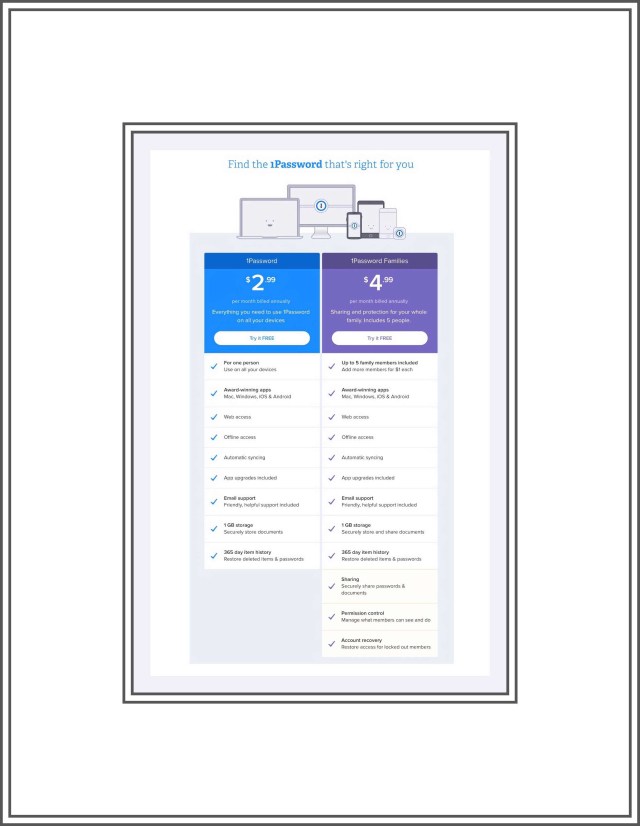
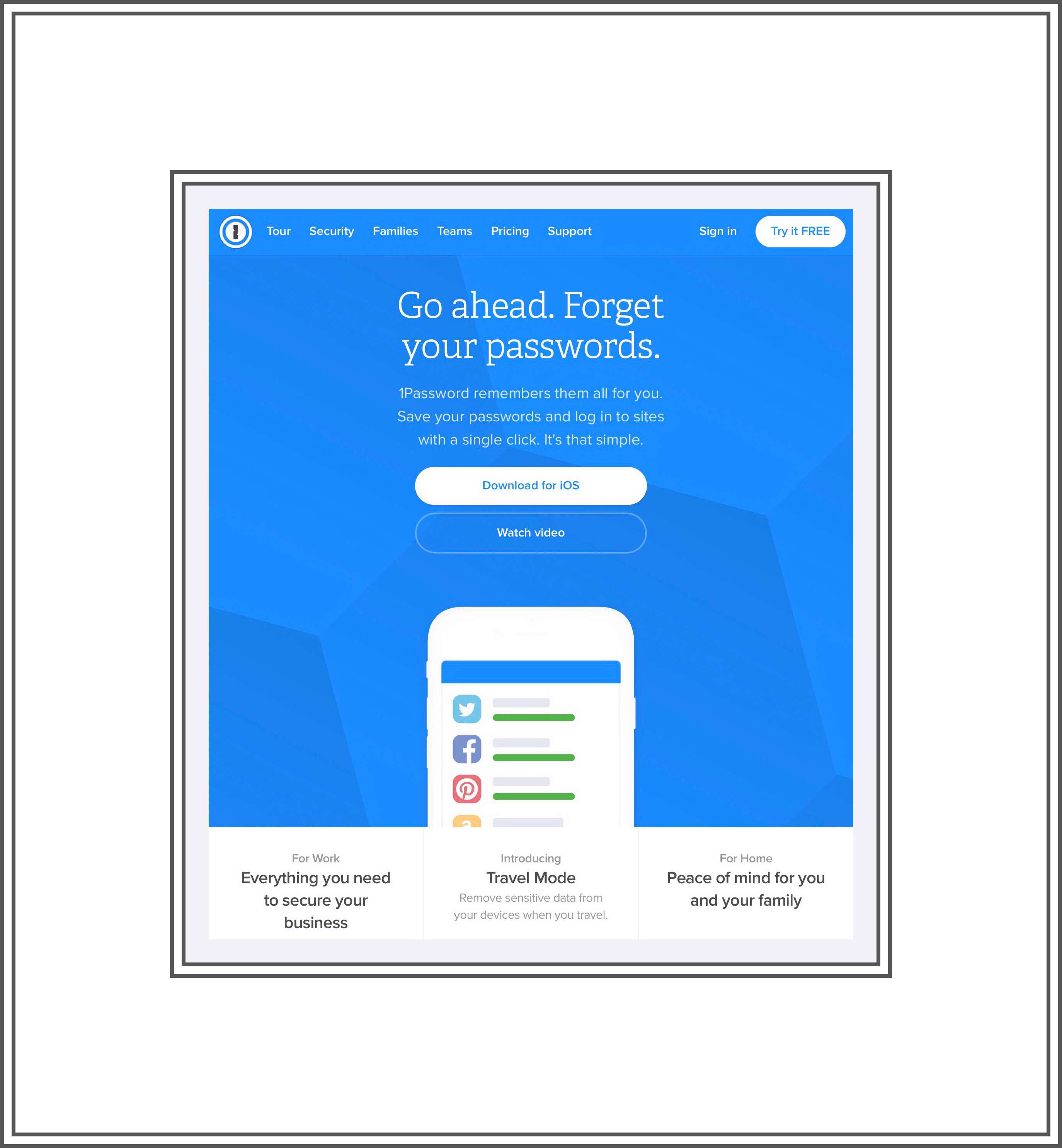
# 1 1Password Free or $36 per year Premium or $60/yr for a Family
*You can only use 1Password on ios if you update to ios 11. Since I won’t because of all the ios 11 problems this is out…leaving Lastpass as my best option right now (Feb. 2018.)
Here’s a link to an awesome 10 minute video done by DottoTech a highly successful Tech Vlogger from December 2015…really though I just watched it among many others. It’s still current and simply the best I watched.
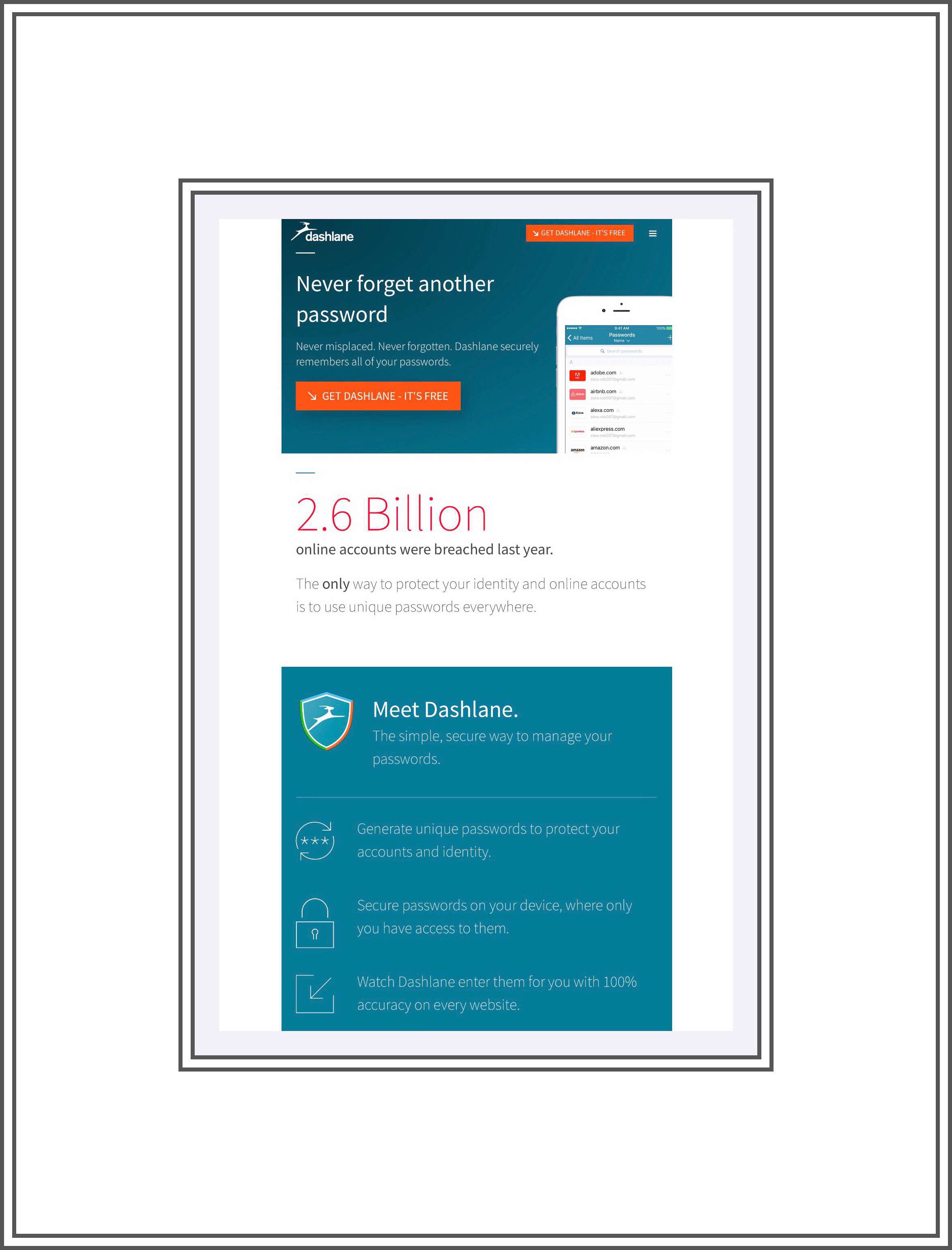
#2 Dashlane Free or $40 per year for Premium
*See my more recent post on the Death of Dashlane on why I’m no longer recommending Dashlane. It means that the paragraphs below no longer hold true. Why don’t I delete them then you might be wondering? Because I still hold out hope that Dashlane will get their act together and fix things!
Dashlane has been my password manager for 3-4 years. I loved Dashlane so much that I would quite literally sing their praises to any stranger walking by who might hazard mention of the topic. While I can’t say the same thing is true today…I’m not really out-of-love with Dashlane. It’s more like our relationship has matured and I’m more able to see both the good and the bad aspects today.
But, things did sour a bit after I experienced a few negative customer service encounters. Rest assured however that the powers to be behind Dashlane did rise to the challenge and seemed to go to some lengths to improve in this and other areas where they aren’t as strong as they could be. The other reason my ranking has slip down is because Dashlane was originally developed for Apple devices. I was an early user. Back in the beginning we had so many cool features that I loved that slowly disappeared overtime.
Initially,whenever I inquired about that I wasn’t given a straight answer (thus the looping back to my first issue.) However, I finally did get a real answer. Their answer was because they were now offering Dashlane on so many platforms that they just couldn’t manage that high level of amazingly great features anymore. Their service now, while very good, is just a sort-of a watered down, vanilla version of their former self. There simply isn’t anything exceptional anymore.
Yet, I continue to use Dashlane and I’m happy with how it performs for me almost always…and still occasionally really thankful too! Overtime their consistency is beginning to win over my husband, albeit very slowly. After pretending to use it for maybe 3 years (while behind the scenes I maintained most aspects of the storing of his credentials) he seems to be warming up to Dashlane too! Just so you don’t underestimate the importance of that…FYI…he was that guy who used all 00’s for his passwords just a few years back…so…real progress has occurred here!!

Here’s a second link to Dashlane’s support website…which has greatly improved recently and I’d venture to say might be the most impressive of the lot!
#3 LastPass Free or $24 per year for Premium
See how LastPass works.
LastPass was the originator of modern password managers. They’ve been around literally from the very beginning. That should help allay any fears you may have regarding their ability to safeguard your data. But this can also work against them. They’ve had things go wrong once or twice I would image, or they’ve gotten a tiny bit of ‘not great’ press here and there. Essentially LastPass just generally has a longer, organic history than the others. Rest assured however, that anything you might run across about data breaches or anything else happened very long ago and if/when problems arose LastPass was always heralded in the press as having handled things with the utmost care and regard for their customers. After all…there’s a reason they still reign as # 1 in terms of number of users.

Discussion of My Top 3*
You will not go wrong with any of these choices and your decision will come down to cost and personal taste I think. In my personal opinion this order changes. For example, for years Dashlane was in first…but recent problems led me to bump it down although if you read Dashlane’s response to my post about their problems at the very end of this article…you’ll see that they are trying hard to fix things and I’ve noticed improvements.
But for new users, Password managers need to be simple. The whole concept can become very complex very quickly, so it’s important for new users to stick with the manager they’ve chosen and nothing will help that more than their ability to easily grasp the big picture and have a feeling of confidence that they’ve mastered using it quickly. Right now, in my opinion, that description best fits 1Password.
Will I quite Dashlane and switch? No, but I may try out 1Password sometime when the opportunity is right.
The opportunity was right for me to test out LastPass last year. When I’d originally used LastPass many years ago they were the only one that I knew of and their software was only found on computers. Quickly, I became confused and overwhelmed trying figure it out. So, I was more,than pleasantly surprised when I had a chance to once again try out LastPass and my experience could not have been more different from that earlier one!
LastPass, in 2017 had a simple, easy interface, great step-by-step instructions and was once again the winning utility it began as. So, truly…the order shown is almost irrelevant given the minuscule differences between the big three.
Some of the Best Resources I Found That Ranked Passwords Managers
My first step is always to get a handle on what’s been published recently. Unfortunately, I’m coming up really short for timely information currently. It seems that there were a lot of great articles written at the beginning of 2015…but very few were written since then. In fact, the most current comprehensive article I’ve found is from June of 2015…so while the information contained in it is great stuff…it’s still information that’s roughly 6 months old! Six months is a very long time in the online world of data security!
So, this was the best, most comprehensive article I found back in January 2016…by a significant margin too. It was about 6 months prior in June 2015 by Tim Ferrill for InfoWorld. His article was originally called:
Review: The best password managers for PCs, Macs, and mobile devices
In 2017 he streamlined his title to read: ‘The 6 Best a password managers‘
t he writes really great in-depth reviews of the following 6 password managers. I’ve linked each one to that specific section of his article.
- 1Password
- Dashlane
- KeePass
- LastPass
- Roboform
- SplashID
Tim goes on to write less detailed, but still really helpful sections about 6 more password managers (ironically that means he gave us 2 as bonuses based upon his article’s subtitle!) These include:
- Symantec Norton Identity Safe
- RoboForm
- Password Safe
- My1Login
- Keeper Backup
- DirectPass
The last useful data I gleaned was contained in the 15 Comments which followed his article. In the comments there were a few more password managers mentioned that I’ll look into further, including:
- Nervepoint Access Manager
- Intuitive Password
- CrypSafe for Android
- SafeInCloud
- OneID
After posting my first draft of this on Twitter I received a request to include one additional password manager named Zoho Vault. So I took a quick look at it and decided to add that one to this first list too. Zoho seems more geared towards corporate use but appears to offer a nice complement of features for free for personal use as well. You can read more about it via the link below
- Zoho Vault
After spending quite a bit of time setting up Zoho Vault my initial impression was confirmed…it seems more geared towards business users who have multiple users and overly complex for personal users. But for business users who need to manage many passwords for multiple groups I suspect it has true potential.
Also mentioned in the comments section was a last category I’ll consider here. Many modern browsers offer built-in password managers now. The 3 that I’m familiar with include:
- Firefox
- Chrome
- Safari’s Keychain
While Internet Explorer does save passwords too, I don’t use it (you shouldn’t either because more viruses target I.E. than any other browser.) Therefore, I’m unfamiliar with how I.E. password management functions, although I do have some vague recollection that passwords seemed to me to be exceptionally secure in Explorer. But currently, with Windows 10, I.E. is no longer even Microsoft’s built-in browser anymore. MS has developed a brand new browser called Edge, which I assume also has a built-in password manager, but because I’ve not updated to Windows 10 yet, I know nothing about Edge.
What I Can Tell You About Built-in Browser Password Managers is this…What a Difference a Year Makes
Last year, when I wrote about built-in browsers supporting password management I stated that Chrome didn’t offer a secure method for accomplishing this. But in 2015 Google orchestrated a massive overhaul of security for many of their products (which actually caused a lot of problems for ios users too and has led to this being my most visited post) and I’m happy to now be able to recommend using Chrome to safely and securely store passwords once again!
When I last wrote about Apple’s Safari password management utility I wrote that their system was adequate, but minimal. Now that Apple has merged their Keychain security software with Safari, Apple’s password management system is perhaps ‘the best of the browsers’…and then some. Simply put…it’s very good. So good in fact that it almost makes this whole discussion irrelevant if someone only uses Apple hardware. But for those people using hardware from multiple platforms, such as from Windows and Apple or, from Android and Windows for example,…a good password management system is still necessary and advised.
The Firefox password manager utility hasn’t really changed much from what I can tell. Since that’s what I use on my computer…which frankly I don’t really use very much at all because I use iPad’s almost entirely…that’s not really a bad thing. I’ve always believed that Firefox had the best method of securing passwords…it wasn’t a feature-filled method, nor was it fancy. But it was, and still is, solid and secure. The only negative that I can think of regarding Firefox is that they have consciously chosen to not be accessible on many different platforms…meaning that the ios app that used to sync bookmarks and passwords was dropped from the App Store. As was their entire browser for Windows 8…which is why I began using Chrome more when using Win 8 devices. This has essentially made Firefox a single platform solution…which is definitely why I first sought out a better method of password managers for multiple platforms in the first place!
A Little More About My Research Process
When I first began this, I was intending that this would be an ongoing research sort of a topic that I would periodically revisit and add new information to. As you can see in my progress above, that concept didn’t really pan out. However, I am keeping parts of the concept in place. For example, I am going to continue to update this article, as the password manager landscape changes over time.
Tim’s article, which is the main one I outlined above list’s password managers in order of his preference…meaning that the password manager he recommends the most, given that everything else remains equal, is 1Password. His hierarchy is helpful because I’ll use it as a benchmark for comparison to other data I find.
My research process generally goes like this. Step One is that I gather as much data as I can. If that data is already categorized in a hierarchy like Tim’s is, than I can do a list to list comparison. But even if it isn’t, that’s OK. Because during my first phase what I’m really trying to do is just zero in on the password managers that are considered to be the best by many different sources. Essentially what I’m trying to do is cull out the outliers so that I have a solid list of maybe 6 or 7 top performers that I’ll look at in much more detail in Phase 2.
Additional Resources
In general, the Resources appearing here will follow a specific chronology. Those appearing first will be oldest, and the ones appearing last will be the most recent. Therefore, reading from the bottom up would ensure that you’ve seen all of the most recent resources.
The next article I ran across in 2016 was one I found to be really useful because of the format they employ. I’m referring to the website called Top 10 Reviews. I used to think that this site wasn’t legit because they display a lot of ads. But I was wrong. The data presented here is actually quite useful…especially for my Phase 1 purpose of gathering lots more information . The article shown in the screenshot below is 2016 Password Management Software Reviews:
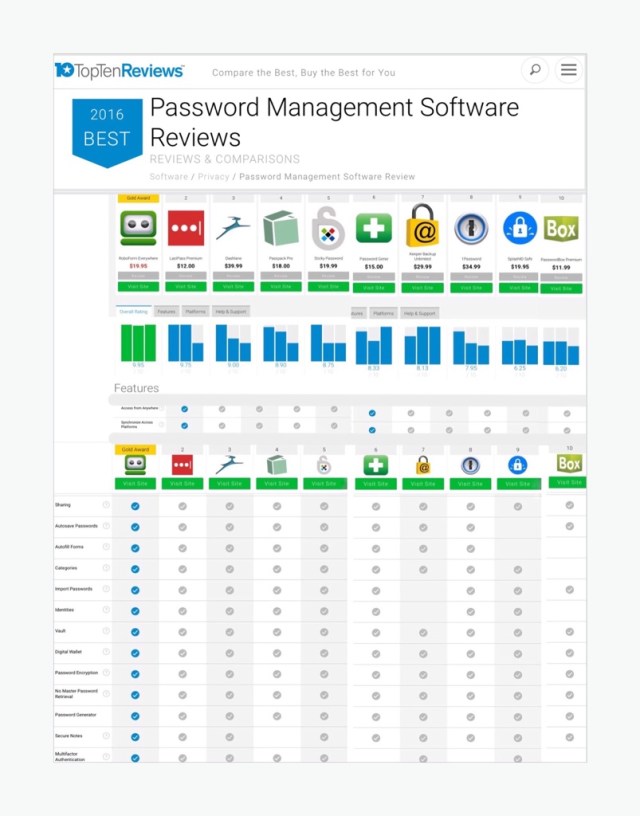
The screenshot above only shows the first table of data in this article…but it’s the most important one for my purposes. The table shows what this site’s hierarchy of password managers ranked from best (1st) to least favorite (10th) was in 2016. Their list is a great cross-reference for the earlier lists I extracted from InfoWorld’s article.
But the Top 10 article contains a lot more useful data too, so be sure to take some time to read it! I had problems in 2016 finding more comprehensive listings which also somewhat explains my slight abandonment of the project for a while. Luckily in 2017 there’s a lot of fresh and new content. So below, I continue with some more recent articles circa 2017.
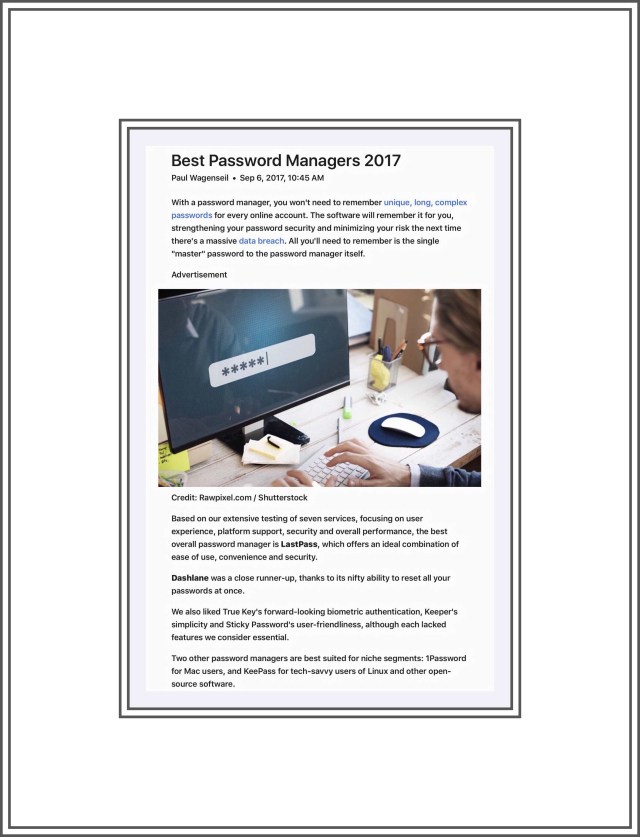
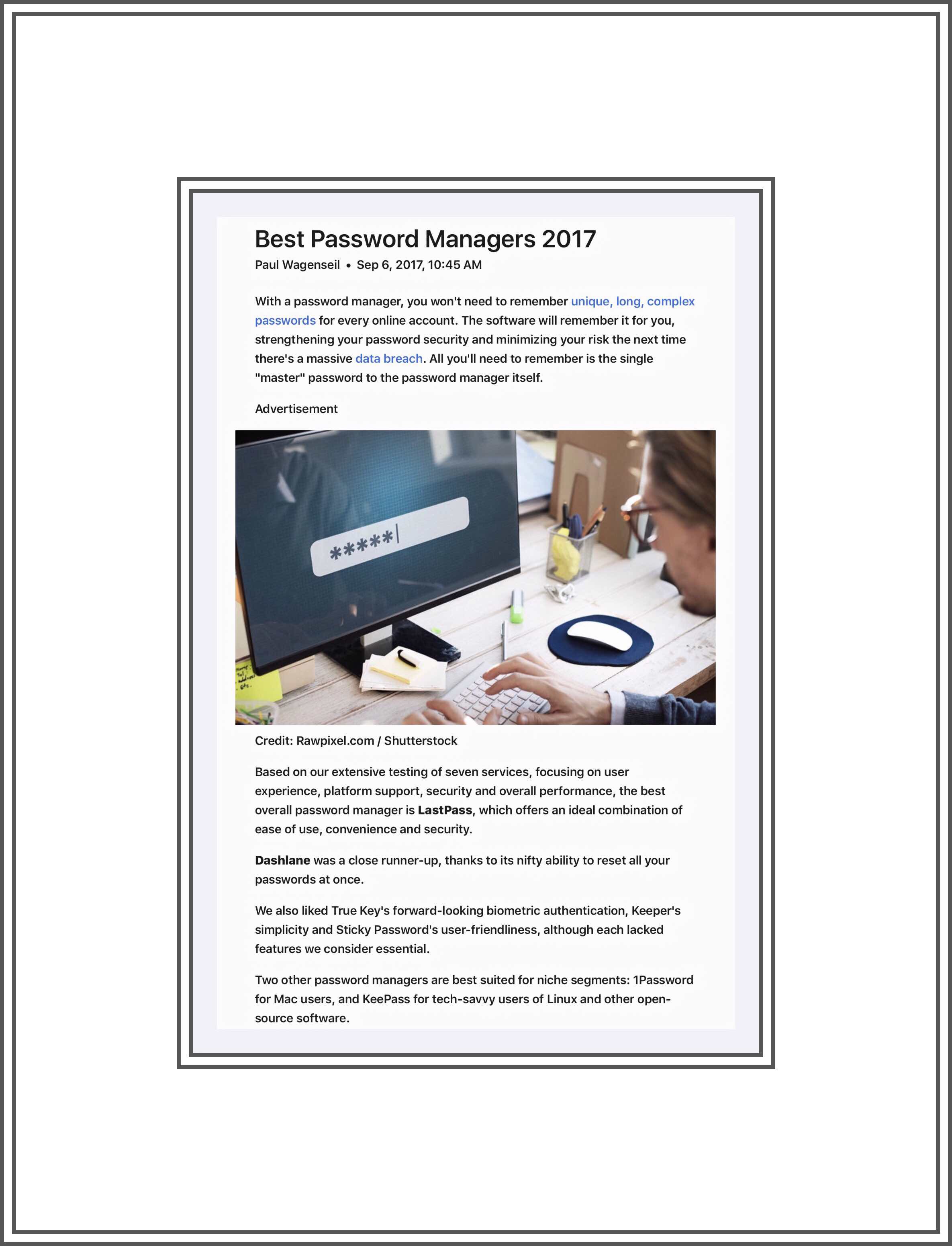
Tom’s Guide is a well-respected source writing about computers, networks and mobile devices and offering advice in a format oftentimes very similar to my own. Here’s a link to their most recent coverage of this topic written just a few days ago. Their title is ‘The Best Password Managers in 2017.’ Incidentally, I’ll give you a sneak peek or their results. They chose LastPass as #1 and Dashlane as #2.
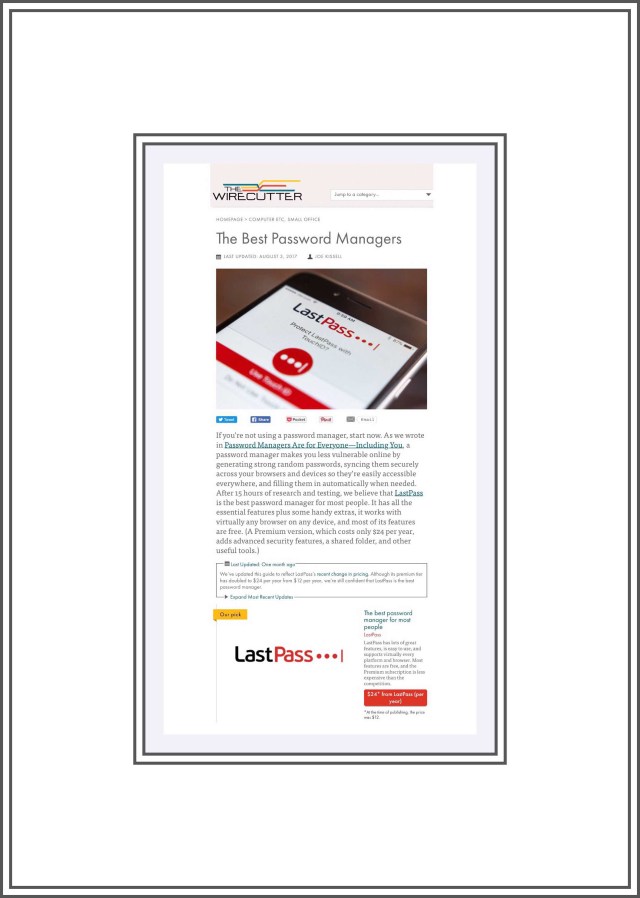
The Wirecutter is perhaps my favorite authority on all topics related to ‘cutting the cord.’ Since we cut the cord last October, I’ve found this website to be infinitely useful. So I was thrilled to find they’d recently (August 2017) published a new article that discusses password managers, called ‘The Best Password Managers.’ In it they list these password managers after completely eliminating KeePass.
1Password, Dashlane, Enpass, Keeper, LastPass, LogmeOnce, RoboForm, and Sticky Password.
Why was KeePass eliminated? Below are Joe Kissell’s exact word’s explaining his decision.
KeePass is the only one of the password managers mentioned here that’s open-source, and that’s attractive in terms of both cost (zero) and security (since it’s open to review). However, the only official build of KeePass is for Windows; and although unofficial ports, derivatives, and compatible apps are available for most other platforms, they vary widely in their features and interfaces, and not all of them are free. Several of my must-have features (including cloud sync and browser integration) are available only by way of optional plugins, some of which aren’t supported on all platforms. (A variant of KeePass called KeePassX—available only for Linux, Windows, and macOS—has fewer features and does not support plugins, so it would not have made my list regardless.) When nearly every entry in the KeePass column of my feature table was “it depends,” I realized I couldn’t make a fair, apples-to-apples comparison to other password managers. And while KeePass may appeal to tech-savvy readers who don’t mind tinkering and experimenting to get their desired results, an app like this without a consistent user experience and with no official support is something I felt uncomfortable recommending for most people.
Interim Conclusion
It might be interesting to readers to note what all 4 of my main sources have chosen as their reigning #1 password manager.
Me | 1Password (but just as easily could have been Dashlane)
InfoWorld | 1Password
Top 10 Reviews | Roboform
Tom’s Guide | LastPass
The Wirecutter | LastPass
As you can see LastPass and 1Password are running ‘neck in neck’ in 2017. While it may not appear that Dashlane holds as revered a position in the rankings, don’t forget that Dashlane’s initial entrée into the market was met with shining accolades by the 2 main mobile platforms.
First Apple highlighted Dashlane as one of the best new apps for ios in 2015. A year later when Dashlane’s Android version was launched in 2016, Google Play bestowed the coveted ‘App of the Year’ title to Dashlane. Therefore, it really does come down simply to your personal preference, budget and perhaps consideration regarding what your other family members may be using so that password sharing can be readily undertaken.
Comments
If you have anything to add, now’s the time. In the interest of preserving reader’s privacy, any comments you make here can be done in complete anonymity…or not…it’s up to you. Just use an alias for your name if you don’t want your real name displayed publicly. Look for the comments box a little further down the page.









 vsatips