Bubble Browser is a Picturesque App That Creates a Kind of Mind Map for Evernote Notes


Bubble Browser is a cool app I ran across recently that graphically displays all of your Evernote notes beautifully…

I’ve been searching for a great mind mapping tool to use with Evernote. Something that would work well on ios devices. Imagine my surprise when I discovered that perhaps the best option is one that I’ve already explored and even written about here at vsatips.

I first encountered Bubble Browser in 2013.  I don’t remember where or how I first discovered this cool app…but I was so impressed with it that I wrote this short post.

Well, guess what…Bubble Browser is exactly what I’m searching for now, in 2016.  I need a graphical way of displaying my notes in a mind map.  Not only does Bubble Browser fit the bill…but it does this very elegantly!  So, I’ve rewritten my original post to include some new information.

Why Do I Need a Mind Mapping Tool?

A Mind Map of Tags Would Help Me To Manage Tags in a Batch-Like Mode on ios

I use Evernote almost exclusively…all day long…everyday…to gather my thoughts, capture ideas, store relevant content…virtually everything I do and everything I think ends up in Evernote.  My notebooks, notes and tags are voluminous.  I need a way to see large notebooks in relative space instead of in a linear display.  In addition to notes and tags Bubble Browser includes bubbles for dates, which is a great way for me to see subsets of my data by creation date.

My main purpose is to start adding more tags to notes as a method of cross referencing all my data. Because recently I encountered something I didn’t know about previously…there’s a maximum number of notebooks for individual user accounts.  That maximum is 250 notebooks.  I’ve almost reached that limit and I need a better method of classifying data that won’t encounter a maximum limit in the future.  Because the maximum number of tags allowed is 100,000…which essentially means to me that there’s no upper limit for tags.

Steps to get started using the Bubble Browser app

Bubble Browser Video Tutorials

The team that developed Bubble Browser is from Poland.  They’ve created 2 videos on Vimeo that are both visual tutorials for learning to use the app.

IMG_0179.JPG

Bubble Browser was named one of the top 100 best designed apps of 2014 by the US Mobile & App Design Awards ranking service.  The app is intended to provide mind mapping features which in turn provides additional insight into the breadth of your notes, by categorizing them into colorful bubbles. The main types of bubbles are dates, tags and notebooks.  I’m not sure why this app never really was accompanied by a specially designed marketing campaign…because it truly is a brilliantly beautiful concept.

The Following is Taken Verbatim From App Design Awards Website:  

“The Team Behind Bubble Browser

Macoscope is an award-winning design and development studio from Poland and the first Polish startup dedicated to creating amazing applications strictly for Apple products. Established in 2009 in Warsaw by three veterans of the software and telecommunications industry and serial founders, Macoscope has set out to channel the creative energy of its experienced staff of designers and developers on to delivering awesome products for Mac and ios users as well as working with external clients on bringing their ideas for applications to life. 

Other Macoscope products include Code Pilot, Birdseye Mail, Nozbe, Invoices, and HUDTube. “

Macoscope’s Website

In addition to the 2014 design award, Bubble Browser won Evernote’s own Design Achievement Award in the 2013 Devcup

Here’s a link to it in the App Store

IMG_0181.JPG

IMG_0182.JPG

IMG_0180.JPG

IMG_0183.JPG

Please feel free to leave me any comments:

← Back

Thank you for your response. ✨

Posted in A Picturesque App That Displays Your Notes in Evernote Visually, Evernote, Evernote's versatility, ios apps | Tagged , , , | Leave a comment

How to Follow Both WordPress and Non-WordPress Blogs Using the WordPress Reader

Introduction

WordPress.com is a great place for those who are new to blogging to try their hand at writing.  But it’s so sophisticated, offers so much flexibility, has so many features available to users, and continues to innovate and improve, that you’ll never outgrow WordPress.  So WordPress.com can easily meet the needs for long term and more advanced bloggers and web developers too.  

Friends and family sometimes ask me why I’m so diligent at writing and keeping my blog material fresh and current.  It should be obvious to anyone who follows me that I really love WordPress.  Because I do, that makes it both fun and easy to keep up with my blogging responsibilities…really easy in fact!  Blogging using WordPress doesn’t feel like work to me…it feels like fun and I look forward to writing each day almost as much as I look forward to researching new topics to write about.  I could not and did not anticipate that I would love WordPress as much as I do…my switching to WP was truly a happy accident set in motion by events beyond my control.

There are 2 Ways for WordPress Bloggers to Follow Fellow WordPress Bloggers

  1. Following with an email subscription – using this alternative you’ll receive an email in your inbox each time the chosen blogger publishes a new post
  2. Following using the WordPress Reader – rather than receiving an email this method requires you to initiate an action…that of opening your WordPress Reader and reading the latest blog posts from everyone you follow there.

The WordPress Reader is available via a web browser or an app…in my case I primarily use the ios app, therefore my screenshots will illustrate this method…but the steps and capabilities are essentially the same regardless of the platform you’re using.

Followers: Photo credit: guevo via Visualhunt / CC BY-NC-SA

Photo credit: guevo via Visualhunt / CC BY-NC-SA

Why I Love Using the WordPress Reader & Why It’s My Preferred Reading Vehicle for Blog and RSS Subscriptions…

What I Used To Do Just Didn’t Work Well for Me

  • I get way too many emails quite possibly because I have way too many email accounts.  Consequently I rarely actually ever read posts sent to me via an email.
  • When I visit the inbox that I use for receiving new post feeds I’m usually looking for comments to my own blogs, or I’m looking for a specific email that I need for something…it’s generally not a good time to drop everything and read other’s posts.
  • When I notice that my inbox is getting filled with unread emails I’ll take some time to sort emails into folders I’ve setup…this task alone can be a cumbersome, time-consuming one, but it assures that I can find emails when I want to and that I don’t miss important emails. This predicament has led to my trying to use inbox filters to presort emails I receive into designated folders.  Sadly, I rarely ever actually have time to go back and read even the sorted emails.  And if I do have some time I just never think of it….whereas I do think of the Reader.
  • In essence the ‘big picture’ for me is that emails can easily become an overwhelming burden whereas the WordPress Reader isn’t.  In fact, it’s quite the opposite.  The WordPress Reader is accessible, easy to manage, and visible enough to me stay in the forefront of my mind without becoming burdensome or annoying.  Plus that it’s just a great, visually streamlined way to read other bloggers’ posts.
  • The Reader has a lot of useful tools for making your reading experience even more productive.  You can use both tags and lists to create curated topics with specific content for yourself.  Krista wrote a great WordPress Daily Post recently about using lists.

One big reason that email subscriptions have never worked well for me is I have OCD tendencies that compell me to remove clutter…this has led me to seek out methods and utilities to manage my inbox.  The term that my email provider Hover uses for this is Filters, but other email providers may call these rules or something else.  They all act in the same manner though…they give you a way to ID specific categories of emails by subject or sender and attach an action to the group…in this case my action is to move all those emails to a specific folder for reading later.

Some of the Pluses & Minuses I’ve Encountered Using Filters for Sorting Emails into Folders

I could and do setup auto-sorting mechanisms so that I don’t need to manually sort as many things.  These definitely free up a good chunk of time for me…and in fact I’ve done quite a lot of this…but auto-sorting has some disadvantages too.  In my case the email servcie I use (Hover) has very ‘exacting’ filters…so I need to create a new sort filter for virtually every iteration of a potential new post feed.  The end result is that I’m left with a large number of filters that I need to tweak occasionally.

Another problem with the auto-sorting method is that it sometimes works too well, and emails that I really do need to see end up getting auto-sorted and placed into email folders without ever appearing in my inbox.  This can result in my sometimes missing potentially important or time-sensitive information.  You need to be very cautious when using methods like these!

My 1st Tips Blog About Blogging

My 1st Tips Blog About Blogging

I Thought That There is One Big Problem With Using the WordPress Reader…

 but I was wrong…there isn’t and that’s the main reason why I wrote this post…

The problem is that it’s not at all intuitive or easy to add new blogs to the Reader.  At least, for me it hasn’t been.  To circumvent this issue, on my own blog’s posts I’ve added a Widget that allows those who visit my blog to ‘subscribe’ to it using the Reader…but I don’t actually seem to get a lot of followers this way, so maybe I’ve not done a good job with that tool.  But at least I’ve tried and I have it available to my readers.

At first this was the only option I made available for following my blogs.  And then I discovered that some family members who wanted to follow me had gone to the trouble of creating their own WordPress accounts just to follow me!

So I added another Widget for email subscribers.  This Widget is really only necessary for potential followers who aren’t WordPress members.  Because there’s a built in utility for following by email for anyone who already has a WordPress account.  It appears every time that you are on a WordPress webpage and signed into your account.  It also appears in the WordPress apps as you’re working on your own blog posts.

Unfortunately in the past there were so many blogs that I didn’t read often just because this 2nd Reader option wasn’t available on their websites.  For some reason,  many more bloggers have added the widget that allows readers to subscribe to receiving emails for new posts than the one allowing subscriptions via the Reader.

I attended my first WordPress U class last fall where I met and interacted with a lot of new bloggers like me.  While doing so I wrote a post about adding the Widget for allowing Reader followers.  This is still a great option to include on any blog in which you want to have new followers…but today I discovered that you can also add blogs yourself to the Reader, and that’s what I illustrate below.

Not Only is the Aforementioned Problem Not Really A Problem at All…But The Reader Even Lets You Add Non-WordPress Feeds and Subscriptions!

Recently my ios Reader app stopped updating…the newest blog appearing there is stuck at 93 days old.  While researching if this was a known issue (I didn’t find anything so it must just be me) I discovered that you can add non-WordPress subscriptions to the Reader too!  For me this was a huge revelation…you can read about how the do that here.

Following Comments and Inviting Followers

The last thing I discovered is that you can follow just specific comments if you’d like.  I’ve done that before, but it was an automatic part of making a comment on someone else’s website, so I didn’t know all the ins and outs of that process which you can read about towards the bottom of this page using this link.  You can even send invitations to people inviting them to follow your blog.  You do this in your WordPress.com dashboard on the People page.  Here’s more information about the different types of invitations and how to extend invites to your friends and family.

Steps to Manually Add a Blog (or Website) to Your WordPress Reader

To get to the screen displayed below tap or click on the word Reader from any web browser…it’s in the upper left corner.  A little black menu box will open…select Manage.

Tap or click here to begin adding a blog to your Reader

Tap or click here to begin adding a blog to your Reader

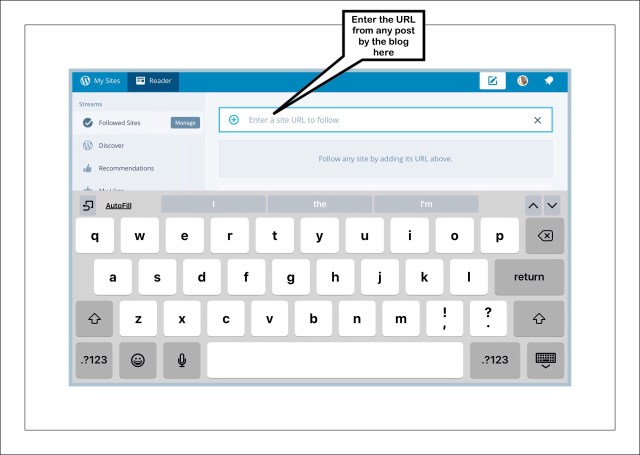
Enter the blog's URL here

Enter the blog’s URL here

Remember to remove the blog title form the URL to capture the whole blog or website

Remember to remove the blog title form the URL to capture the whole blog or website

Voila! I'm now following BGR!

Voila! I’m now following BGR!

← Back

Thank you for your response. ✨

Posted in Blogging, Blogging 201, learn to blog, Learning to blog, Tech Tips | Tagged , , , | Leave a comment

Apple Released an Important Security Update for iPhone & iPad Users January 2016

Who Needs to Install Apple’s Newest ios 9.2.1 Update?

If all 3 of the below criteria are true:

  • You Use an iPhone or iPad
  • You Use Public WiFi’s
  • You’re Using ios 9

YOU SHOULD UPDATE TO 9.2.1!!!

Why?

ios 9 introduced an extremely serious security risk that Apple has just made public this week with their announcement of the security fixes included in the 9.2.1 update.  The risk crops up when users are using public WiFi’s such as those found at places like StarBucks, hotels and airports.  If someone is using an iPhone or iPad that’s been updated to ios 9 (that’s the new operating system that was released in September 2015 when the new iPhone 6s came out) on a public WiFi, the people around them, if so inclined, would be able to access and copy their private usernames, passwords, and any other personal information that their device has stored in cookies.

Apple hasn’t said whether or not the cookies at risk are only those used during an active session at that time, or if all cookies on that device are at risk.  But it’s probably safest to assume the worst and ensure that this can’t happen by installing the newest update.  If you want to read more about the risks you can read this article by hacker.com.

Good article by Hackernews.com explains the ios 9 cookie bug

To Learn the Exact Steps for Updating to ios 9.2.1

Rather than rewrite everything I wrote a few days ago again, please refer to my post about deleting apps that are stuck installing.  Scroll to the photo of the ios 9.2.1 screenshot where I provide both the steps as well as my advice about the best practices to ensure that updates install correctly.

What are Cookies & Am I Really Using Any?

Anytime you use your iPhone or iPad to visit a website, especially those that have logins…including sites like Facebook, Twitter, Instagram and SnapChat...you’re using cookies.  Cookies are created the first time you visit a site and updated during each visit…via the Safari web browser.  Other sites you may use that could include very personal data about you are banks, online retailers, medical clinics and hospital portals.  Basically,  any service providers you may use such as your internet service provider, your real estate broker, your lawyer or accountant…and even your High School classmates group if there’s an online place where you can exchange information.

Cookies are stored by all web browsers…not just Safari.  They are used to help your device access those websites quickly and they also allow the site to personalize your session.  But many people are unaware that websites store that cookie data on your device.  Even if people know that much they may not know how to manage them on their Apple devices.  For iPhones and iPads most cookies will be stored in settings for the built-in Safari web browser…but if you have other web browser apps, like Chrome, cookies will be stored for those sites again within the Chrome app’s settings too…and once again on your device.  If you use many different browsers, like I do sometimes, just the storage space alone can build up to be significant.  (FYI, another favorite browser app I use infrequently but LOVE when I need it is Photon…it’s a browser that lets me run flash based websites on my iPad or iPhone.)

You can find out which version of ios you’re on currently by going to Settings – General – Software Update”

Most websites store cookies responsibly…but some don’t.  The ones that don’t are called malicious or tracking cookies.  They store tracking code on your device that allow a history of your personal tastes and preferences to be compiled and then this information is sold to advertisers.  Wikipedia has a lot of great, easy to understand information about cookies.

If you’re on ios 9 and you want to see all the cookies that Safari is storing on your phone or iPad go to Settings – Safari then scroll to the bottom of the page and tap on Advanced – Website Data and wait for a short list to populate.  Below is a screenshot of the cookies on my iPad mini.  Notice at the top right that all the cookies on this iPad are using up 4.4 mb’s of storage.  If you tap on Show All Sites, a much longer list will be displayed.

Screenshot showing where cookies are stored on ios

You can and should periodically take a look at these and delete any cookies that you don’t recognize.  It pays to be liberal in choosing which cookies to delete.  You can’t really do much harm here because of you accidentally delete a cookie for a site that turns out to be fine by your standards, the cookie will be created and stored again as soon as you visit that site again.  The worst that can happen is that your login credentials will be removed but if you’re using Apple’s Keychain to store all your passwords they will remain in the keychain and Apple will ask you upon revisiting the site if you want those credentials to be entered automatically for you.

2 Ways to Delete Cookies

Manual Method

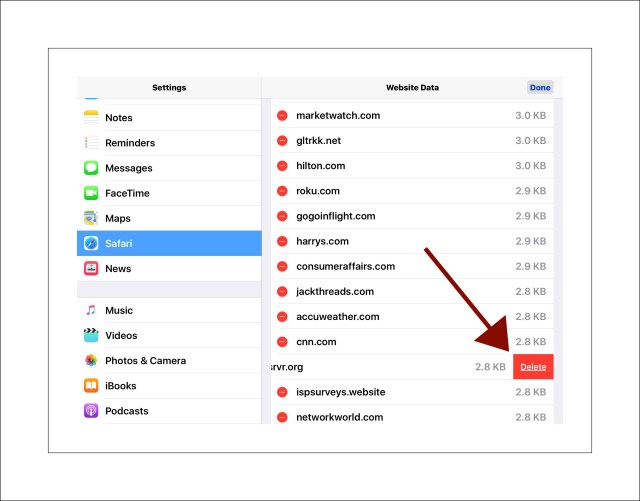
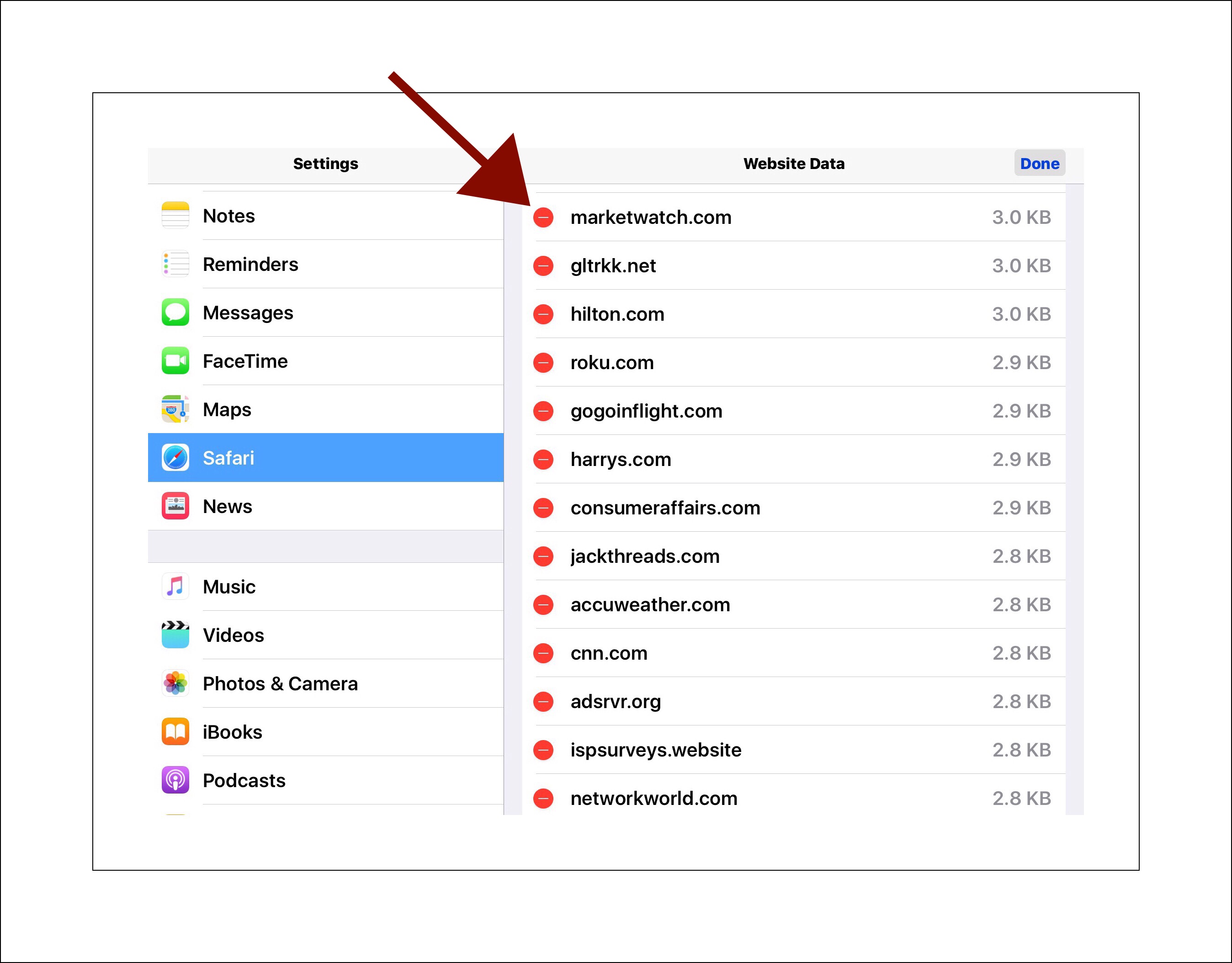
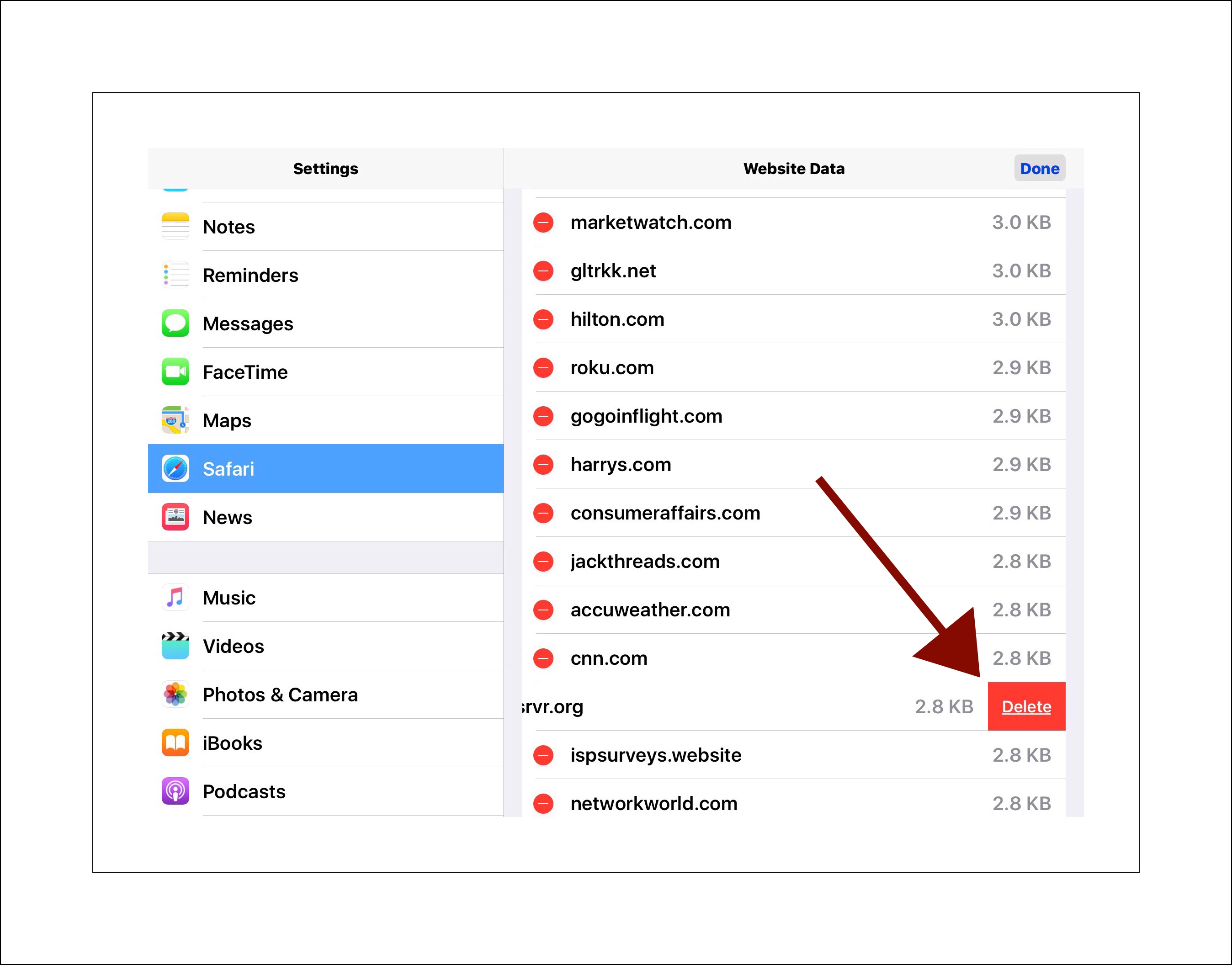
You can scroll through this list and just delete the cookies that you don’t recognize.  Any cookie that has the word ‘ad’ in it isn’t probably something you want.  Also ones that refer to ‘double click’ are also ad based tracking cookies you should get rid of.  Note that in my screenshot below right after I took this I deleted the 2 cookies named adsrvr.org and ispsurveys.website.  To do this tap on the word Edit at the top right to display a column of minus signs and then every time you encounter a cookie you don’t recognize just tap on the red minus sign next to its name and then on the word Delete when it appears.  See the screenshots below:
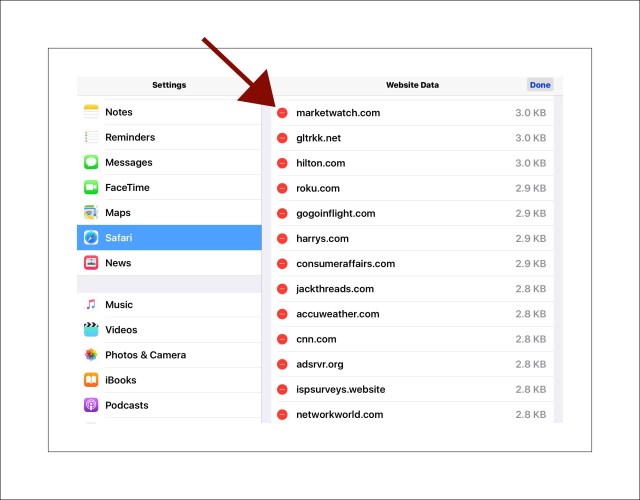
1st of 2 screenshots showing how to delete a cookie2nd of 2 screenshots showing how to delete a cookie

Automatically Delete All Cookies

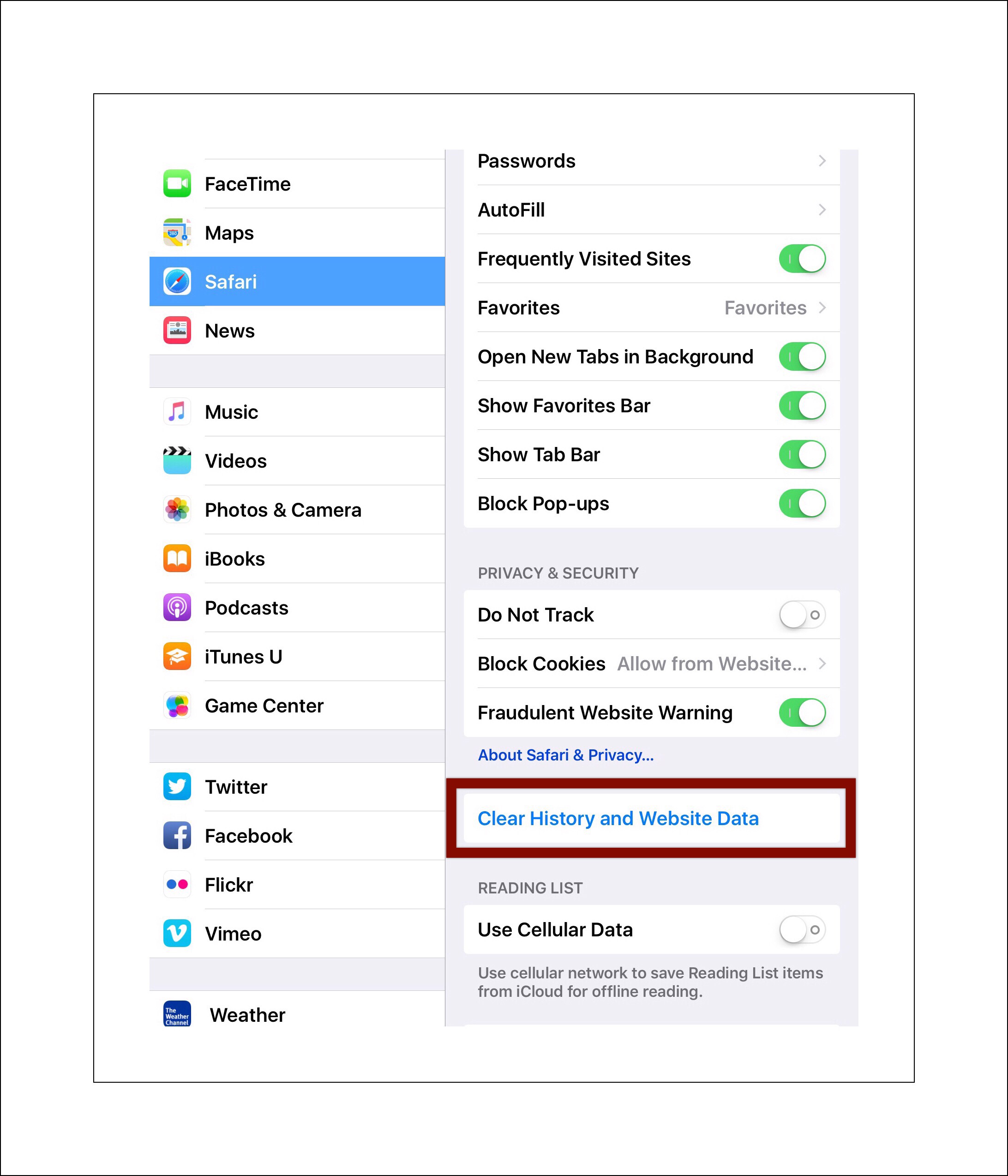
If you want to wipe out all the cookies from here tap on the word Advanced at the top middle portion of your screen, then tap on Safari and then on the blue words ‘Clear History and Website Data.’   See the screenshot below:

Screenshot showing where to delete all cookies on ios 9

You might want to change more of the settings pertaining to how Safari manages your personal data while you’re at this screen in settings too.  You can see some of how I manage mine from the above screenshot.  You’ll note that I don’t block tracking cookies by turning on the Do Not Track button because I do actively manage my cookies…although probably not as frequently as I should!

What About Visiting Those Same Sites Using an App…Not Safari?  Are Cookies a Threat Then?

Frankly, I don’t know.  I’ve researched this a little (OK…not that much) and haven’t found a conclusive answer…especially as it pertains to this recently discovered security hole.  But what I can tell you is this.  Every time you are using a public WiFi your device is exchanging personal data, like your login credentials, with any site or service that you may happen to use…whether it’s doing this from Safari or from within an app is irrelevant…the data exchange occurs regardless.  So in essence,  using public WiFi’s is inherently more risky than using private ones like those at home or work…that’s assuming your work environment offers a secured network meaning one that you need to enter a password to join.

How to Stay on Top of Online Security News

Hacking has become public enemy #1.  There have never been as many threats as those we face today online.  This shouldn’t scare you, but it should help you recognize that learning enough about how to manage and keep your information secure is important.  

It’s a constantly changing playing field but there are tons of great resources at your disposal for staying abreast of the changes…my website is one of them.  You can subscribe to follow me and receive an email when I write something new.  Other sources that I use for this information are Dashlane, my password manager, which automatically alerts me when sites I use are breached, and Twitter.  I follow quite a few security sites offering the latest news on threats.  A few of those are:

Twitter accounts focusing on security:

  1. @HNTweets
  2. @briankrebs
  3. @schneierblog
  4. @taosecurity
  5. @Malwarebytes
  6. @ZDNet
  7. @StopMalvertisin
  8. @LightPointSec

← Back

Thank you for your response. ✨

Posted in Apple, ios 9, Security | Tagged , , , | Leave a comment

How to Delete An App that’s Stuck Installing on iPads & iPhones

ios 9.2.1 is Available & It Fixes a Serious Security Hole so Everyone Should Download it Unless There’s a Compelling Reason Not to i.e. if Your Device is Jailbroken

Update:
Deleting an App That’s Stuck Downloading Updated August 2017

Introduction

Sometimes an app gets stuck in the downloading process and it won’t finish downloading.  If you tap on the app on the home screen that may toggle the downloading state on and off, and sometimes this restarts the download process and the app finishes.  But more often this doesn’t really help and the partially downloaded app just sits on your home screen in their partially downloaded state.  This really annoys me especially when it happens to a huge number of apps when I’m restoring a device using a previous backup.

Lots of stuck apps not downloaded on iPhone 6s

Steps to Try

  1. The first thing to try is just deleting the app right on the home screen and then downloading it again.  You do this by long pressing on the app icon until a little black X appears in the top left corner and all the app icons are wiggling. Then tap on the X and the app will be deleted.
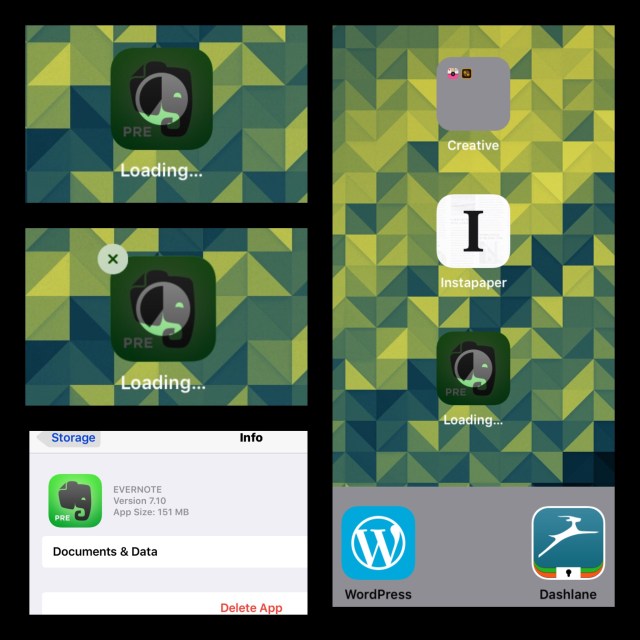
  2. If that doesn’t work you can still delete it by going to Settings – General – Storage & iCloud Usage – Manage Storage and then waiting for your device to display a list of all the apps on it.  The list is displayed in size order (data in GB’s or MB’s).  Scroll down the list looking for the problem app.  Look carefully because you may see only the app’s icon or sometimes even just a partial icon without the app’s name.  But it has to be there so just keep looking until you find it.  When you do find it, tap on it and you’ll be taken to another screen that displays the amount of storage that the app is currently using as well as the delete function.  The words Delete App should appear in red letters at the bottom of this screen.  Tap on Delete App, and the app will be gone.  Then go back to the App Store, find the app in question, and download it again.  Refer to the photo below.
Evernote App Stuck Downloading

The bottom left screenshot shows the screen you arrive at in Settings – General – Storage & iCloud Usage – Manage Storage then tap on that apps icon.

Screenshot depicts Settings - General - Manage Storage - Evernote App

If every other option fails to solve the problem try this little hack to reset the App Store’s cache.

Trick to Reset the App Store’s Cache

Open the App Store app and select one of the menu headings at the bottom of the screen (for example ‘Featured’ ‘Top Charts’ etc.)  Tap 10 times consecutively on the same icon...your iPad’s screen should go blank for a few seconds and when it’s done the App Store should function a lot faster and better.

This is a little trick that popped up on Twitter recently and it really works!  I tested it out and my App Store problem was solved! Apparently this also works for other ios apps…I think for iBooks and maybe iTunes…but not all of them.  It really can’t hurt to test it out if need be because the worst case scenario is that nothing at all would happen.

Network Strength Is Important When Downloading Some Apps

This can especially be important if the app is large in size in terms of bits and bytes.  When you redownload the app make sure you’re in an area where the network strength is good and ideally where you have a WiFi that you can connect to.  Although even if you’re on wifi it may be one that has low bandwidth, like those that are available at 99% of the hotels and motels in the US.  I really think that poor network strength (both # of bars and bandwidth) may be one reason that apps don’t download correctly.

So, waiting until you’re in a good network environment to redownload the app may be useful for some people.  I’m pretty certain that the reason my new iPhone 6s was in such a tenuous state in terms of apps installing was due to the fact that we were traveling and relying on hotel networks.

Download the Newest ios Update 9.2.1

This update has a lot of bug fixes…some of them address apps getting stuck downloading or installing in an Enterprise environment…but it might solve problems in other environments too.

To do this just go to SettingsGeneralSoftware Update and search for an update.  If your device finds that the update is available for you it’s a good idea to close background tasks and plug your device in.  Also don’t do this if the battery is really low…charge it until it’s at about 50%.  Make sure your WiFi signal is good too before beginning the download.

ios 9.2.1 fixes some app's not installing problems

ios 9.2.1 fixes some issues that causes some app’s to not install properly

There’s one very good reason to update to ios 9.2.1.  A cookie hack was discovered a while back that can put the security of ios devices in jeopardy if they are using public WiFi’s.  It’s a serious threat and this update fixes the problem.

If you want to read more about the pluses and minuses of this update this Forbe’s article has the best overview that I’ve found.

Comments

If you’d like to read other reader’s comments (assuming there are any) or leave your own, scroll way down past the WordPress ads, the ‘About me’ and ‘Related Posts’ sections, and look for the little ‘Comment Box.’

Posted in Apple, ios, ios 8, ios 9, ios 9 Quick Tips, ios apps, Tech Tips | Tagged , , , , | 2 Comments