Make Life Easier With Simple Automation Tricks Using IFTTT

Who Doesn’t Love Getting Work Done a Without Lifting a Finger?

I do and I’m willing to bet that other close members of my family do too!  But there’s one specific family member  that I have in mind for today’s tip. I’ll let that person figure out exactly who I’m referring too :-)  So, while this handy ‘Tip of the Day’ is really intended to be for that one special person, because I know that sharing is central to who they are I decided that they’d appreciate my sharing this with our larger ‘family & friends universe’ which, by default means sharing it with the whole world too!

IFTTT can notify me when it will rain.

IFTTT can notify me when it will rain.

One Simple Way Everyone Can Automate:

Use IFTTT

What’s IFTTT?

IFTTT Icon

IFTTT Icon

IFTTT is an acronym which stands for:

IF This Then That

Here’s how Wikipedia defines IFTTTT:

IFTTT is a free web-based service that allows users to create chains of simple conditional statements, called “recipes“, which are triggered based on changes to other web services such as Gmail, Facebook, Instagram, and Pinterest. IFTTT is an abbreviation of “If This Then That”.

An example “recipe” might consist of sending an e-mail message if the IFTTT user tweets using a certain hashtag. Or, if the user is tagged by someone on Facebook, then that photo will be added to the user’s cloud-based photo archive.

Don’t be fooled by the above definition…it’s really much simpler than it looks.  There are a few essential ingredients which Wikipedia explains under Features.  Below is Wikipedia’s discussion of the main concepts IFTTT employs:

  • Channels are the “basic building blocks of IFTTT”, they mainly describe a series of data from a certain web service such as YouTube or eBay. It can also describe some actions controlled with certain APIs like SMS. Sometimes, it can represent information in terms of weather or stocks. There are particular triggers and actions in each channel.

  • Triggers are the “this” part of a recipe. They are the items that “trigger” the action. For example, from an RSS feed, you can receive a notification based on a keyword or phrase.

  • Actions are the “that” part of a recipe. They are the output that results from the input of the trigger.

  • Recipes are the predicates made from Triggers and Actions. For example, if you like any picture in Instagram (trigger), the photo will be sent to your Dropbox account (action).

  • Ingredients are basic data made available from a trigger. For example, the data that are available from the email trigger include subject, body, attachment, received date, and the sender’s address.

For those of you who’s eye’s have already begun to glaze over and are at risk of dozing off right about now (I’m guessing that might be happening purely because that was my first response too!)…don’t worry…

Using IFTTT is Much Easier Than Reading It’s Definition!

That’s because there are a lot of tech-gifted geniuses out there who’ve figured out all the techie stuff for us. They, along with the IFTTT engine, have gone to all the trouble of making their IFTTT tricks very simple for us normal-folk.

Getting Started With IFTTT

Using IFTTT is as simple as creating an account here.  Then connecting up a few of your web-based accounts such as Gmail, Evernote, Twitter or Facebook, by signing into your accounts while on your account page at the IFTTT website.

Then, searching for cool things to do with it.  Those cool things are actually the recipes.  The web-based services themselves are called channels.  So the best way to find things is to search by channel.

Let’s say you have a Gmail account.  You can search the Gmail channel to see all the recipes that other people have created for it.  Once you find one you like, you just select it by either tapping or clicking on it, and IFTTT will automatically guide you through a few simple steps to get it working for you.  When your done you’re presented with a Done message along with a Recipe ID #.
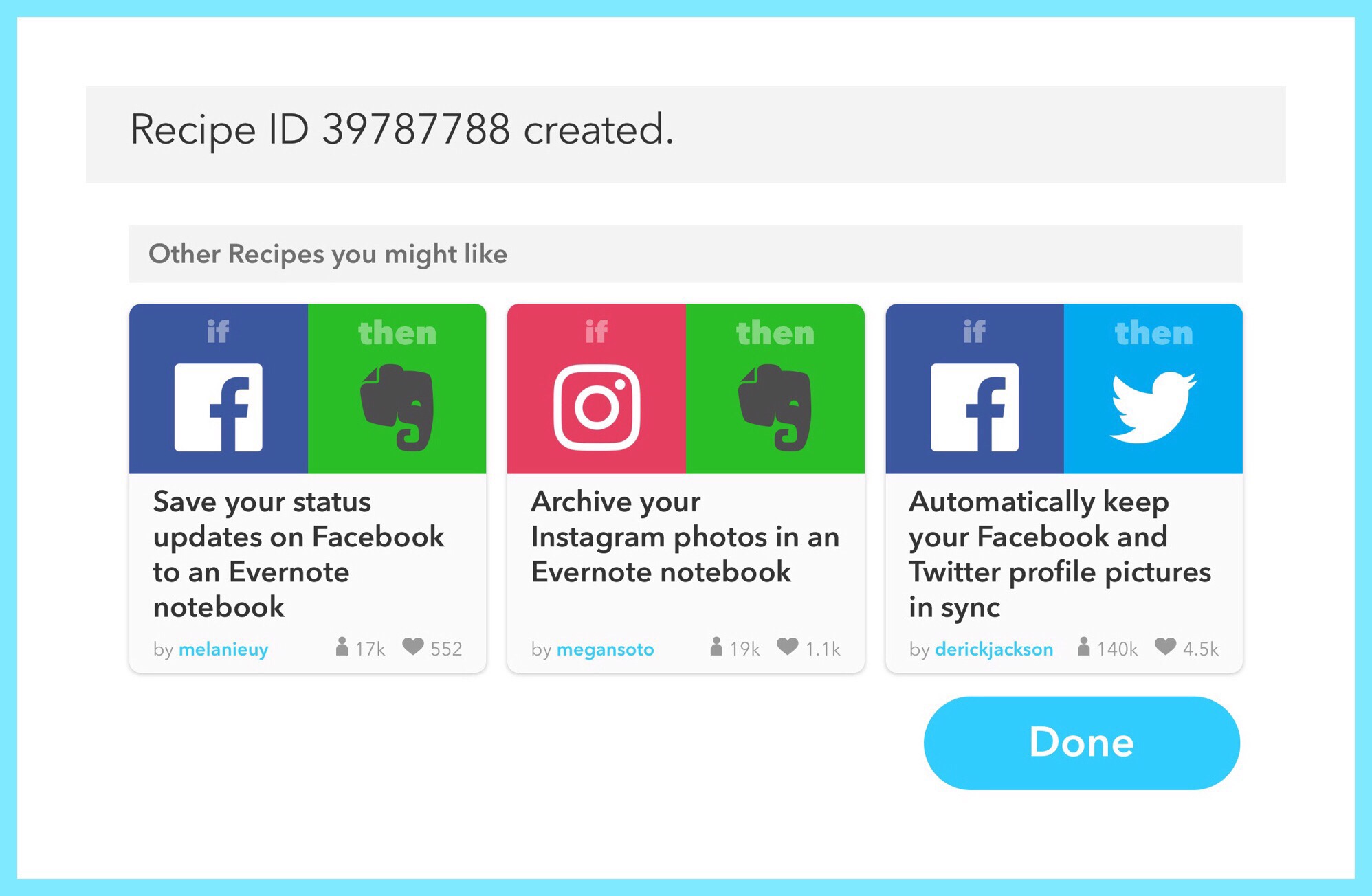
Notification when I've successfully 'created' or connected an IFTTT recipe

Notification when I’ve successfully ‘created’ or connected an IFTTT recipe

But really, you don’t even need to record that number or do anything else…because it’s all so simple.  The only thing that you’ll need to remember to do is to record your user account sign-on information…basically your email account name and your user password.

Some of the Things You Can Do With IFTTT

How I’m Using IFTTT With Twitter

I love using IFTTT to keep track of things for me in Evernote.  One way I do that is with Twitter. Because I’m relatively new to Twitter, I wanted to keep a sort of log of my activities there.  I was hoping that by doing this, it would make Twitter easier for me to understand and faster to ‘get up to speed’ with.
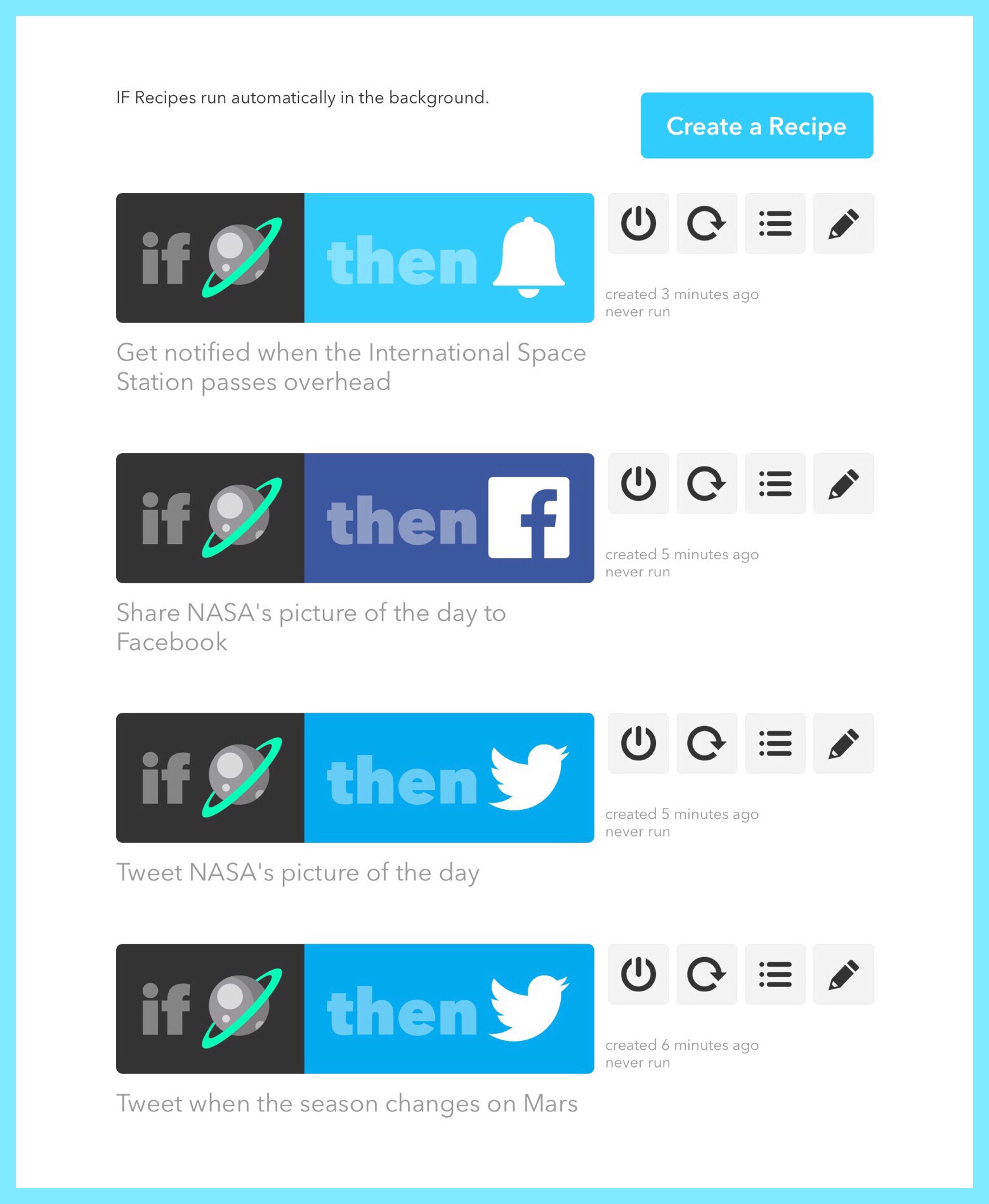
Some of my most recently added IFTTT recipes

Some of my most recently added IFTTT recipes

While my use of IFTTT and Twitter didn’t initially work out the way I’d intended…a much more helpful and important use for IFTTT emerged.  Since I began using IFTTT at the beginning of my Twitter experience…connecting the 2 has proven to be extremely valuable for me.

Just a few days after I joined Twitter I discovered IFTTT.  I had a little extra time that day and I was intrigued by the claims made by IFTTT users.  So I found and then went through the few simple steps IFTTT guided me through to make this action happen:

Everytime I Tweet Something IFTTT Puts My Tweet Into a Note in Evernote

This actually occurs once a day…which is good for keeping my Evernote account from getting filled up with single notes.  In fact, the new Tweets are actually appended to an existing note which changes, or rather, begins with a new note each month.  This is great because as I’ve become more proficient with Twitter I’ve not found a good way of going very far back into time…it’s a similar phenomenon in Facebook too.  To go back in time in my own profile, in both cases I need to scroll and scroll…sometimes for a very long time…just to find some much older information that I can find almost instantaneously by employing an Evernote search.

If You Happen to Use Evernote and Any Social Network Like Twitter or Facebook … Using IFTTT Can Really Help You To Find Your Older Posts Quickly

Other Ways to Use IFTTT

Just by visiting IFTTT’s main website, you’ll automatically be shown lots and lot’s of interesting recipes, or rather, many cool ways you can use the IFTTT service.

Here are some of my newest ways of using the IFTTT service:
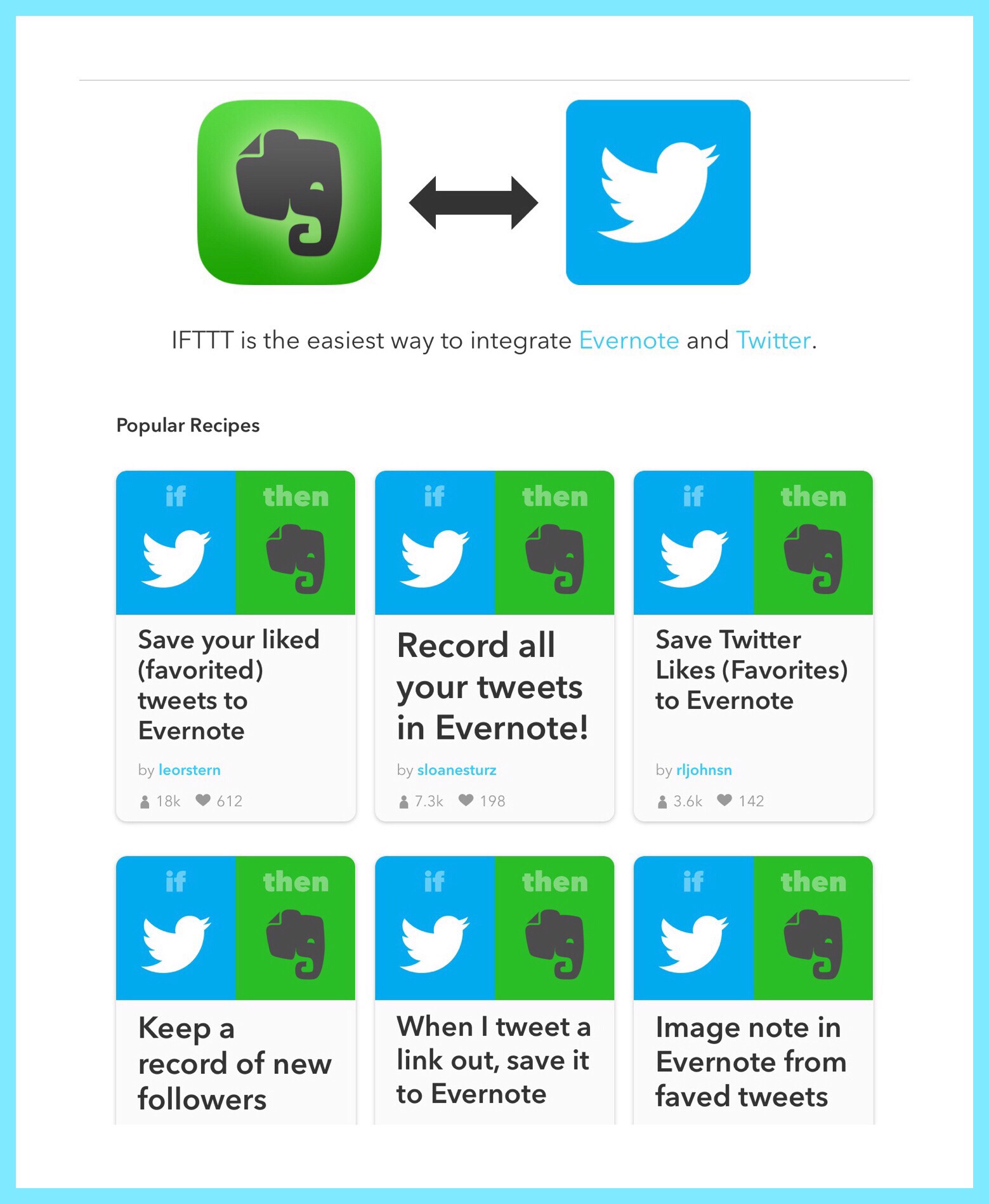
Some cool Twitter - Evernote Recipes

Some cool Twitter – Evernote Recipes

IFTTT Apps

I haven’t really explored using IFTTT’S app until today.  The thing that motivated me to download and sign into the app was a new recipe I signed up for that will notify me whenever NASA’s Space Station will be immediately over my house.  I discovered that just going through the steps to set this up didn’t necessarily mean that this new action was working.
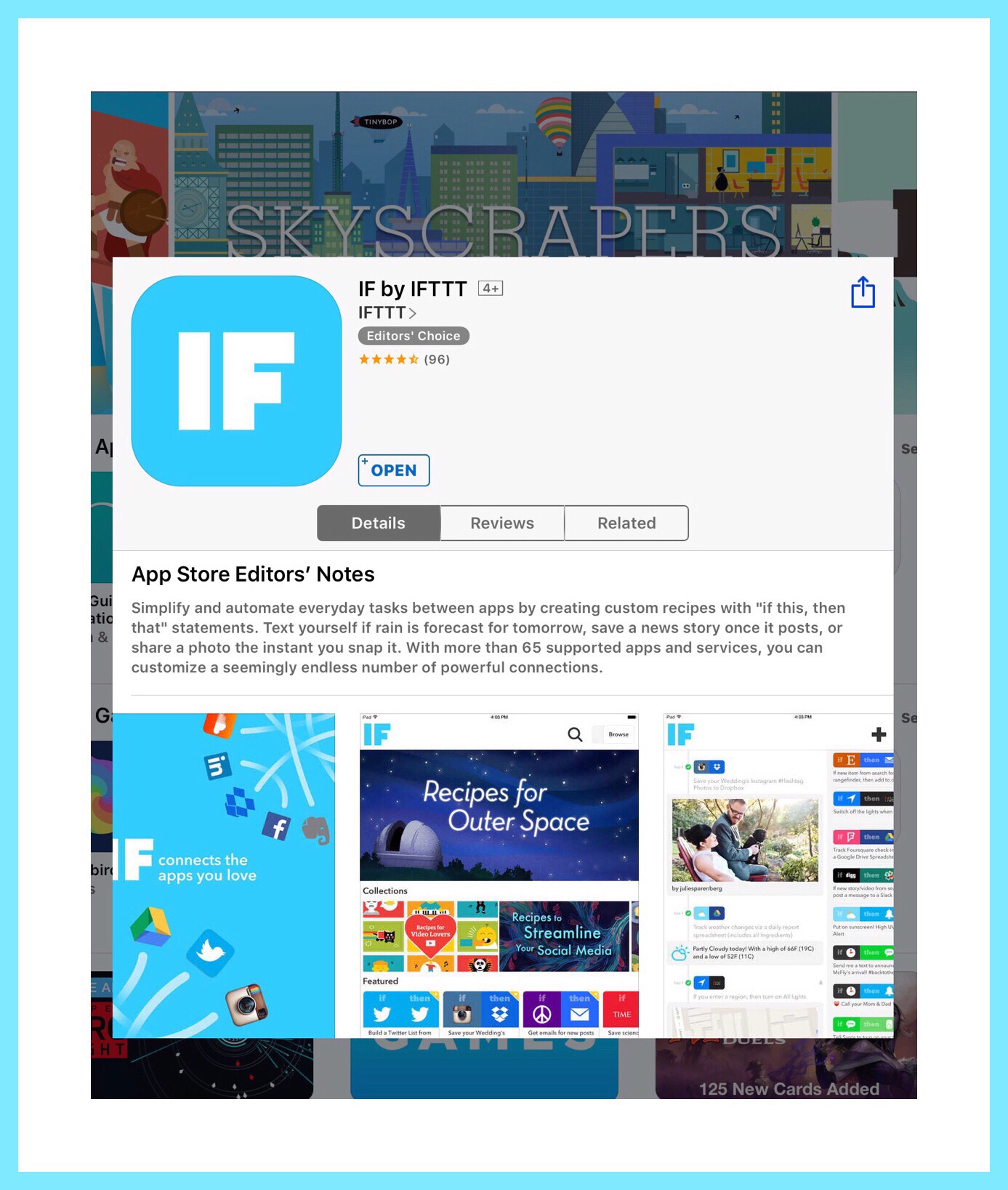
IFTTT ios app

IFTTT ios app

I decided to test out my new recipes by visiting my recipe page.  Once there, IFTTT listed all of my recipes and it let me do different things with them.  One thing you can do is to test a recipe.  I tested the Space Shuttle one and found it FAILED!  It was hard to miss IFTTT’s warning in red!

The main reason that I chose to test that specific one was because I was curious about how I would actually be notified.  Would it be via an email or text message?  Looking at the advanced information for the recipe didn’t shed any additional light on the matter for me…because I’m not really a coder.  So I decided to download the IFTTT ios app and sign into it.  Sure enough, I discovered that’s the vehicle it will use to notify me!

IFTTT Recipe to be notified when the NASA Space Station passes over my house

IFTTT Recipe to be notified when the NASA Space Station passes over my house

The link I provided above is for the IFTTT ios app.  Here’s a link to IFTTT’s Android app too.

I also discovered that it might be possible for me to use IFTTT’S app to create my own recipes…which is something I’ve really stayed away from up until now.  The possibility though of being able to easily code my own IFTTT actions is pretty exciting!

IFTTT Can Do Much More Than Just Connecting Simple Web Based Service’s & Making Those Better for Users

IFTTT & IoT | The Internet of Things is the Key to Home Automation

While I’ve only just begun to learn about all the cool ways you can automate your home and make your life simpler…it’s a topic that’s exploding on Twitter…which is a great place to keep up-to-date about IoT happenings.

What Can You Do Easily With Home Automation Right Now?

A few really simple things you can do with home automation right now  include:

  • You can buy an Internet bridge and a few Phillip’s Hue, Cree, GE or LIFX light bulbs that can change colors to suit your mood or music, or go on at specific times…like maybe when you arrive home or walk into a room.  The technology is quite entrenched now and PC Magazine’s article does a good job of describing the best alternatives for this.  All it takes to set this up is a small bridge device made the manufacturer of the light bulb you choose and then a few light bulbs that you screw into your existing lamps or ceiling fixtures.
Phillip's Hue Bridge and Lightbulbs

Phillip’s Hue Bridge and Lightbulbs

  • You can take control of of home heating and cooling functions by buying a Nest or Honeywell smart thermostat and swapping it out with you existing ones. While I haven’t used Nest yet, when we had some furnace work done recently we needed a new thermostat so our heating cooling guy put in a smart one made by Honeywell.  It lets me check the weather before I get dressed each day or change the settings when we go on vacation remotely if we forget as we’re racing out the door to catch a flight.

I like to think of those 2 functions as easy beginner’s steps to learning all about the Internet of Things and going on to more advanced steps.  One additional way to test the waters is with Amazon’s new Echo Device…which I was thrilled to receive as a Mother’s Day present!  Here’s a link to that…but it’s important to know that I’m a brand new Amazon Associate…which means that if you were to actually buy the Echo via my link in a 24 hour period from when you first used my link…I’d earn a 4% commission on it…although Amazon would pay me that and it wouldn’t impact your price or anything.  But, my immediate family members should not buy an Echo that way…because you’re on our family’s account and I’d get into big trouble with Amazon!  Plus that…we already have it :-)

What Exactly Is Amazon Echo?

Well, as I mentioned above, I’m pretty new to Echo myself so I’m just testing the waters.  But so far, here’s my take on the Echo.  It’s a pretty cool, yet discreet device that sit’s on our bookshelf and it’s where Alexa resides.

My New Amazon Echo

My new Amazon Echo

Alexa is a lot like Siri…but she’s pretty different too.  I first learned of ‘her’ after I published a YouTube video about how Siri scared me sometimes by talking when I had no idea ‘she’ was even listening!  I shared my new video on Facebook. A friend commented on my post that he and his family were often startled in the same way by Alexa…which of course led me to immediately Google ‘Alexa’ and read up on the Echo…and ultimately dropping some thinly veiled hints to my husband and kids that the Echo would be a great Mother’s Day gift…and a little different from the more typical flower bouquets!

So, we’ve only used Alexa for a few months, and I’ve not really even scraped the surface of what ‘she’ can do.  But so far she’s pretty good at:

  • telling us the weather forecast
  • playing any music our hearts might desire that’s free for Amazon Prime members
  • keeping my shopping list of Amazon things…and really more lists but I haven’t quite sorted this out completely yet.
  • finding out what movies are playing around us and the times
  • and bringing us up-to-date on current news headlines (which is great for me because I don’t read newspapers and Twitter is my main source of news.)

Alexa should also be able to conduct any kind of Internet search for us…using Bing, which, as it turns out, is also the search engine that Siri’s programmed to use!  I never knew that, but when I thought about it I realized that Google is Android…so probably Google isn’t motivated to let Siri and Alexa upstage OK Google searches!  Sadly, our internet searches using Alexa haven’t been great so far…unless we search for one of the things she’s already been trained to search for like asking how much the earth weighs.  So here’s one obvious disadvantage of being an early adopter…but according to this short Wired article, Alexa should be able to do much more!

How IFTTT Can Help With Home Automation & IoT

IFTTT can help you to easily automate you home using a companion service and app that the IFTTT developer’s also created called Do. There are companion apps for Do for Android and for ios.  I’ve not yet used the Do service or app, so I can’t speak knowledgeably about it…but you can read a lot more about both IFTTT and Do, and how they work in Pocket Lint’s great article here.  And trust me when I tell you that the little bit in which I’ve dabbled in the home automation arena so far has really ‘knocked my socks off!’  It’s an exciting subject with a huge host of already widely used applications!
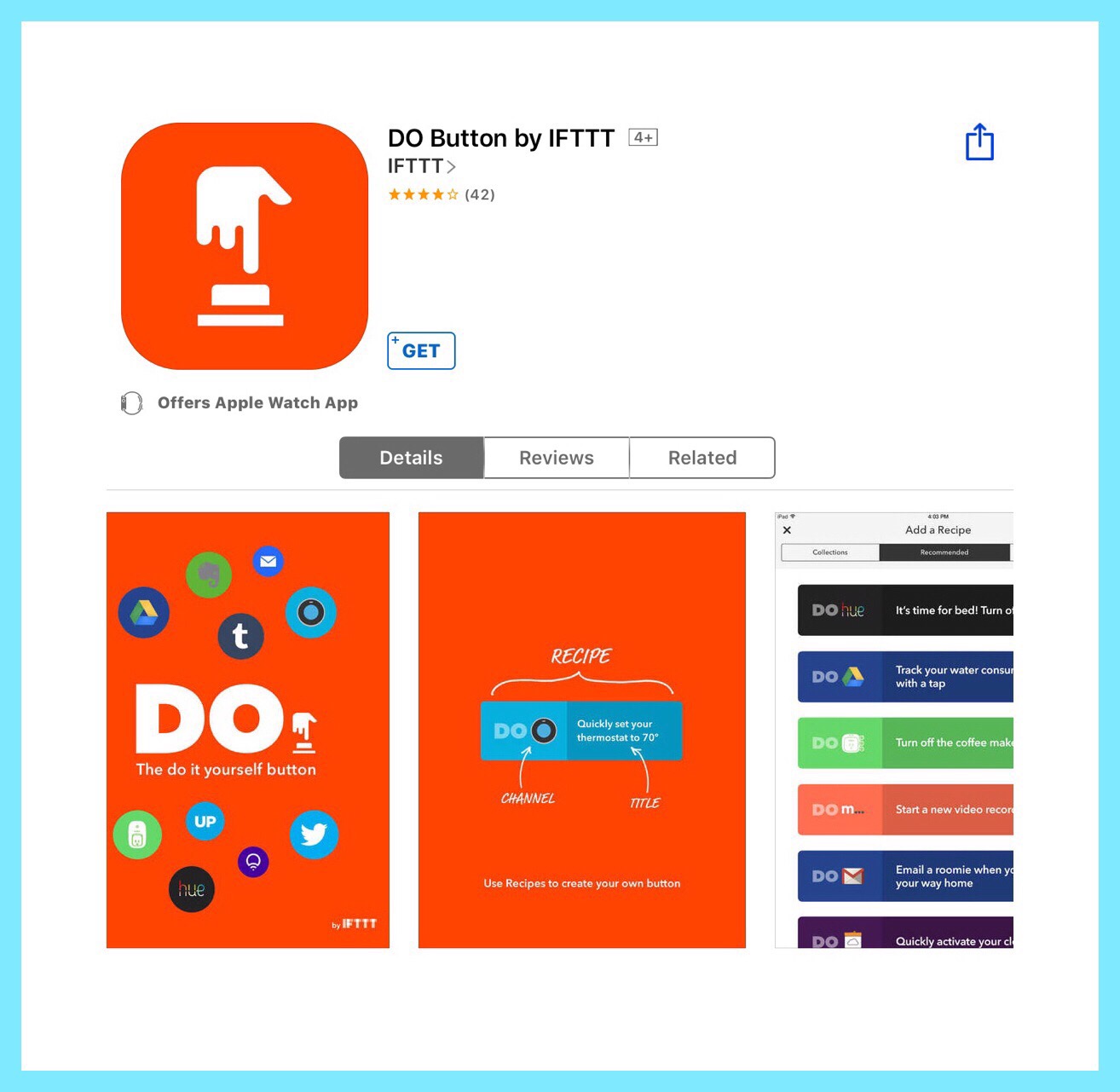
Do Button ios app by IFTTT

Do Button ios app by IFTTT

If you’re interested, here’s a link to a great PDF Verizon published recently that gives a good overview of IoT’s current state of affairs.

Last, I’d like to share this current article about the obstacles the IoT Industry is still facing, along with some educated guesses about outcomes.

Feel free to leave me any comments below:

← Back

Thank you for your response. ✨

Posted in Evernote, Evernote Hacks, ios 9 Quick Tips, Productivity | Tagged , , , , , , | Leave a comment

What is ECP Inbox and why is it on all my ios devices?

ECP Inbox Recently Appeared on

All My ios Devices

I Investigated to Determine What it Was & Why it Mysteriously Appeared one Day in March 2016

 My First Recollection

I began noticing ECP Inbox on my ios devices in around late March.  That time is a little vague for me in general because we had a lot of things going on in our lives.  But slowly, it began showing up more and more often as an option for saving images. And slowly I started noticing it. But I had no reason to really think about it yet.  It was just something that popped up once in a while that I generally ignored.

Recently however it’s presence has moved into my more conscious mind. When it showed up today while I was using the Evernote app, I decided enough was enough.  I decided that I really need to figure out what this is!

What Occurred Today

I was annotating an image in Evernote. I do that a lot. Put a picture into a note just so that I can use Evernote’s image annotation tools. That’s a fast way to annotate something.  Also, there are quite a few annotating tools available right within Evernote, which to me seem to be more abundant than similar tools offered in many of the photo editing apps that I use.

I should know…between my husband and myself we use a lot of photo editing apps!

So, the time had come to figure out what this mysterious ECP Inbox really was and why or how it just kept showing up on all of my devices.
What precipitated this started with the image below. If you look at the image below, the screenshot on the left is one that I imported into Evernote.  I’d done that so that I could ‘pixelate‘ some of the words that I didn’t want displayed publicly.  Evernote is really great for this!  After I used the Pixelate tool (better known as the former Skitch app,) I tried to export the final result. That’s when ECP Inbox came on to my radar again!  In addition to saving my annotated screenshot to the my iPad’s ‘camera roll’ (now it’s really called ‘Photos’) I also saved it to ECP Inbox.

An image in the ECP Inbox using Evernote for ios.

While in Evernote you can export any image to a variety of places. I tested out the ECP Inbox option to discover where the image landed. But it didn’t ’cause any apps to open in the background, so this test didn’t yield an explanation.

The reason I did this was I hoping that my action would trigger an app to open in the background…because then I’d be able to see which app had opened.  That of course would tell me where this new inbox originated from. Unfortunately that didn’t happen.

When in Doubt Google It

So I moved on to plan B…Google it.  My Google research gave me the answer.  It also helped me to recognize the vast improvements that have quietly been implemented over time to 2 of my favorite photo editing tools.  PhotoToaster and TitleFX.

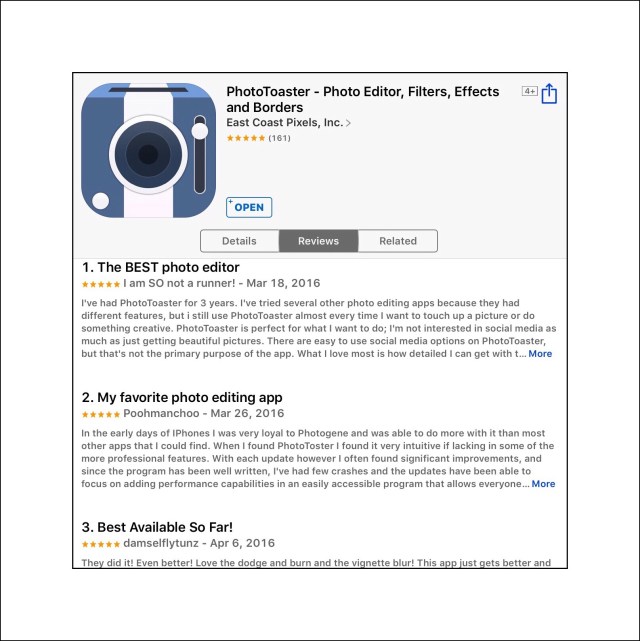
PhotoToaster app by East Coast Pixels, Inc.

PhotoToaster is an ios app by East Coast Pixels, Inc. for photo editing.

What Are PhotoToaster and TitleFX

They are both ios apps created by East Coast Pixels, and made for editing many aspects of digital photos on a iPhone or iPad.  The apps have been around for a really long time.  I’ve owned them ever since we bought our 1st iPad…which was the iPad 2.  Although it’s quite possible that I’ve used them even longer.  Maybe since I had my 1st iPhone, which was a few years before we acquired our first iPad.

More Information About PhotoToaster

PT was probably one of the first photo editing apps I ever owned.  I’m sure that in the beginning it was free…just because I was too cheap back then to spend any money on apps.  There were so many free ones I reasoned, what was the point of paying for one?  PhotoToaster was a decent app even back then…yet it’s continued to improve through the years.

Most of my readers know that I edit a lot of images for my writing. I have a handful of ‘go to‘ apps. PhotoToaster and TitleFX are included in that selective group.  To me it’s pretty amazing that they remain amongst my favorites even today simply because there are so many really brilliant photo editing apps these days.  There are many that can perform some really unusual feats with your images.  The fact that they do never fails to bring new inspiration to me.

But, amidst all of those shiny new bells and whistles, I still retain my core group of apps. Rarely do I change that lineup. When I do it’s usually to include a new one.  One that does something no other app can do.  Less often, I remove an app.  That usually occurs when I’ve personally assimilated most of the features of a newer ‘general photo editing app’ and the newer one includes all of the features of an older loved one…plus some newer features too. Because really, no one likes to be burdened down with too many apps!

I Can Confidently State That I’ve Never Once Considered

Removing PhotoToaster from that Selective group of

‘Favorite Apps’

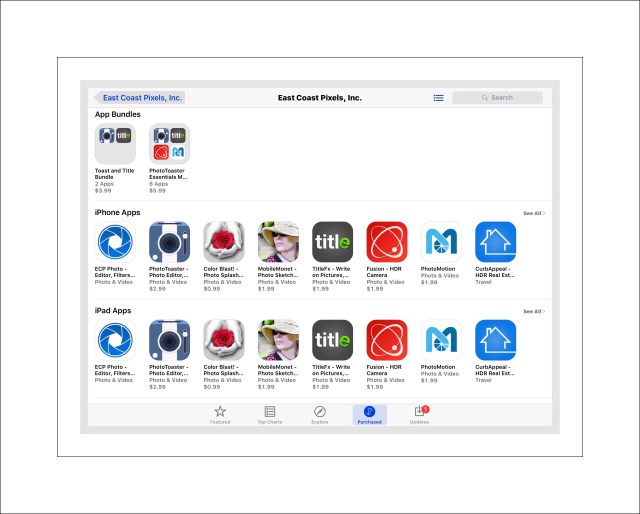
Below is a screenshot showing all of the apps by East Coast Pixels, Inc.

image

What I Love About PhotoToaster

Please keep in mind here that I use a lot of photo editing apps. Also keep in mind that I do all my photo editing on ios devices.  So, while I don’t use PT for a lot of tasks (in fact it’s way more capable than my usage would suggest,) that shouldn’t impact someone else’s opinion of it.

But for the tasks that I do use it for, PhotoToaster both excels and doesn’t really have any competition from other apps.  

Below are the main functions that I always reserve for Photo Toaster:

a.  The Softening tool – PT by far has the the best and most user friendly ‘softening’ tool around.  I use this a lot to enhance portraits, as well as to remove noise and artifacts from images either shot in low lighting conditions or scanned in from old slides.  The main reason that I love the tool though is that it can selectively soften aspects of any image to give an ethereal quality.  The Soften tool is selected via the top right menu – FX Brush and then the top left menu – Soft Focus.

b.  Textures – PT also has some of the best textures around.  Again, these are extremely easy to use. In fact, one thing I really love is that you can try out several different textures so easily just by saving an image with one and then changing the texture and saving it again. It’s a good way to really see how subtle changes in textures can look next to each other.

c.   There are a few other tools that I use a lot too, but not quite as often as 1 & 2 above.  These include Frames because there’s a huge variety of frames and most can be modified.  And next is the overall granularity that PhotoToaster provides for fine-tuning all of the color aspects of a photo including, saturation, exposure, contrast and many finer photographic details like colors within highlights. This granularity seems to me to be far superior than what most other apps offer.

It’s this combination of features that PhotoToaster includes that accounts for my primary reasons for never considering removing PT from my main group of most productive photo editing apps.

Below is a shot where I used Photo Toaster’s soft focus brush and a texture overlay tools to gain that ethereal quality I mentioned above.

Whenever I can't master something, like selfies here, I go for ethereal :-

Whenever I can’t master something, like selfies, I go for ethereal :- )

More About the TitleFX App

PhotoToaster is another one of East Coast Pixels, Inc’s best apps.  As I menti0ned earlier, they have developed a large portfolio of photo editing apps for ios over the years. Yet, I know nothing about them other than the fact that they make 3 or 4 of the apps that I use generally daily for photo editing. This includes another important favorite of mine…TitleFX.

The title sort of clues you in to what this app is used for. Anyone who publishes online has occasions arise in which they need to place text onto images.  That’s exactly what TitleFX is used for.  It’s a one trick app, so to speak…but it performs that one trick exceedingly well.  Rather than spend a lot of time telling you about what TitleFX can do, it would be far easier for me to tell you what it can’t.

The one thing related to titles that TitleFX doesn’t do is provide users with a method for adding text onto different colored backgrounds.  Meaning that you can’t place text into a colored text box. When you create text to be overlaid onto photos it can only be placed right onto the photo itself…so the background for the text is the actual photo.

In reality, they do have a tool which provides some minimal backgrounds for text…it’s just that’s used to stylize text, and the tool is quite limited background-wise to various light shades of black and white.  But aside from that one limitation, you can do just about anything with text in TitleFX that you might ever need or want to.  If your’re really desperate, there is a workaround that will allow you to place text onto different colored backgrounds too…it just sort of a ‘brute force’ method.

My Work Around for Colored Text Boxes

I won’t spend a lot of time on this, but I’m pretty certain that in the past I’ve created colored backgrounds for myself just using blank or solid colored pages or screenshots. Then I’ve saved those photos and turned around to use them to add text to that background in one step.  Then in a 2nd step, I add the whole unit as an overlay onto another image.  But that’s getting a bit off track…

Examples of 2 photos I created titles for using Title FX

Title for 'Friend's Movie I Created Using TitleFX

Title I Made Using TitleFX for a Post on Vacuum CleanersFinally, I Learn What ECP Inbox Is & A Little on How to Use It

The only reason that I really mentioned TitleFX here is because I found out that the ECP Inbox is a universal inbox for any and all of East Coast Pixel’s apps.  Initially I thought that it was just for PhotoToaster.  But then I needed to add some text to a background image and found out that the inbox appeared in TitleFX too.

By placing photos or images into ECP Inbox, you make them readily available to any of the apps you may be using from East Coast Pixels.  Take a look at the screens in the brief slideshow below to see more about how the inbox works.

This slideshow requires JavaScript.

Update Added January 2017

There are 2 things I’ve discovered overtime that I wanted to add on the subject. The first is that East Coast Pixel’s use of a inbox is a unique and interesting solution for getting photos into their apps. The concept sometimes makes it possible to import things easily when more traditional methods might prove to be too cumbersome.

Here’s a link to East Coast Pixel’s homepage. I learned when visiting it recently that the app developers came from Adobe…which explains a lot about the quality of their apps!

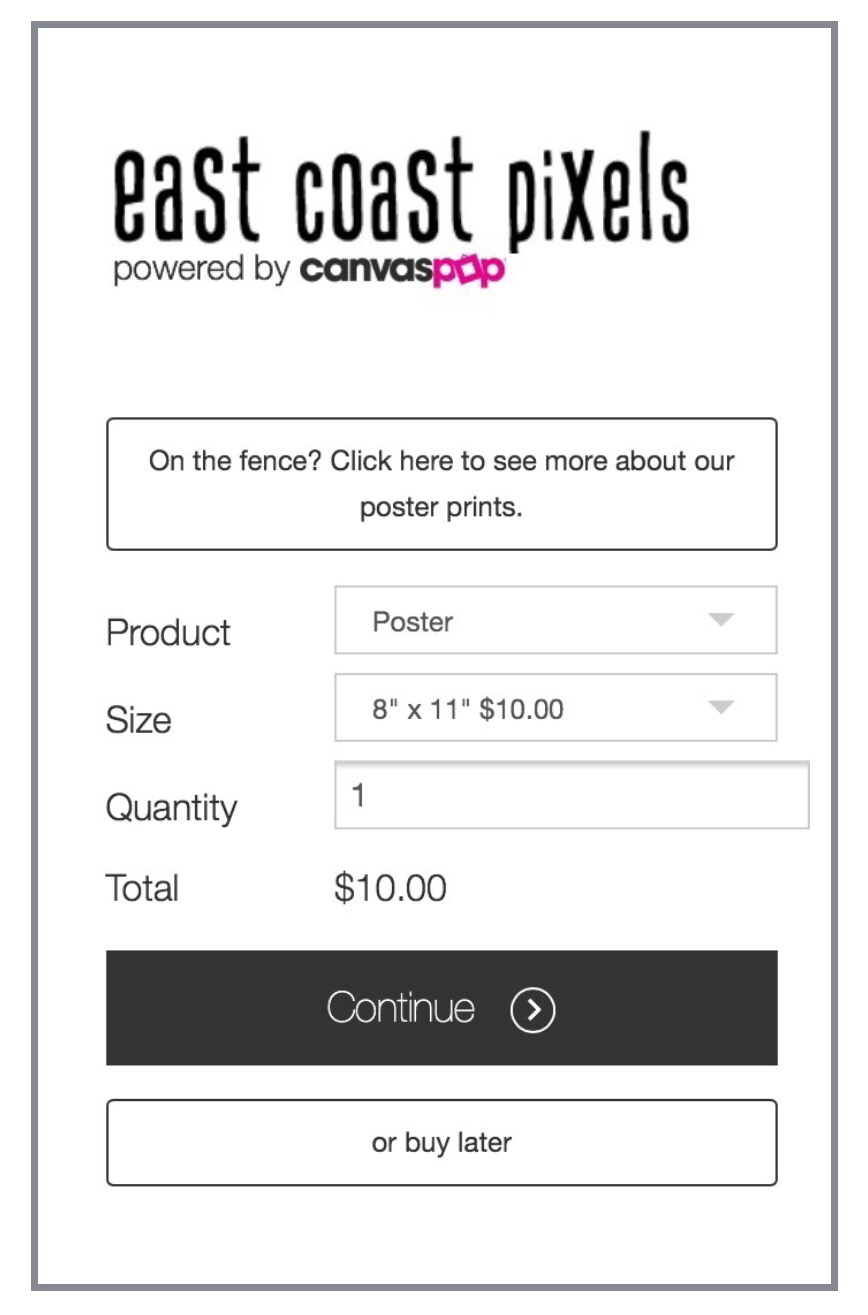
Another thing to mention is that the ECP Inbox itself was updated. It now provides users with a way to have their photos printed.  Below are some screenshots with more information.


Feel free to leave me comments below:

← Back

Thank you for your response. ✨


Posted in ios apps, Photo Editing on ios | Tagged , , , | Leave a comment

Amazon’s Best Prime Day’s Deals

At 3:00 am Amazon Prime Day Deals Began

I’ve yet to meet a person who doesnt love a good deal. Amazon’s Prime Days Deals 2016 aims to not dissappoint. Because my family consists of a bunch or guys and me, the lone female, I picked my favorite deals from a decidedly guy perspective.

I for one am thrilled that Amazon is making certain their most popular inhouse innovations are included in the substantial savings deals. So here are my top picks for Amazon’s Spotlight deals…primarily electronics deals:

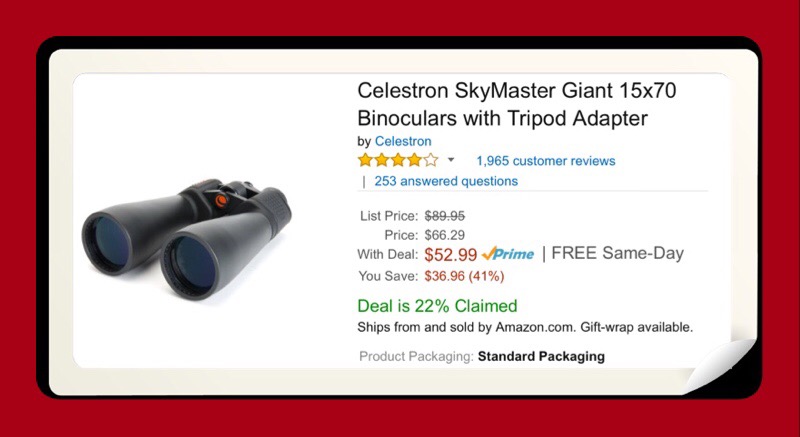
  1. $52.99 (normally $89.95)  Celestron SkyMaster Giant 15×70 Binoculars with Tripod Adapter
  2. $649.99 (normally $1247.99) that’s 48% off!  Samsung Curved 55″ 4K Ultra HD Smart LED TV 2016 Model
  3. $129.99  (normally $179.99) Amazon Echo – Amazon’s bestselling personal assistant and smart home enabler
  4. $69.99 (normally $99) Amazon Fire TV 4K Ultra HD Streams 1080p with Alexa

Binoculars that are really a telescope

These binoculars which really function as more of a telescope were one of the coolest tech gadgets I found and I would have puchased them had Amazon’s shopping cart functioned properly.


This link will take you to Amazon’s main webpage which is the springboard for all of their Prime Day Deals…including their Device Deals, their Spotlight Deals and alongside the left hand side of the page, all Prime Day Deals.

One additional savings feature is for those Prime members who already own Amazon’s Echo device.  If you’ve taken the steps necessary to enable Alexa to buy things from Amazon’s website for you by using voice commands via Alexa, the Personal Assistant, you’ll receive an additional $10 off of your 1st item over $20.  I  just ordered the Fire TV using Alexa because I’ve been wishing for it a long time!  So rather than spending $99…Fire TV will cost me just $59.99!  Exciting stuff right?

The Savings Will Continue All Day Long with Lightening Deals that Change Frequently Throughout the Day

So,if your looking for some super deals on Amazon, today (July 12th) is the day to shop for them!

Amazon Prime Day is officially done!

How Did Amazon Fare in Their 2nd Prime Day Annual Event?

Very well according to CNET…read the details of the article shown below.

Posted in Amazon, Amazon Prime, Things I Love | Tagged , , | Leave a comment

ios Quick Tips | Fix Disappearing Past Calendar Events

Problem:  Past Calender Events Keep Disappearing

  • Description

Your looking for a past event in the ios calendar app but can’t find it.  Once you’ve ascertained the correct date you realize you couldn’t find it because it’s not there!  Assuming that you aren’t experiencing more significant problems with the calendar app in which random events keep disappearing from future events too…there’s may be a simple and quick fix.

If you are having the bigger problem with all calendar events…most likely you are syncing ios calendars with other calendars such as Google or Hotmail.  If that is the case turn off the syncing and see if that resolves the problem…it did for me and the culprit was Google calendars.

  • Further Description

Once you’ve ascertained when the event should have been you may attempt to add it back into your calendar if, like me, you rely on your digital calendar as a record of past events too.  While attempting to add this past event back into the calendar (regardless of whether or not it was in there originally) it looks like it’s working and then you watch as the calendar app just removes it again a few seconds after you added it.  No matter how many times you try this you just can’t get the  past event to stick and stay visible in your calendar.

How to Fix the Problem

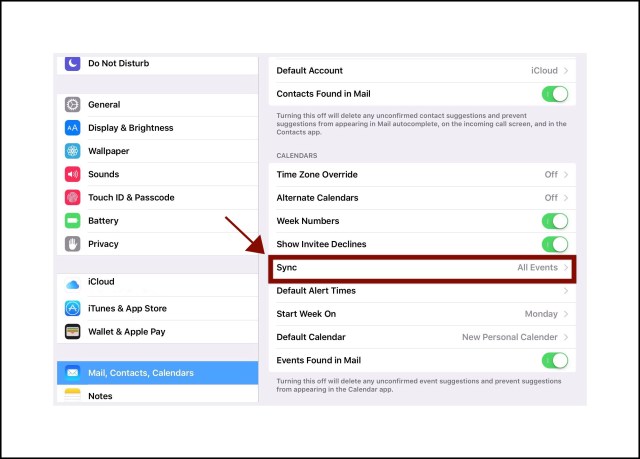
Go to SettingsMail, Contacts, Calendars…and scroll down the page to get to the Calendar section.

Look for this field:  Sync

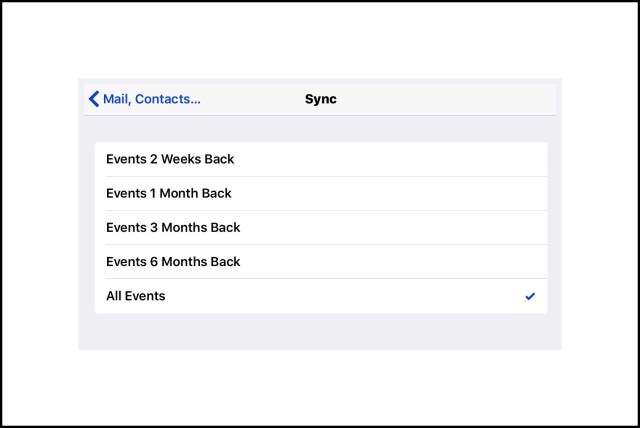
Change the entry for this field to:   All Events

Screenshots

ios mail calendar settings - set events to all

Put the check mark by All Events

Credit

How I figured out this solution (because I believe in crediting the source if it wasn’t me :-)

Following several failed Google searches I decided to downloaded a Calendar app I’d used in the past when I have problems with the ios calendar app.  The one I like is called Calendar 5 by Readdle (it’s $6.99)  Readdle is an app devloper who has developed an entire suite of office and productivity apps that are solid. Many of them are free too. 

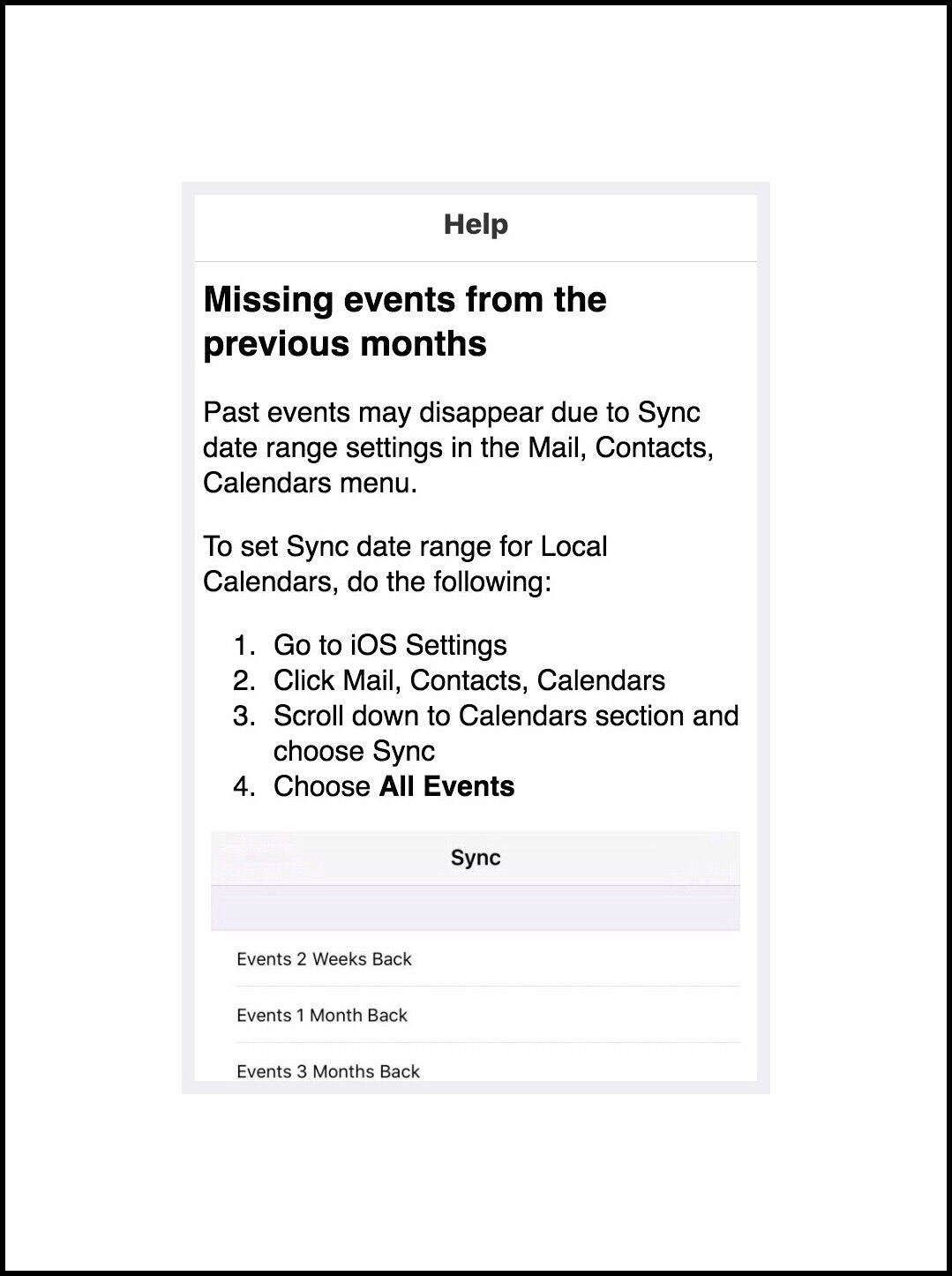
I tried add the past event that kept disappearing using Calendar 5…but the same exact behavior occurred.  The event was deleted right before my eyes!  But, the Calendar 5 app has an in-app Help section…and that’s where I found the answer.  Below is a screenshot of their help:

img_1552


← Back

Thank you for your response. ✨

Posted in ios 9, ios 9 Quick Tips, ios apps | Tagged , , | Leave a comment