
Follow @vsatechTweet
Updated October 2017
Introduction
My family uses Roku’s streaming players a lot. We watch internet based content from Netflix, HBO, Amazon and Showtime on all our TV’s even though none of them are internet ready. Roku’s were the main reason I began to think it might be possible to cut the Cord from our cable provider…which we ultimately did! You’ll find links to my first 2 posts in my ‘Cutting the Cord’ series at the end of this article.
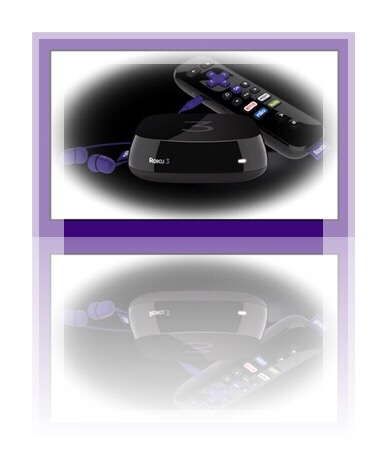 When Roku ended a long running standoff with YouTube & made finally allowed a YouTube channel on Roku’s too…that was the final positive indication we needed to put most our streaming needs into Roku’s hands. Back when that happened, several of our Roku’s were quite old, and the new YouTube channel was only available on newer Roku’s, so we replaced a few of the very old models with current ones. Some of the older Roku’s were passed on to relatives who were interested in trying Rokus out without the investment (even though Roku’s are quite inexpensive in the big scheme of things, ranging from $49.99 – 99.99 per player at the time of this writing.)
We still had one old model left however, and I decided to pair the remote that came with that player to a Roku 2, which was one of the current models we purchased. I tried everything I could think of, but ultimately was unsuccessful.
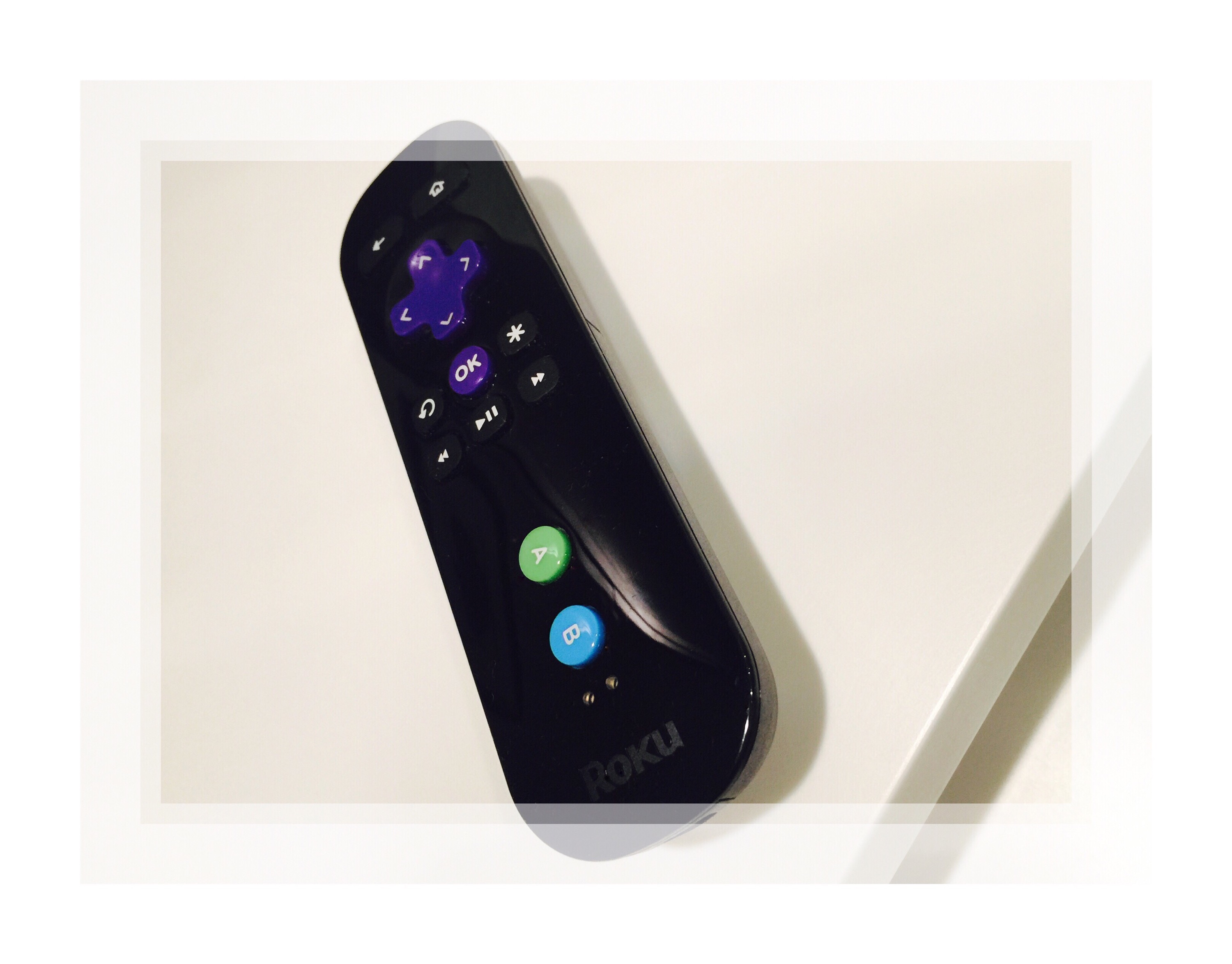
I Googled ‘How to Pair a Roku Romote’ So Many Times But Failed To Find Anything That Helped
At the Roku user forums many other people have had similar pairing problems and offered lots of sage advice along with things to try. I read them all and tried a lot of the ideas here.
Then, a few nights later I began again after this time found something in the Roku Settings page about pairing remotes.
It took a couple try’s but I finally did it!!!
So I decided to write this quick post about how I successfully paired a 2nd remote.
- Step 1 – Open the battery compartment for the 2nd remote
- Step 2 – On your Roku, Go to Settings – Remote – Pair Remote
- Step 3 – Go back to the remote & press the tiny ‘pairing’ button inside the battery compartment
- Step 4 – The light on the remote should begin to flash after the button is pressed…if it doesn’t, check your batteries!
- Step 5 – Set the remote very close to the Roku player and wait for the light to stop flashing
- Step 6 – Once the light stops, out test out the remote to make sure it’s paired and working
- Step 7 – Sit back, relax and watch some streaming TV!
Note: Not All Remotes Can Be Paired With All Models of Roku
Use this link to find out which remotes can be paired with which remotes.
Roku 3 Remote Diagram & Voice Search
We bought a 2nd remote for one of our Roku 3’s from Amazon and it came packaged with a user manual I’d never seen before. It includes a diagram of the remote and descriptions for each button, which I thought was useful, so I uploaded a picture of it below. One aspect I wasn’t sure of was whether or note our remote included Roku’s new voice search feature. I know for sure the new remote does, so with the diagram I was able to figure out that you use the magnifying glass button for Voice Search.
You Can Identify Which Remotes Have Voice Search Capabilities By the Inclusion of a Magnifying Glass Button on Them
There are a few nuances to the Voice Search feature however, which despite viewing many other people’s YouTube videos on the topic, we felt that none of them really addresses. So it took us longer than it should have to learn how to use the Voice Search mode effectively.
It turned out that our efforts were well worth it because…
We Love Voice Search!
It’s an incredible utility which Roku has designed well! Voice Search, for cord cutters is almost a mandatory feature, because we’re constantly forgetting which channel we’re watching something on. Incidentally, I don’t think I mentioned anywhere I’ve begun a series of articles on How to Cut the Cord…which we did last October (2016.)
The Roku 3 Remote Diagram Below
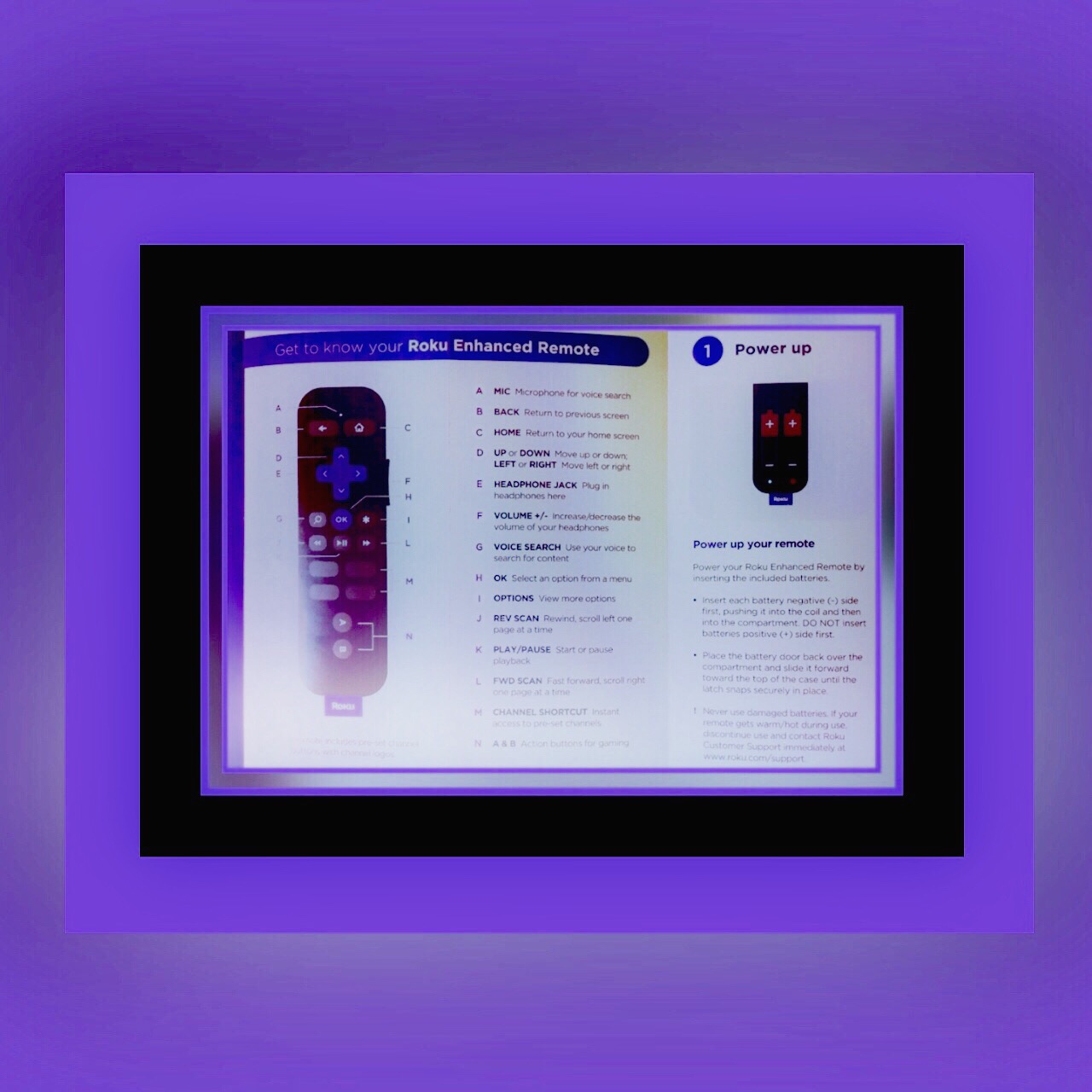
I ended up making our own YouTube video which hopefully explains the process better. I’m embedding my video below this screenshot.
My Video Demonstration of Voice Search
My Series of Articles on ‘How to Cut the Cord to Cable TV’
I began to journal the process of our ‘Cutting the Cord‘ in order to write about it as a post for family and friends. Many of them had been following our progress and hoped to follow our guide at some point. But it took so much longer than we anticipated, and there were a few bumps in the road. What really dragged out the process in retrospect though was that we secretly harbored more fear I think about making that final sever than anything else. Along the way I learned so much and my list of helpful topics grew so long that ultimately, my article turned into a whole series. The Series is only 1/2 written at this point, (actually it’s completely written but needs a lot of proofreading and images,) so it’s really half published right now. I do this all myself and proofreading for it will take at least a full day alone, so I’ll add those links here too as I complete them (but don’t hold your breath while waiting!)
Because my main subject that I write about, cyber security, is keeping me busier than it should be these days!
My Series Links to ‘Cutting the Cord’
Link to Part 1: The Cost Savings We Anticipate When We Cut the Cord
Link to Part 1.5: Overview of the Hardware we Bought and Our Setup
Comments
If you’d like to leave a comment or read other’s comments, you’ll find the place to do that by scrolling all the way down the page and looking for the little box. As ever, thanks so much for visiting!


 Summer’s Phlox and Buttercups




 vsatips