About a Week After I Published My Complete Guide to Instapaper
Instapaper Made An Important Announcement…
All of Instapaper’s Premium Features Are Now Free for Everyone
In my Instapaper guide I made the case that $30 a year was a small price to pay for the vast increase in productivity I enjoyed. It’s not the first time I’ve enthusiastically gushed over how much I love this small utility disguised as an app, just as I’m certain it won’t be my last! In both instances I manage to find different aspects to highlight. Don’t let the seemingly simple appearance of Instapaper fool you into thinking that it isn’t backed up by a robust, surprisingly complex and sophisticated engine.
A Little More About My Favorite Feature: Instapaper’s Playlist
If you know me even a little it will come as no surprise that my favorite Instapaper feature, the one that I use daily, is the Playlist feature. I use it to accumulate all my reading material for the day(s) and then have everything read out loud to me at 1.5 speed or even double speed. Sometimes I may slow things down to .5 speed though if it’s really complex material or if I really need to focus!
I Made a Really Short YouTube Video Demonstrating How to Use the Playlist Feature
My video isn’t really great. In fact it goes by so quickly that you may need to watch it a couple of times to pickup the steps. That’s because I never really intended on making a video. It was a spur of the moment decision one day when I added the Google Photo app to an iPad, and I discovered (really rediscovered) the automatic video making feature contained within.
I’d been thinking of writing a brief ‘How To’ post on the subject and had even made a few screenshots when I happened upon this cool video maker utility once again. I love anything automatic and anything that will save me time! So I loaded my screenshots into the app and let Google Photos do its thing. The ensuing video wasn’t great…but there weren’t really any editing tools for improving it. So I loaded the end product into the iMovie app, tried to slow it down as much as possible…which wasn’t a lot…and cleaned up a few things. Then decided to upload it to YouTube despite its lack of greatness, because I’m trying to build an income stream from my YouTube channel. (It’s slow going but I made major headway this year!) I was thinking that no one would ever actually watch it. But they did!
Naturally I’d used up all of the time that I’d have needed to actually write the ‘How To’ post…so the Google auto movie maker really didn’t save me much time at all. I write an apology for its lack of quality anytime I share it with anyone. Overtime however I’ve come to realize that the video does indeed run through all the steps well enough to get the gist of it. It just does so really quickly. So you may be forced to watch it more than once if you don’t act quickly and pause it on some of the screens. But really, the Playlist Feature is so easy that you really don’t even need my video…except for one tiny thing.
Why My Video is Actually Helpful After All
The one aspect that’s tricky is figuring out what to do after you’ve selected all you articles for your playlist. That was the part that I couldn’t figure out myself…and it’s why I thought that other’s may be frustrated too. I searched high and low for an answer and couldn’t find one. I don’t remember where I did find it in the end…but even that is really easy if you just know where to look.
So, the trick is to look at the bottom of the screen…it’s not a natural place to look in Instapaper’s app because all the other functions and menu items are located somewhere at the top. But if you look closely you’ll see that the word ‘Playlist’ appears in the center bottom of the screen. If you tap on it, all the articles in your queue will begin to play, one after another….with a nice sounding sort of musical note played between them so if you’re driving or doing something where you really need it to operate ‘hands free’ you’ll know exactly when reading moves on to the next article in the list.
A Few Key Aspects of Using the Playlist Features That I Love
Initially all the articles will appear in list form as the app begins reading to you. You can easily tell which article it’s on. But if you’d like to follow along even closer just tap on the article that’s active and it will open to display the article and you’ll see the cursor moving across the page…so you’ll always know exactly where you are if that’s important.
You can instantly stop the reading momentarily to highlight something or even copy some text that you can then save to a note app or share to a social networking site. Instapaper never loses its place.
You can actually leave the app and go on to do other work on your device if your able to concentrate while it’s reading to you. The only way Instapaper will stop reading is if you physically stop it by X’ing out of it.
If an article gets boring or there’s some extraneous text that made it through, you can advance the reading by stopping and just tapping where you’d like it to pick up again.
Perhaps what I love most is that you can even place your tablet into sleep mode and continue having Instapaper read to you. So, very little battery power is used on your device.
My First Time Really Putting the Playlist Feature Through its Paces
One of the 1st times I tried this out was when I was driving at night following a number of days packing up a household of furniture and items to move. I was exhausted by the time we hit the road and it was beginning to get dark. I dreaded the 4-5 hours of driving ahead of me. But the time flew by as I listened to a lot of things I’d not had the time to read. After I arrived at my destination I discovered that my new phone, the iPhone 6+, had only used around 10% of its battery! And the volume was so loud that I didn’t even have to set it to the phone’s highest setting. It also didn’t matter that I hadn’t gotten around to hooking up my new phone to the car speakers with Bluetooth yet. I was easily able to drive, stay awake, and even pause it to talk on the phone several times.
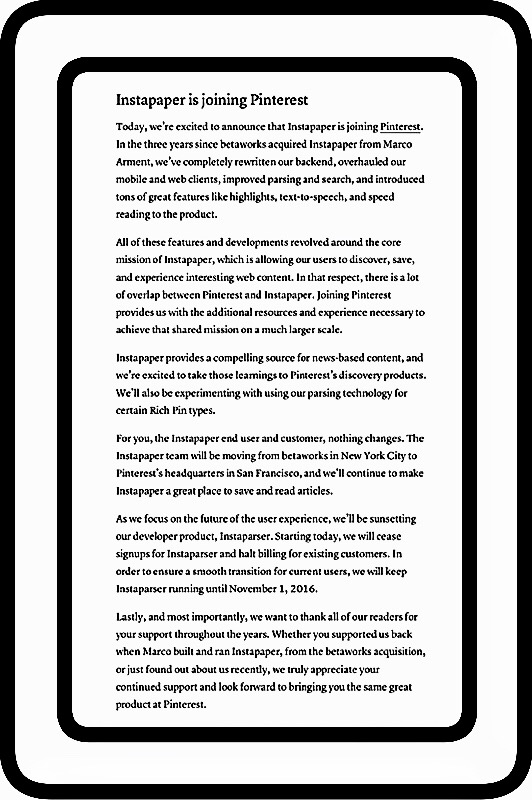
Instapaper Announced They Were Going to Be Acquired by Pinterest at the End of August
If I’d been paying attention to Instapaper’s blog I might have anticipated this big news. They’d made an earlier announcement informing readers that they were being acquired by Pinterest a few month’s earlier. But I missed that post so this news was a big surprise to me…although a very welcome one arriving on the tails of my recent ‘complete guide.’
Above: Instapaper’s Announcement in their blog
Isn’t This Good News?
I was surprised to find so many negative reactions to the news…really surprised frankly. But then I realized that most were from people who really love the app and use it as much as I do…if not more if that’s even possible. They just generally seem worried that changes may arise due to the new ownership. Changes which may negatively impact their own workflow or have other unforeseen or negative consequences. Because (let’s face it) most people really don’t like change! Even those among us who are tech minded…human nature dictates that we get stuck in our habits just like everyone else (although maybe we tend to hide that tendency a little better!) It’s moments like these when we can’t help but reveal our true colors…causing me to wonder just a little how receptive our industry as a whole has been to the recent election results!
From my perspective, while I’m not a huge Pinterest fan, I recognize that having greater resources backing up the Instapaper dev team can only lead to greater freedoms…allowing them to focus more on the product (which runs contrary to ‘others’ opinions*’ and I really don’t believe!) Better yet, perhaps this will allow even greater things to come in the future!
*Comments made to Instapaper’s big news. You’ll notice at the top of this announcement that there are 76 comments. If you tap on the word comments they’ll display and you can read people’s somewhat surprising concerns and negative reactions to this great news.
Prorated refunds to Premium users and free premium features for everyone is a great start in that direction I think!
There Will Never Be a Better Time to Try Instapaper Then Now
If you haven’t done so already and if you’ve ever considered checking out Instapaper…now is the time. You’ll find it extraordinarily useful if you tend to read a lot of current news articles from online sources like Twitter and Facebook, and if you can’t find enough hours in your day to get things done. Tweet
Instapaper has parted ways with Pinterest and their Premium features are once again only available for an additional fee of $20. For me that’s a very small price to pay for loads of improved productivity!
I Use it for Gathering Online Articles to Have Read to Me When I’m Doing Things Like Driving, House or Yard Work, or Working Out
Truth be told I didn’t actually fall in love with Instapaper immediately. I kept reading a lot about it and how amazing it was…but when I tried it and I just didn’t get it at first :-(
The first time I downloaded the Instapaper app was about 3 years ago. But I couldn’t understand what all the hype was about. Maybe that’s because I’d always used Safari’s ‘Add to Reading List‘ utility, which works a little bit in the same way. Maybe it was because earlier versions of Instapaper weren’t as good as the app is now. I really don’t know. But today I’d be hard pressed to function without Instapaper!
In those early years I really did struggle to understand Instapaper…I put some real effort into it because so many people I looked up to swore by it. I’d save articles to read later, but when I opened the app they were seldom there. When I did find them I’d read them and afterwards some of them I’d want to keep stored away…in files or notebooks of some kind for future use…but I couldn’t figure out how the organizational structure worked. I felt like I spent hours either searching for things I thought that I’d saved, or just trying to organize my saved content in some fashion. At one point I remember opening another account with another connected type of service that would save my articles from Instapaper…maybe it was called Readability?
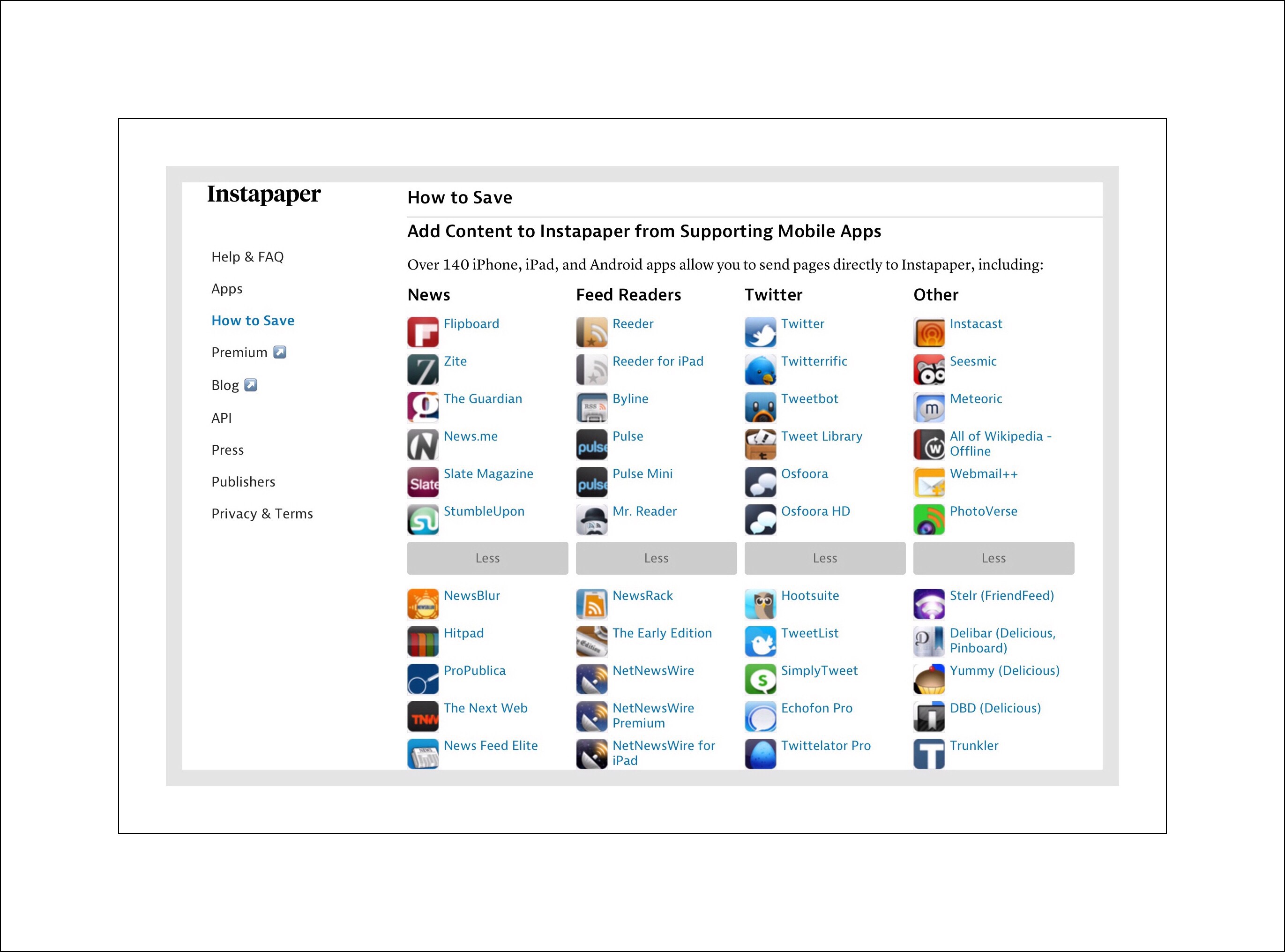
Above: Some of the ways Instapaper can save content
But then I needed to remember how to sign into and use 2 things…which of course I had to learn first! Ultimately I just gave up on it. This happened at least twice that I can remember…more than likely it was 3 or 4 times though. It usually went something like this…about a year’s time would pass and something would remind me of Instapaper so I’d try it again. But the same results usually prevailed.
It Was During That Same Earlier Period of Time That Instagram First Entered the Scene
Ironically, I always confused the two! I’ve always been slightly dyslexic. Most often with numbers…but I also rely much too much upon the letter a word begins with and what the ‘structure’ or ‘shape’ the word takes is like…I guess basically I see words as shapes. And 2 Insta’s ending with gram and paper…just had too many similarities for me! For example…a 4 letter ending and a 5 letter ending both take up about the same amount of space…and they both have a’s in them…a gram can also be paper…like in a telegram for example. I was pretty surprised a few years later when I finally realized that Instagram was only about pictures! I could be wrong but I swear that an early app icon for Instagram was also white!
Several Years Later I Encountered Instapaper Again
But this time everything finally clicked for me…Instapaper worked beautifully and it finally made sense! Looking back, I wonder why I ever struggled to use the app. I really suspect it’s due to the fact that the app developer completely resigned it a while ago. He also added a lot of really simple but useful utilities to the ios and Android apps. The most important one for me is the ReadOutLoud utility. I made the really short YouTube video embedded below which demonstrates how to use Playlist to read articles out loud to you. Or you can watch it at YouTube using this link. Below that are a few screenshots of how to use the Read Out Loud utility. You can use the same sequence of steps to organize and move content to folders too. Everything simply works now :-)
Short YouTube Video Demonstrating ‘Reading Out Loud’ using Instapaper’s Playlist utility:
How to Have Instapaper Read Out Loud
The Steps to Create a Playlist of Articles or to Move Several Articles to a Notebook
The following 2 screenshots demonstrate the steps involved in creating and initiating playing a Playlistof news articles that you’ve saved over the course of time. You can also use this same method for collecting reading material from literally any other news source you might use on a mobile device like an iPad. One thing that I try to do daily is skim thru Twitter and save interesting tweets to ‘read’ when I’m doing household chores, yard work, driving or some other mind numbingly boring task. But you can do the same thing with Apple’sNewsapp, or with StumbleUpon, Morning Reader, and LinkedIn and even apps like ProductHunt…but not with Facebook(Facebook appears to want to keep their users captive within their app space.)
This is how the playlist is displayed when it begins. If you want to follow along with each article just tap on the article & look for the blue cursor. Instapaper will automatically display the current paragraph that it’s reading out loud to you and you’ll see the blue cursor moving word by word as reading progresses.
How To Have Instapaper Speed Read Out Loud
Adjustable Read Out Loud Speed
Adjustable Speed Reading Tools for Actual Speed Reading
Instapaper offers 2 ways to further increase your productivity. Both are speed reading utilities. In the instance I’ve just described above you can alter the pace of Siri’s reading voice (because from what I can tell the reading voice is Siri’s,) to read faster by speeding things up (so you can pack more information into less time,) or by slowing down sections that you really need to focus on. You just tap on the speed indicator in the upper right hand corner…refer to the screenshot below:
Since discovering the Playlist feature I’ve found that I may now save upwards of 40 articles a day to Instapaper (not every day though.) Some of them I read and some I listen too. What I really love is that if I’m reading an article and it has links or videos within it, those can be opened or displayed right within the Instapaper app. If the ‘linked to’ article is also something that I want to keep, archive or share, I can immediately save that one to Instapaper too…right at the same time while I’m reading or listening!
How to Share Instapaper’s Articles by Email
Emailing & Sharing Full Text Articles
Sharing articles is pretty slick too! In fact this may be my second favorite feature. I can email articles to other people while reading them within the app. But what’s really cool is I can email the full text of the article, including photographs and hot links, instead of just sending a link. The article that’s sent is formatted beautifully. It’s so much nicer than just sending a link to someone, especially if you know that they won’t bother to read it otherwise.
In general, Instapaper formats everything simply and beautifully. More important though is that everything is ad and pop up free. There are also user controls to tweak different aspects of the display. Below are a few screenshots showing just how easy it is to email an article in full text. Prior to doing this you need to go into settings to enable the full-text sharing feature first.
How to Save Articles to Instapaper from Mobile Safari (ios)
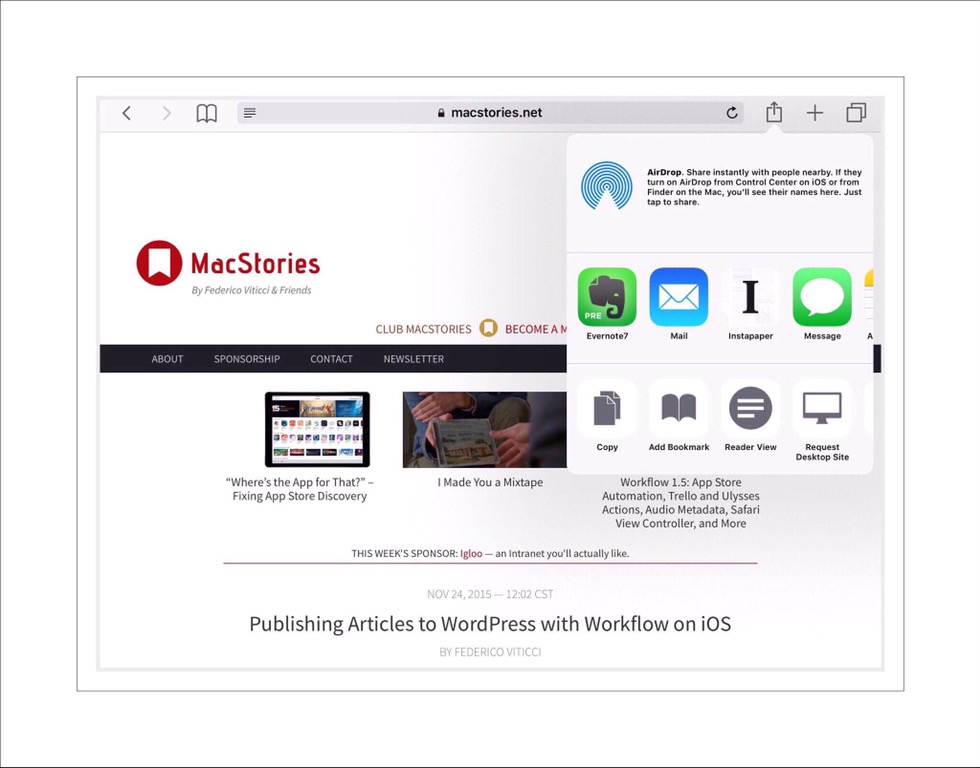
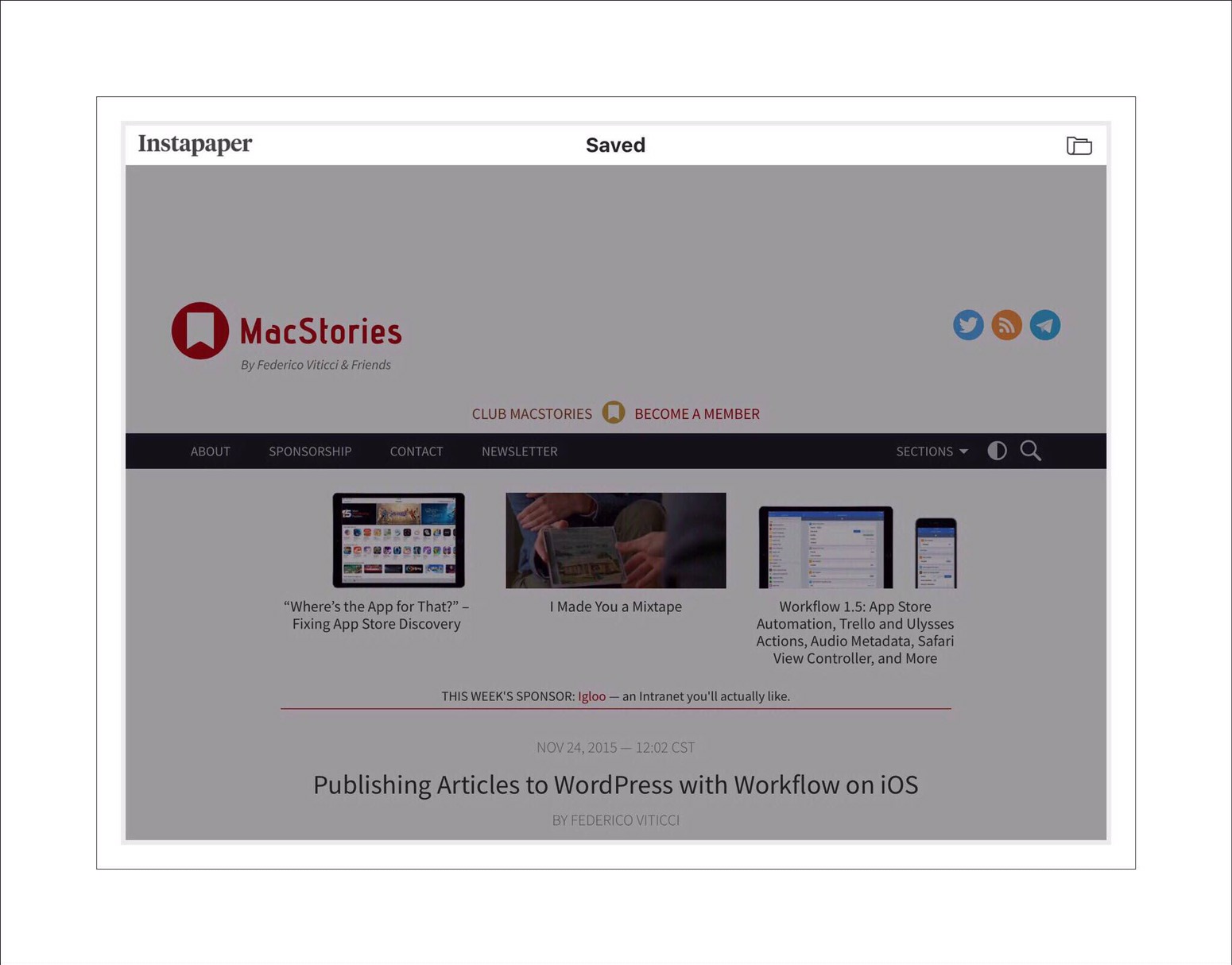
Saving an article to Instapaper is as simple as bookmarking it. See my screenshots below for the steps and to see what it looks like when you open it in Instapaper.
You use the same share extension icon in Safari that you do to bookmark webpages.
After you’ve tapped on the Instapaper icon you’ll see Instapaper’s confirmation that the article is being saved up at the top of the page.
Oftentimes when you open Instapaper on ios the app offers to save the most recent webpage that you were viewing
This is the main view you’ll see when Instapaper is opened on ios devices.
Instapaper is Free on All Devices!
How Much Does Premium Instapaper Cost?
The Instapaper app and service is completely free! But if you want to use some of the advanced features that I’ve described you’ll need to get a Premium subscription which is $2.99 per month or $29.99 per year. Below is a screenshot showing what additional features Premium members receive. For me, it’s a very small price to pay for the additional hours of productivity that I gain in return. You can read more about Premium subscriptions here.
App Settings Adjustments & Random Tips
There are a few adjustments in Instapaper’s app settings that can be altered for more personalization. To get to settings in the ios app:
First tap on the Hamburger menu in the upper left hand corner (the 3 horizontal lines)
Then tap on the Gear icon at the bottom of the index page that opens.
The 2 Top Sections in Settings
These sections give you a lot of different ways to adjust how articles are displayed and how you navigate as you read. This is also where you’ll find one handy feature that I love:
Full text sharing
A Little More Detail On Why Full Text Sharing is So Awesome
When ‘Full Text Sharing’ is turned on you are able to share an entire article including all it’ illustrations and photos via emails or texts. When it’s off, you are just able to share a link to the article.
I really love sharing the full text alternative because I’ve found that when I send links to articles, often my recipients won’t open the article right then because they don’t have time…but then they’ll forget to come back and open it at a later. By sharing the full text of the article from the get go they can immediately scan it and decide for themselves whether or not it’s worthwhile for them.
If they don’t deem the article worthwhile, they can immediately delete it. If it is…then they can ‘process’ it in their typical manner…either by saving it someplace that they use to accumulate reading material, or by flagging the email to remind them to come back to it…or they can simply just read it then delete it.
My Personal Approach & Philosophy About Sharing Content with My Peeps
I’m really conscious about trying not to overwhelm my friends and family with too much information. But because Instapaper has improved my overall productivity so much, I sometimes forget that my friends and family can’t process the same amount of data that I’m able to on a daily basis. This advantage is purely because I have this great aid at my disposal. I truly can and do process a whole lot more information than I used to!
So it’s a really fine line sometimes deciding whether or not to share something. When I do share something, I think that sharing using the full text version can make it more manageable for the recipient.
Instant sync
When Instant Sync is on as soon as you open the app it will begin syncing articles to your device. When it’s off you need to manually sync it by opening the app and dragging down on the list of articles.
Random Shake
Under Advanced Settings there is an on/off button for Random Shake. I searched everywhere to find out what this was but failed so I finally emailed support.
Here’s the answer that was emailed back to me:
“The Random Shake option will open a random article from your Home queue if you shake/move the device enough to trigger the accelerometer’s reaction.” Um…OK…I don’t think I’d ever use that…but it sounds cool!
InstapaperisSuperSimpletoUse…
but if you want to make it more complicated you can.
Sending Instapaper Articles to Kindle | Using iBooks to Send to Kindle | This Sounds Complicated & I Haven’t Tried It
Instapaper doesn’t support saving PDF’s but Kindle does. Kindle doesn’t support saving online articles but Instapaper does. By using both you can create a centralized repository for your work or personal interests.
Most people who use Kindle know that you are automatically given a Kindle email address when you sign into one of the Kindle apps for the first time on any mobile device. This email address is device specific…meaning that if you use the Kindle app on several devices, each will have it’s own email address. As I mentioned above, one of the great things about a Kindle is that you can send any PDF to your Kindle reader just by attaching it to an email. This is great because then you can read all of your PDF’s using Kindle’s excellent viewing format. This can be extremely helpful for very long PDF’s which can be really difficult to navigate without some kind of built-in navigational aids.
Some of you might be thinking right about now…well what’s so great about that, you can do that in iBooks too. That is true…but if you’ve used iBooks very much you’ll know that Apple’s iBooks is unreliable at best and can be catastrophic at worst.
iBooks | The Reading Platform Guaranteed to Frustrate
One Handy Tip
Side note: Capitalizing upon iBooks handling of PDF’s has become a favorite trick of ios power users who use iBooks as an impromptu PDF generator. Any document that’s sent to iBooks will automatically be saved in the PDF format…which can be really handy! This becomes even more handy because for some unexplained reason Amazon has chosen to not given ios users any way to save clipped or online content directly to their Kindle.
Yet Amazon has evolved through the years and they now allows users of most popular platforms to save many different kinds of content to their Kindle reading apps on mobile devices. You can learn more about that here.
You may note that there’s one obvious device that’s missing from this list however…ios devices! I suspect that Apple’s ‘sandboxing’ proclivities are the reason why. Apple just doesn’t ‘play well with others!’ So the ability to save online content to iBooks and then to email it from directly within iBooks to Kindle can sometimes make a big difference to users.
Unfortunately, other than using iBooks for PDF conversions and for reading content purchased directly from iTunes, Apple’s reading app has extremely limited use. It shouldn’t…in fact if you read Apple’s hype about it, it doesn’t appear to…yet the sad truth is iBooks has some serious drawbacks. That’s because iBooks has been bug-ridden since its inception during the early iPod years.
To try and list all of the bugs and problems of iBooks here would be getting way off course….but trust me…there are a lot! So briefly, the main problem is that iBooks has never reliably saved users’ own content…its infamous for wiping out users’ complete libraries…including my own…on more than one occasion. :-(
iBooks is also extremely frustrating to use! To say that iBooks is unintuitive is a massive understatement. When users do ultimately figure out how to work with their content in the app, and then expend major effort organizing all of their content…their changes rarely stick. They find out that their efforts were completely wasted!
Combine that with iBooks propensity to wipe out complete libraries of saved PDF content and you should now understand why, when faced with the choice of using one of the 2 reading apps, I and many others like me will always choose to save our content to Kindle.
iBooks Failings Make the Kindle – Instapaper Relationship Even More Symbiotic (& Even More Appealing to Users)
It’s not really a feature that’s widely known of or used by very many people I think, but the ability to save all of your unread articles from Instapaper to Kindle can be a really handy feature, albeit an infrequently used one.
Why would you want to do this? The main reason that I’ll use this feature is when I want to read longer articles…especially if I have a lot of them. This crops up sometimes when I’m researching something. Navigating through very long articles can be difficult even in Instapaper’s simplified view format…but by doing it in the Kindle app you’re provided with great navigational aids like a table of contents and a visual page based index running along the bottom of the display. This can make it much easier both to read and to bookmark pages as well as to keep notes.
Both Instapaper & Kindle Provide a Method For Highlighting and Writing Notes Which Remain Attached to Their Source Document
Kindle gives you several different colors of notes for your comments, as well as several different colors for highlighting versus Instapaper’s one. Some of the built-in lookup features in Kindle can also be quite useful as opposed to Instapaper’s in app web reading app. If you spend a lot of time reading digital content, you begin to learn what kind of content is best handled via which platform. This added flexibility gives you the ability to handle almost any kind of digital content in almost any manner that you might want to.
This section is easily skipped
How to Set Up the Kindle Instapaper Connection
It’s a really an easy process…once someone explainsit. You need to have a Premium Instapaper account already setup.
Use the link on this help page to open your own Kindle settings and tap on the Settings tab
Step 6
Scroll down to the section called: Approved Personal Document E-mail List
Step 7
Then tap or click on the words: add a new approved email address
Paste the email address you copied from Instapaper settings into this section
Step 8
Go back to your Instapaper settings and select among the alternatives they offer for how you want to save to Kindle
Combining Kindle & Instapaper You Can Create A Central Repository of Data
Using the various methods I’ve described above you should be able to save almost any kind of digital content and get it into your Kindle reader, thereby allowing it to become sort of a ‘central repository for collecting large amounts of data’ that are in several different formats.
Using the Kindle Connection If You Have Problems Saving to Instapaper
If something doesn’t save properly in Instapaper…it can happen…then try saving it as a PDF in iBooks instead. If you can do that, then you can send it along to Kindle, where you’ve sent otherunread things from Instapaper, so that you’ll have them all in one place. (Note: using iBooks to convert documents and webpages to PDF’s is the one great feature of iBooks that I do use!)
Instapaper works with over 140 apps
Sometimes Publishers Try to Make Thier Webpages ‘Unsaveable’ for Read Later Tools
What to Do if Instapaper Doesn’t Work?
Sometimes Instapaper just cannot save something. It happens. The 2 main occurrences of this are that the article just never appears in Instapaper or when it does it’s all goofed up and unreadable.
The main reason this happens is because some websites actively try to block users from using read later types of apps. They do this because apps like Instapaper remove all of their annoying advertising…which of course is the huge appeal…thereby making reading the content of those websites pleasurable instead of frustrating. I’m the kind of person who grows impatient very quickly if I’m trying to read something and pop ups keep blocking my view. Plus that, some websites are just technically challenging for read later functionality. But sometimes websites use unusual code that Instapaper doesn’t parse correctly.
In both instances emailing support with examples is both easy and very worthwhile! I’ve done this on only one occasion, but I had 2 problem websites to address. Support, (really the app’s developer I think) blew me away with a really quick reply that addressed both problems. One, he fixed immediately and the other he needed to do a little more work on but it was only a matter of hours. I was shockedbut so impressed!
This is a little bit of a digression which you can skip…
One My Greatest Pet Peeves About Some Spammy Websites
A perfect example of one kind of site that Instapaper won’t work well with is also one of my greatest pet peeves involving what I consider to be Spam sites. I call them Spam sites because they aren’t trying to disseminate information at all…they’re just trying to generate revenue.
They do so by coming up with intriguing titles that lead you to what is ultimately a one page site that’s filled with ads. If you’re lucky there’s one sentence that relates to the headline and it’s now obvious that this isn’t an article at all but just a list. Usually you have to really hunt to figure out how to even get to the next page…which ends up being a further lead in and not even one paltry list item. Each page that follows was is filled with spam, pop ups and ads. I’ve recently decided to never waste my time on these sites. As soon as I realize their intent, I leave, and if everyone did this, maybe this annoying trend would die a quick death!
These types of sites are often shared by people you know or follow on Facebook or Twitter.
Their intent of course is to cram as many ads in their readers face as possible! Let’s face it, if you can display 6 ads in a screenshot and your list has 10 items, that’s 60 ads that readers are forced to see. If readers have to figure out how to get to the next page, often they will be forced to look at some of the ads first as they try to discover how to proceed to the next page.
Instapaper and other similar ‘read later’ apps have no good way of dealing with these kinds of scams. But in the case of Instapaper, I can say from personal experience that the app’s developer…who was in this instance Rodion…welcomed the challenge of trying to do so! He fixed both my problems within 24 hours…and it would have been faster if I’d replied to his email asking a follow up question sooner.
Who’s Who at Instapaper
A few more sites that prove to be technically challenging for ‘read later’ services include:
Some sites that are very technologically advanced. They may have really cool transitions like sliding doors, or other equally awe-inspiring moving actions to them. You can’t hate them, so I’ll usually just start to read those sites the old-fashioned way, and admire the cool tech styling. If that kind of article ends up being very long though I’ll usually try to find another way to either get it into Instapaper or to have it read out loud to me.
Sometimes I use a neat app called ReaderView as the go-between Safari and Instapaper.
Sites like Forbes.com – Forbes used to work fine…but their analytics must have shown them that a large percentage of users were using ‘read later’ technology so they began blocking it. A good clue that this is true is Forbe’s lame ‘Thought of the day’ screen that you need to click through to access their content. Although, this is pure speculation on my part.
Sites that aren’t textual…say photo albums for example. You can probably have Instapaper read you the captions or whatever text there is…and the photos may be stunningly displayed…but really what’s the point? Sometimes too, Instapaper doesn’t display these types of sites photos.
Instapaper Even Has an Apple Watch App
I Love This Feature!
One of the coolest features of Instapaper is it’s integration with Apple Watch. Any article that’s saved in your account can be read to you by your Apple Watch! Anyone who currently owns a Watch knows that the volume on them isn’t the greatest, but this feature can be a life saver when you’re caught somewhere unprepared and you have some time to kill but a huge backlog of reading material to catch up with.
Instapaper’s Main Competition
There are several other apps that offer features similar to Instapaper’s but the main competitor is Pocket. Pocket sometimes handles photographs and media content better than Instapaper but Instapaper overall is a better deal and does more I think. Pocket’s premium service is $45 per year versus Instapaper’s $30. Instapaper gives users the ability to add highlights and notes to the articles it saves. Plus that Instapaper’s speed reading utilities are a huge advantage for me. While you can have Pocket read individual articles out loud to you that just doesn’t stack up to Instapaper’s feature which let’s you create Playlists that include lots of articles that can be read one after another, with no additional input on the user’s part. This feature is excellent for long car drives and far safer too!
Pocket does offer one cool feature that I haven’t found a similar utility in Instapaper…probably the closest thing is the ‘Random Shake‘ feature mentioned above. Pocket has an Explore menu item on their web version that takes you to a webpage which shows you about 10 main topic categories. When you select and one of them you’ll be taken to the mostly recent popular article that was saved by all of Pocket’s users
A Few a More Useful Links for Instapaper
To my knowledge Instapaper is available in several different languages including: Japanese, Simplified Chinese, Traditional Chinese, Korean, Spanish, Portuguese, German, French, Italian, Turkish, Russian, Dutch, and Polish.
Pikachu Photo credit: JD Hancock via Visualhunt.com
The Wildly Popular PokémonGo Game Continues to Thrive Putting Naysayers in Their Place
Most Compelling Reasons Why PokémonGo Continues to Remain SO Popular
A recent article in the Wall Street Journal probably sheds the most light upon this question. The article contains both a video taped interview and a longer print interview with Tsunekazu Ishihara, Pokémon Co.’s chief executive, who stated that PokémonGo’s success far exceeded their expectations. He stated that the game was at least 10% if not 100% more successful than they’d expected. By week 2 the game had exceeded 40 million downloads and by September 20th, over 500 million.
In part PokémonGo’s success has been directly due to the fact that it’s been able to attract a high number of video game ‘first timers. I happen to be one of them. Never in my wildest dreams would I have predicted that I’d end up playing, much less loving a video game! Because I raised 2 ‘gamer’ sons who, despite my most apocalyptic warnings never once gave my opinion any weight at all, much less the weight it deserved! Of course now they are both secretly gloating about the fact that they were right and I wasn’t! But who could have foreseen a video game that would get players out doors and exercising their muscles in addition to their minds? I’m digressing a bit, but my point is that if I’m a fan, Niantics the game’s developer and Nintendo, the parent to subsidiary Pokémon Co. must be doing a lot of things right!
And they are doing them right by design. Tsunekazu Ishihara said they are carefully considering how to update the game in terms of how their choices will impact players at all levels. They are slowly releasing new features to keep both high level players and those who are just casual players interested and engaged.
The First Concrete Evidence Showing that PokémonGo is Making a Positive Impact on Players’ Healthy Lifestyles Has Been Published
“Researchers at Microsoft, however, conducted a study by using large-scale wearable sensor data collected from Microsoft Band users and search engine logs.
Pokémon Go players increased their physical activity by 26 percent in the 30-day period measured and, what’s more, the most engaged players took an average of 1,473 additional steps daily. Those same highly engaged users, in fact, were three times more likely to meet the official guideline of 8,000 steps per day.
In total, Pokémon Go led to 144 billion more steps than would have otherwise been taken in the U.S. alone, Microsoft researchers Ryen White and Eric Horvitz along with Stanford University student and Microsoft intern Tim Althoff estimated in their research report.”
They go on to state that PokémonGo has been able to reach a difficult demographic, one they call ‘low activity’ populations. They predict that if current activity levels remain constant “PokémonGo could add 2,825 million more years to users in the U.S.”
PokémonGo Helps an Autistic Teen Overcome His Anxiety to Leave His Family’s Home
In August the BBC released this heartwarming news story about Adam, a 17 year old boy who’d been housebound for the last 5 years due to severe anxiety. But he’s overcome that fear and his life has transformed all because of playing PokémonGo. Here’s a link to the video news coverage.
The September 16th Release of the New PokémonGo Plus Wearable Device
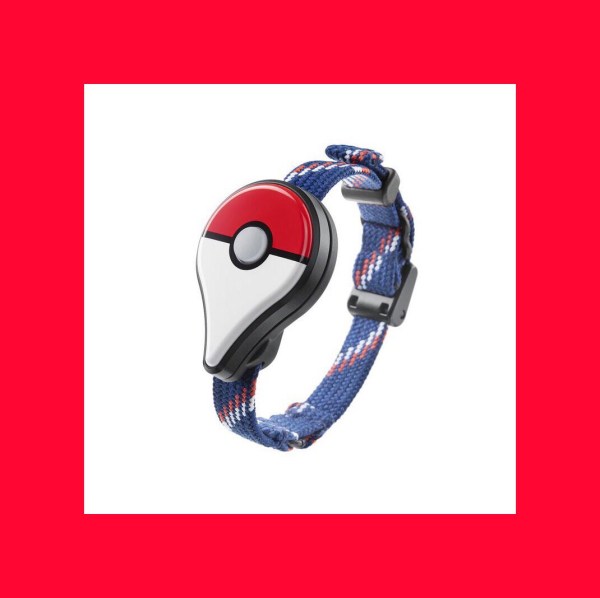
PokemonGo Plus is a new wearable device that features a button that allows players to catch Pokémon, earn buddy candy, hatch eggs and collect Pokestop items without even needing to get out their cellphones! Players had been excitedly awaiting its release, which ended up being months later than promised. They finally became available in mid-September, but only on a very limited basis.
In the US GameStop appears to be the most reliable source to get one locally. But they can’t be ordered online from GameStop. In addition many GameStops only received a few of them which had all been promised to preorders. So many people are still trying to find these wherever they can. Currently, Amazon has them for sale through several 3rd party sellers. Many of Amazon’s sellers are from China or the U.K., and price scalping was a problem initially. But as new shipments are beginning to catch up with demand most 3rd party sellers on Amazon are now are offering the Plus for prices that are substantially lower than the stated retail price of $34.
Advantages of PokemonGo Plus Wearable Device
Perhaps the biggest advantage of using the Plus device is that it lessens the drain on your cellphone battery. I wasn’t surprised to discover that use of the Plus has also brought back players who’d lapsed in their game play. Probably because the Plus requires less ‘hands on’ interaction and allows players to be more discreet while playing. Many reviewers at Amazon also said that using the Plus allowed them to be more productive with the game while driving. There were a couple of issues with the Plus in the beginning but later updates solved those as well as added new enhancements making using the Plus even better. The most frequently stated negative of the Plus is that it’s use squanders lots of red Pokeballs. But an oft repeated advantage has been improved accuracy finding wild Pokémon….especially since the app’s built in sightings mechanism has been broken for months.
Now that the price of PokémonGo Plus has come down substantially I expect that a lot of people will end up getting them…although remember that Niantics will soon be releasing an app for both Apple Watch and Android Watch which should do almost everything the Plus does. It appears that the one difference between those wearable’s and the Plus will be the ability to catch Pokémon…since it’s been reported that neither app will include a ‘catching’ feature.
PokémonGo and Halloween Treats
The month of October has been a busy one for Niantics. They’ve released several new updates which continue to improve the game play experience and help players of all levels understand the strategies behind the seemingly simple game. To perform really well in the game requires a certain amount of focus, some math skills and some determination to get outside and remain active. Some of the newer features include buddies, which allows players to pick one Pokémon to be at their side continually…while earning additional candy that’s needed for later evolutions, and Pokémon appraisals which can help players decide which buddy to choose as well as which Pokémon to ‘trade in’ for more candy for evolutions too.
On October 26th Niantics announced that special Halloween bonuses were in effect until November 1st. Buddy’s will earn 4 times as much candy for walking and players will earn double candy for catching, hatching and transferring Pokémon. There will be a lot more spooky Pokémon than normal too…which affords players’ chances to build up a lot of experience points catching Pokémon they might never see otherwise.
The Extra Candy Bonus Means that NOW May Be the Perfect Time to Learn About Pidgey Spamming
What’s Pidgey Spamming? Well, it’s a little complicated…but here’s my interpretation. There are a few Pokémon that don’t require very much candy to evolve. These include Pidgey, Caterpie and Weedle. It only takes 12 candies to evolve one of these types. When you evolve a Pokémon you gain experience points. When you do so after first setting a Lucky Egg into motion, your XP points are doubled. Far more advanced players than myself seem to agree that it doesn’t make sense for players to evolve Pokémon until they’ve reached Level 20. The main reason is because you won’t’ have acquired very many high CP valued Pokémon until then. But players tend to accumulate a lot of lower CP valued Pokémon like the 3 aforementioned types.
Using a Lucky Egg to evolve lots of lower valued Pokémon seems to be the one exception to the rule for players who really want to evolve Pokémon. This can benefit a player greatly by improving their XP thereby catapulting them into higher levels more rapidly.
Photo credit: ansik via Visualhunt.com
So, before you evolve a lot of low level Pokémon you should thin out their numbers. This is where the math comes in. You need to determine how many Pokémon you can evolve with your given candy. Then transfer the remaining ones to earn additional candy. Usually you’ll only earn 1 piece of candy per transfer…but right now, with the Halloween bonus you’ll earn 2. So go through your Pokémon list and transfer all the Pidgey’s, Weedles and Caterpies that you can…obviously making sure to transfer the lowest valued ones first. Keep only as many as you can evolve…meaning keep 12 candies per Pokémon that you intend to evolve…and discard the rest via transfers.
The 2nd part of this strategy involves taking one of your Lucky Eggs and activating it and then in rapid succession evolving all of the remaining Pokémon of those types. If you can do this near a few very active Pokestops all the better. Activating Incense, a device used to lure more wild Pokémon to you, prior to the evolutions will help to bump up your XP even more. Apparently so will laying down a lure at the busy Pokestop you’ve selected. You’ll want to do this at a time that you have enough evolutions to occupy most of the 30 minutes that the Incense and Lucky Egg will stay active for. If you’re unsure of whether or not you have enough low level Pokémon to make this a worthwhile endeavor, you can try out this Pidgey calculator first.
An Easy Method for Finding Local Gyms,
Pokestops, Nests and Spawn Sites
Here’s a link to a great map tool that was created by two Scottish web developers and coders. If you enter your city name in the search tool, the map will quickly reorient to your locale. We don’t have a ton of Pokestops near where I live so I’ve found this map to be indispensable.
The SilphRoad is another great site that has lots of PokemonGo resources for players. My favorite is this World Nest Atlas map.
The video is outdated (mid-July) but still interesting…especially for those just getting started with the game. One interesting myth that I need to confirm:
When is the best time to hurl a Pokeball at a wild Pokémon?
I’d believed from the start that as the colored rings grew smaller the capture rate went down. So, when the ring is at it’s largest you have the best chance for success. The guy in this video says it’s the opposite…that your best chance for successful capture is when the colored ring is smallest!
If anyone has definitive advice on this topic please leave a comment with any relevant citations below in the Comments section.
How to Get the PokémonGo App on Amazon Fire Tablets
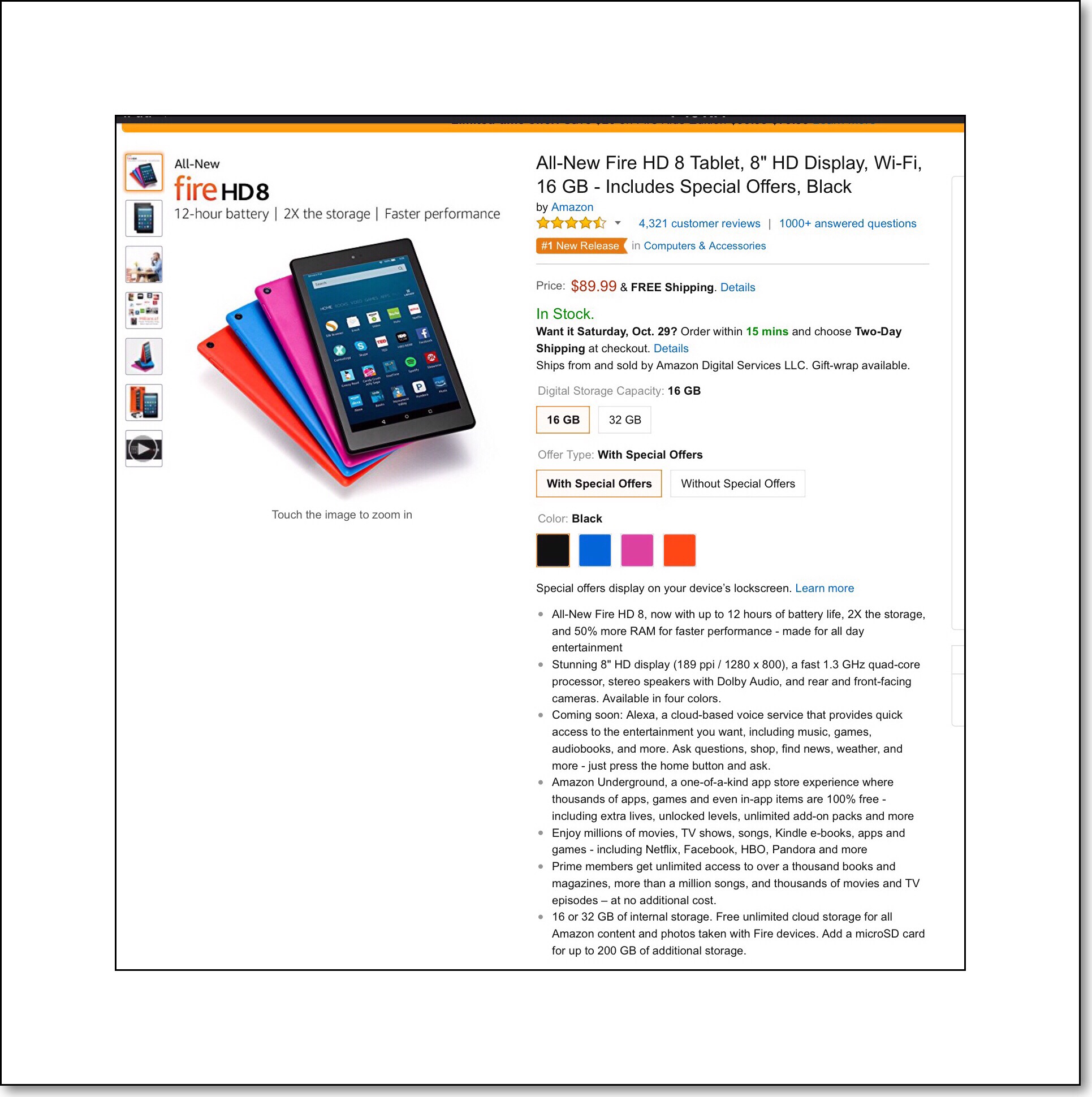
A few months ago during Amazon Prime days I got an Amazon Fire HD. It is perhaps the least expensive decent quality tablet on the market today. I love my Fire but there’s been a definite learning curve. One thing I discovered is that it’s not at all easy to load the Google Play Store App on it. Sadly, this rules out your ability to run a whole lot of apps. I was super excited to discover that there is an easy way to do this today. To make sure that the method worked I tried it out on mine…and it works! Which means that now I can load the PokémonGo app onto my Kindle Fire HD too! In addition to the step-by-step instructions in the link above here’s a YouTube video explaining the steps too.
As a new Amazon Associate I was thrilled to see that the Fire Tablet now comes in a kid’s style too. There appears to be some significant pluses and minuses to the kid’s versions. The major plus is that it comes with a great kid-proof case and a 2 year warranty against accidents. So it’s replaced by Amazon if it gets broken! The major minus appears to be the kids’ software that Amazon calls ‘Free Time’…apparently Free Time is awful. If you read through some of the reviews for the kids tablet I’ve linked to below you’ll see why.
Here’s a link to the kid’s tablet (7″ 16GB Kid’s Fire HD Tablet with case) which is $20 off through October 28th…sorry I just discovered this deal!
Here’s a link to the regular 8″ tablet (the Fire HD 8″ with 16 GB’s) which is on sale until December at $20 off…its roughly the same price that I paid for mine…except I got the 10″so it was a little more.
In both cases the link I included is for the table ‘with ads.’ That’s the one that I got and the ads are only on the lock screen which ends up being a nonissue…it’s the least expensive option.
Well, that’s all of the latest news and tips that I can think of right now. When I have another nice sized group of tips and news gathered together, I’ll write another new post.
I love Photogene⁴the ios photo editing app! I use it almost every day for creating the graphics I use on my websites. It’s an extremely powerful app that offers a few unique features that aren’t easy to find elsewhere. Here are the primary features I use daily:
First and foremost is Photogene⁴’s outline tool…unlike many border or frame tools this one doesn’t destroy portions of your photo because the outline’s are applied at the photo’s edge and go out from there rather than in. In addition to that aspect you can add a wider border than you can with most other apps. See below for an example.
Above is an example of Photogene⁴’s outline tool and one of the frames that’s included with the app for ‘free.’ There is an additional or add-on frame bundle which costs .99¢. There is another add-on which is expanded collage template s for another .99¢. The above screenshot shows the Amazon Fire HD 10″ tablet that I got recently during Prime Days. It’s an amazing tablet that under $300. One last Photogene⁴ feature example I’ve included in this image is my use of the annotating tool, with which I drew the black boxes around some of my favorite features of my new Fire Tablet.
Continuing on with the main ways that I use Photogene⁴ daily…
When I’m finished framing graphics for my sites, I can grab a quick reading on the file size in app…saving me the time of having to go open another app for this.
Adding text, arrows and annotations is also fast and easy using Photogene⁴. Not only that but I frequently use Photogene⁴ for all the editing that needs to be done for a graphic…rather than jumping around from app to app.
A few more of my favorite features are the clone tool, photo frames which are unique and adjustable, there’s a large number of preset or automatic ‘grouped’ adjustments that are intended to be one touch edits, the metadata tool gives you lots of information about the image, and you can also resize images to a customizable sizes prior to exporting them.
There’s Only One Problem With Photogene⁴
Unfortunately it’s a Really Big Problem
This problem arises infrequently for most typical Photogene⁴ users I suspect. The problem is this…sometimes Photogene⁴ gets into this mode where you cannot open any photos once you open the app…you just sit there looking at a blank screen while you wait for your database of images to load. This can take a little while if you have a lot of pictures, which is why you wait. The app appears to be loading your image database. But then it never does. As an example, I currently have 28,800 photos and videos in my iCloud. It may take a minute or so for Photogene⁴ to find them and load all of them into their respective albums. This ‘wait for a minute’ makes the problem even more annoying when, after you’ve waited for a while, nothing happens…your images are never loaded and you are unable to use the app it appears.
It seems that this issue has arisen often enough for Photogene⁴’s developers’ to write some helpful suggestions in the ‘help & settings’ part of the app. Apparently some people’s photo data base’s have become corrupt somehow within Photogene⁴ If that occurs there are several ideas suggested in the app’s settings.
But the suggestions are futile because:
They are within the app. However, if the app won’t open your photo database then you may not even be able to access the help information that’s provided.
Many of the app’s suggestions involve contacting support via email. I’ve done that several times but I have yet to receive a response back from them!
That’s Why I Figured Out This Work Around
The work around is simple. I open the image in something else first, another photo editing app like Snapseed. Then I use that app to open the image in Photogene⁴. This wouldn’t be necessary if Apple’s Photo app could open images into Photogene⁴…but it can’t. I think that’s because the app hasn’t been updated since 2014.
The Snapseed by Google Photo Editing Appis free. It’s another one of my favorite photo editing apps…which I’ve not written about in any detail yet because I haven’t encountered any major problems with it! :-)
November 9th, 2016 a New iPad Message Appeared When I Opened Photogene⁴
I found Photogene⁴ s developer on Twitter. His Twitter handle is @omershoor. I tweeted a link of this post to him in the hopes that we’ll find out what’s going on with Photogene⁴’s future. He’s not really active on Twitter however so it may be a while before we hear anything…if ever!




















 vsatips
