Finding out who subscribes to your YouTube channel when you’re using an ios device is a somewhat tricky endeavor. I know because I was frustrated myself trying to accomplish this. When I finally figured out a solution I wrote a post about how to do it. When I published that post, that alone almost doubled the number of reader’s who visit my site in a days time.
Today, by chance I discovered an easy way to see who your new subscribers are using the ios YouTube app. I thought others would like to know where to find this information as well. If you kept a list of your subscribers using the method described in my earlier post, you can just update it occasionally by adding the new subscriber names you’ll find using this newer method.
Important Announcement
If You’re Checking Your Subscribers Because Your Channel will Lose Partner Status Due to YouTube’s Massive Cleansing of All Their Small Channel Providers…
Please consider subscribing tomy channelso I don’t lose it! I’ll be happy to reciprocate if you leave me a comment at the bottom of this page in the comments section, and include your channel’s link. My channel is for me to create demonstration videos when something is too difficult for me to only describe in written form. So oftentimes my articles here will include a video I made demonstrating the details more clearly. I also create so random ‘How To’ videos on a variety of topics…usually when I can’t find a video on YouTube that I really need to learn something! And last, Imcreate videos sometimes when I find something that’s so cool I just need to to tell or show someone else it too!
If you are unfamiliar with what’s going on right now with YouTube and the crisis before us. About how recent management decisions will completely change the YouTube we’ve all grown to love on Feb. 20th when they go into effect. Pleas also subscribe 1st…and then come back and leave me a comment asking me to explain. I’ll write post about what’s going ASAP!
Thank You for Your Help! :-)
The Steps
Step 1
Open the YouTube App
Step 2
When you first open the app you’ll see ‘Recommendations‘ which includes a combination of new content from channels you subscribe to as well as YouTube’s recommendations for new content on topics you may have viewed in the past.
Step 3
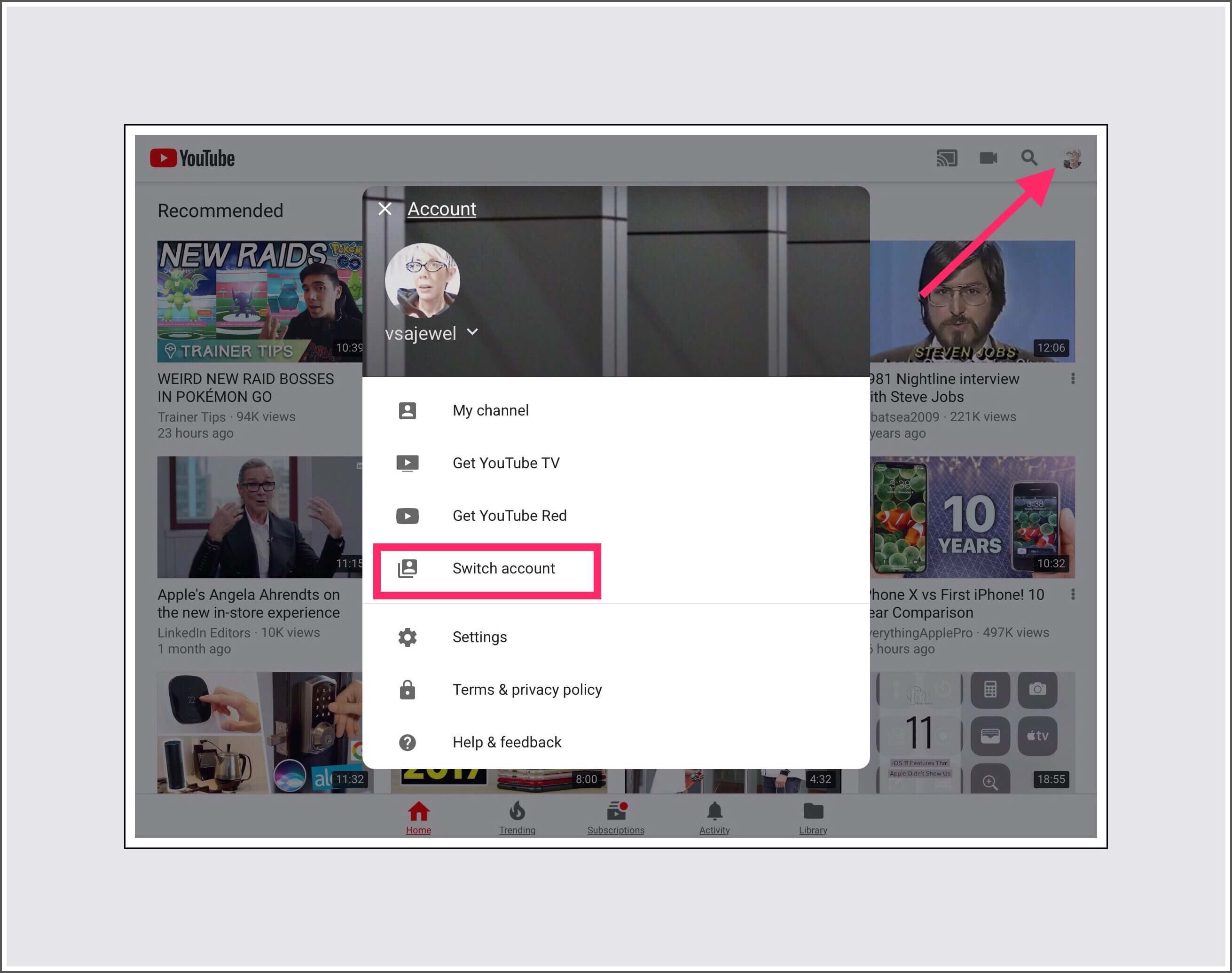
Make sure you’re signed into your Google account for the YouTube channel you’re interested in seeing the new subscribers for. To check your Google account you should see your profile picture in the upper right hand corner. If you tap on it, the view shown in the screenshot below will display and you can change accounts by tapping on ‘Switch Account.’
Step 4
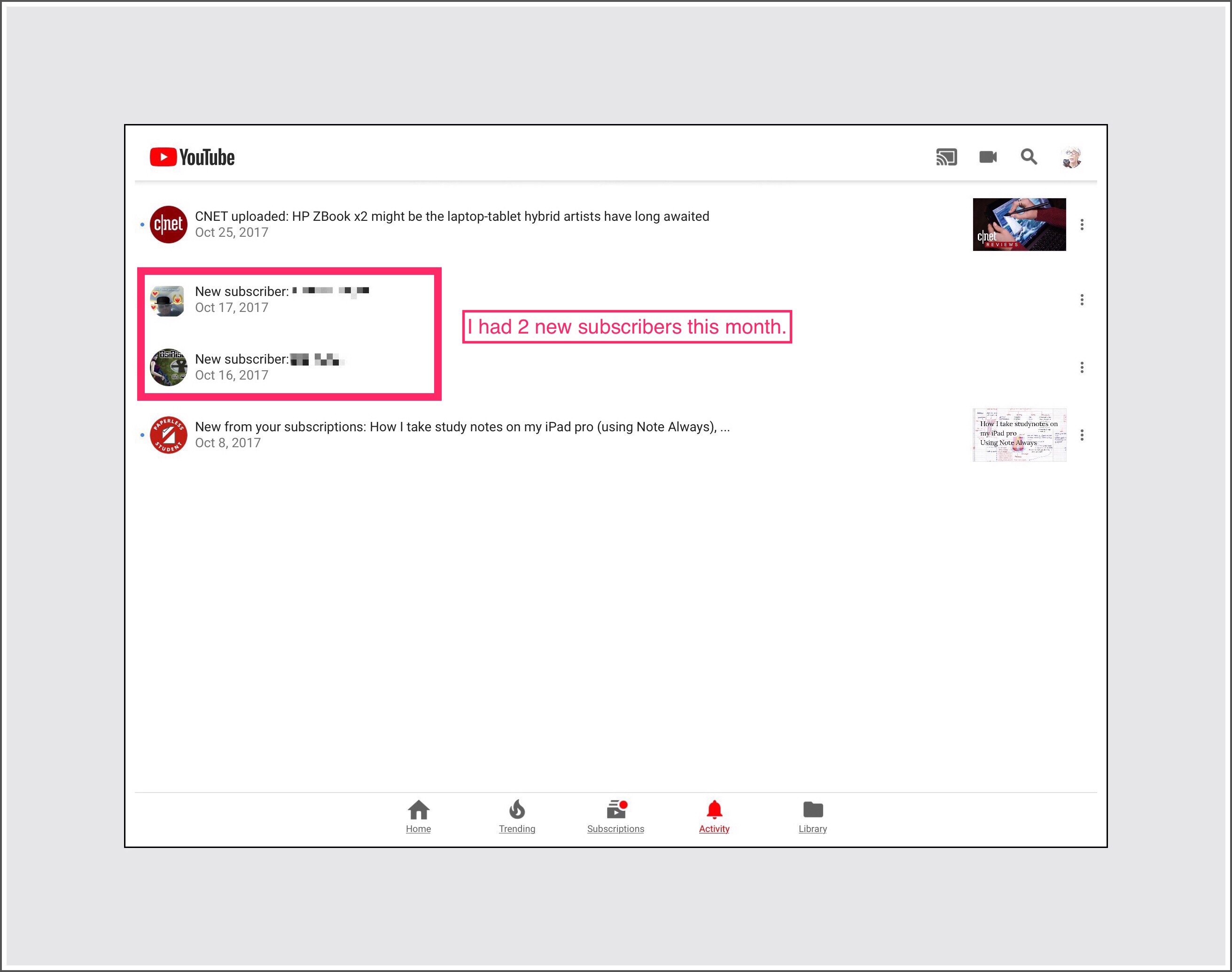
Close that view by tapping on the X and look for ‘Activity‘ on the bottom menu on the ‘Recommendations‘ screen and tap on it.
The next screen display will show you any recent activity for your account and YouTube channel. If you’ve had any new subscribers recently they will appear here…refer to the screenshot below.
That’s all there is to it!
Read My Other Articles About Managing Your YouTube Channel Using an ios Device
Two months ago I published Part 1 of this Beginner’s Guide to Firewalls series. Part 1 was called ‘What Hacker’s Don’t Want You to Know About Firewalls.’ It serves as an introduction to what became a quite large body of information which I’ve struggled to organize and publish in a way that my readers could best utilize.
My main goal for this entire series is to provide important and current safety information to regular people…people who aren’t tech inclined and who have no desire to spend their days thinking about technology.
The first time I ever heard the term Firewall used in relation to computer networks was at the tail end of a 2 year ordeal my family experienced when a Botnet had taken over our home computer network. As we were in the last stage of banishing the Botnet permanently we were discussing ways to prevent this from ever happening again. My husband who’s a businessman operating his own small company, had recently installed a firewall for his business computer network. I was intrigued and the more I learned the more I realized that a firewall was the one strategic move we could take that would assure this would never happen again.
Below: Part 1 of The Beginner’s Guide to Small Network Firewalls
Goals for This Beginners’ Guide to Hardware Firewalls
It may be a bit of an understatement to say that the average American just doesn’t seem to get very excited when discussing the latest advances in network technology. I’ve personally witnessed this on many occasions myself when my husband’s eyes begin to glaze over as I’m excitedly telling him about some cool discovery I made. Depending upon the time of day, his breathing may slow down just enough for me to know that unless something changes quickly he’ll most certainly doze off. Life experiences have shown me that the vast majority of people find network conversations to be repugnant and something to be avoided at all costs! That’s why I’ve tried really hard to keep this series both extremely relevant for my specific audience (households and small businesses that need reliable and consistent networks) as well as relevant regarding the technology and hardware I present for discussion. By keeping focused on presenting only the latest, the greatest, and the broadest use types of hardware on the market currently, while at the same time presenting all of the information readers need to understand about hardware Firewalls and how they function within networks.
This Part 2 strives to advance that goal by explaining how Firewalls fit into small networks and to introduce the one factor beyond the obvious safety features which should receive the heaviest weight when making hardware selection decisions. Last I discuss some additional factors to consider when deciding what type will be most appropriate in any given environment.
Firewall’s in a Historical Context & Today’s Present Forms
It used to be that large companies were the only entities that installed hardware firewalls. Today’s world has changed drastically in that regard. Our daily news is often flooded with stories about new security vulnerabilities that impact almost everyone. Those along with new forms of attacks by hackers can have harmful or even devastating impact upon even the one most common form of technology used almost universally by people all around the world, so much so in fact that they’ve come to be considered one of life’s basic necessities. I’m talking about our cell phones. They, alongside the common targets like computers and IoT devices are now the primary vehicles for attack. Thankfully, there are many more forward thinking individuals who, although geographically strewn across the globe, have been quietly working towards the same common goal…addressing these new threats to our personal security long before many of the threats themselves have even emerged!
Many of these individuals have been working on fulfilling their life’s goals…protecting people and their families from cyber threats…for many years. The challenges they face must be incredible, because oftentimes their plans to bring their devices to the market have been delayed by years. You can tell this by Googling something like ‘Home Firewall Appliances.’ You’ll find complete and professionally polished websites which show off new devices that sound amazing… but there’s no obvious means for someone to actually purchase the device shown. Nor can you even find launch dates for many of these new products. It was only after I spent hours and hours of research time that I was able to determine what the likely product life cycle was and when many of these new devices were hoping to launch.
Happily it looks to me like most of the new devices that I found highly intriguing are actually finally launching now, or did launch in the very recent past or will do so in the near future, most likely while we are still in the year 2017. Evidence of my excitement about these new launches can be ascertained by the fact that I recently purchased a device I’ve been watching for a few years shortly after it launched in August. Even further evidence is that I did so despite the fact that our family’s network is protected by an enterprise grade firewall…Sonicwall’s TX600 (I’d also recently purchased our current model when I upgraded our slower Firewall in March at a cost of $2500 + the Labor costs to setup and install it.)
The new device I just bought is called a Fingbox. It cost $139 and I was able to set it up myself! I love it and will discuss it greater detail in several future parts of this series as well as in a stand-alone post I’m currently working on. But if you’re really interested you can read what I wrote about it the day that I discovered that it was finally available for purchase.
Fingbox is a brand new device that will protect against Krack Attacks
To wrap up this introduction I’ll also touch upon how firewall appliances go about their job of protecting the small network they are installed in…but in a very general way in Part 2 of my series. I’ll delve much deeper into that subject in future sections and will also discuss a number of newer advances and twists Firewalls have undergone to engage directly in combatting the plethora of online dangers which seemingly are lurking at every turn threatening to destroy the generally pretty good levels of Internet safety that we’ve reached as a whole despite the continual bombardment of negative indicators. These circumstances point to the eventual and inevitable adoption by greater numbers of a host of new high level kinds of technology that are rapidly appearing on the market.
Network 101 | Basic Network Design
If you read Part 1 of this Firewall Series, you’re probably wondering how exactly firewalls go about providing the extra protection to networks that they
do…and perhaps you’re even interested in learning more about how they really work. I’ll try to explain as much as I understand, but truthfully, firewall technology is so incredibly complex and powerful that the intricate details regarding firewall’s inner-workings usually tend to go above my head. There’s a good reason most network engineers have had years of specialized training in their field!
An easy way to understand the role that firewalls play is to look at how they are incorporated into the actual configuration of a network. Typical small networks use a modem to receive a signal from their internet provider which supplies them with the ability to use the internet. Usually modems just have one port in and one port out, so that modem is then connected to a router which divides the signal, making it available to more than one device.
The router may have several LAN ports for computers or other devices to plug into for a wired connection. This is the best and fastest connection that you’ll get on any network. But the router also usually creates a wireless network too, by
broadcasting radio signals that any wireless devices can find and connect too.
While these are great and they are what’s driven the whole mobile technology industry to become one of the fastest growing industries around today, (along with cellular networks of course)wireless networks just can’t approach the speed that their wired counterparts do.
Throughput Should Probably Be Your Most Important Consideration When Purchasing A New Firewall Appliance
While these speed considerations are getting off the track for purposes of my firewall example…they are nice to know about. But I’ve mentioned them for another, more important reason too.
There can be a downside to using a firewall that needs to be factored into the equation when someone is considering getting one. The main downside is the firewall’s impact upon your networks’ speed.
Generally internet service provider alternatives are differentiated by one main factor, which is usually referred to as bandwidth in recent years. Bandwidth is most often quoted in ‘megabits per second‘ or ‘Mbps.’ Most internet service providers (isps) offer several speed options…typical ones today may be 15, 50, 100 or 300 Mbps down and a smaller # (or if synchronous an equal #) like 5-15 up. That scenario holds true for most of the United States…unless you’re really lucky and live somewhere where gigabit speeds are available…usually via Google or fiber optic technology…then your bandwidth speed may be measured in gigabits instead of megabits.)It’s this number and the speed of service it represents that can and usually does take a significant ‘hit’ from the addition of a firewall.
How much of a hit has been the subject of lengthy discussions, but the main takeaway is that there is a way firewall makers designate their devices impact upon this bandwidth, which is referred to as throughput.
Throughput’s definition is essentially the bandwidth speed you should expect to be available to you once all firewall services you’ll be utilizing have been factored into the equation.
Your final throughput number may be ascertained once the specific sets of tasks your firewall may perform is determined. Most often these overall throughput numbers for any given individual situation are usually derived by a network engineer. They can usually calculate it using a base number provided by the firewall manufacturer’s specifications for any of their model’s when all of their standard security services are turned on at the same time. From this number they then subtract any services their specific client won’t be utilizing. Figuring this part out isn’t easy, nor is it set in stone because networks aren’t static…they’re dynamic…meaning they’re constantly changing…so this number in practice will constantly fluctuate too. The aim then tends to be more of a range than it is a single number.
While this final throughput number may be hard to figure out it’s really important to ascertain before you make your final decision regarding which firewall you should purchase (or if you have it narrowed down to one brand…which particular model within their lineup.) Ideally a firewall maker should be able to give you a rough estimate of what their product’s overall throughput will be in your unique environment.
The reason this is so important to ascertain beforehand is because whatever number (or range) it ends up being, this throughput calculation is then used to determine what your overall network bandwidth will be after its subtracted from that bandwidth number your isp promise you. The remainder from that equation will become the actual bandwidth speed that your network will operate at after the firewall appliance is incorporated into your network.
Believe me, I wish someone had told us all this the first time we added a traditional firewall appliance into our home network. Sadly, many firewall manufacturers still don’t volunteer throughput data. Oftentimes home buyers will only get that information if you specifically ask for it.
Where do Firewalls Get Placed in Most Network Configurations?
At some point along the way when someone is making the decision to purchase their first hardware firewall they’ll begin to wonder where exactly their hardware firewall will fall in their own network’s configuration.
Firewalls are almost always situated in front of the router in a network’s design…meaning that they are as close to the main source that’s providing the entire network technology as is possible. In most cases with home networks that very first network device is a modem…or a combination modem and router.
It’s most likely that a new hardware firewall will plug into and occupy the one and only outgoing port found on the network’s modem, taking the usual position of your router. The reason for doing this is so that the firewall acts as a sort of clearing house of all web data for any and all devices within a network. All data coming into or going out of that network, must first go through the firewall.
If you’re wondering what happens to the router then, there are 2 likely scenarios. Either the firewall itself has routing functionality built into it and it takes the place of the router completely or the router plugs into the firewall and becomes the 3rd device in the network’s chain…because unlike modems, firewall appliances usually have several outgoing ports.
A botnet master oversees botnet activity
Other Important Factors to Consider When Purchasing a Firewall Appliance for Home and Small Business Networks
IoT Device Considerations
In some cases a firewall has enough ports to serve all of the network’s needs for LAN connected devices. But as more kinds of equipment are being built with internet connectivity, especially the kinds of things collectively known to as the ‘Internet of Things’(or IoT devices for short)these also need ways to connect to the network.
What kind of devices are included under the IoT moniker? Examples of some common IoT devices are those which people use to create ‘smart home’s’ which can encompass many different small devices like light bulbs, smart outlets and switches and thermostats, and also much larger ones such as refrigerators, furnaces, cars and even entire security systems.
Security Cameras | A Unique Group of IoT Devices Pose a Conundrum
Security systems often employ the use of cameras. The cameras themselves fall into one of 2 categories. They can be IP cameras which are an older technology but still the most widely used because IP cameras are relatively inexpensive. They are usually sold in multi-packs so they can protect larger areas than the newer entries in the market which are commonly called standalone or single wireless cameras. If you do a Google search for security cameras, probably 95% of what you’ll find are IP cameras…which may also be referred to as CATV or internet cameras. IP cameras are complete systems which require the use of some kind of receiving DVR for recording the captured video streams. IP cameras come in many different forms too. The most popular of these are bullet and dome styles.
Standalone wireless cameras emerged from the smart home industry. These cameras don’t require much setup or a DVR for recording, so they’ve become popular for DIY’er’s. Some popular models in this category currently include ones by Nest, Canary and Netgear’s Arlo cameras. PC magazine recently reviewed some of the best in this category in this article.
In this article by Safewise security cameras are categorized by indoor versus outdoor usage. The indoor cameras they include are all of the newer stand-alone variety…but their categorization is somewhat skewed because there are good stand-alone outdoor cameras too. The outdoor cameras they talk about all fall into the IP category, but again their categorization isn’t entirely correct because IP cameras are also the ones most commonly used in indoor settings too. The reason I’ve included their article is because, despite the slightly misleading categorization, the article does a good job describing the kinds of features found on both types of cameras.
How IoT Compounds Networks’ Security Problems
In general these many different new types of devices don’t use very much of the network’s one main resource…which is generally referred to as bandwidth. But they do contribute to increasing the overall complexity of a network in 2 important ways.
First of all, these Iot devices, when added to the regular communications and computing devices which are more typical in a small network (computers, tablets and cellphones)can drastically increase the physical size of the network. Each device needs either a port to plug into the network or a wireless receiver built into the IoT hardware to receive the router’s wireless broadcast signal.
Brief Look at How Smart Light Bulbs Work
Oftentimes really small devices like light bulbs use an extra piece of hardware strictly for purposes of communicating with the network…this additional hardware which is commonly called a bridge, may or may not be included bundled with the IoT device itself when it’s purchased. So if anyone is thinking about buying smart light bulbs, it’s important to know that you may be required to buy this bridge separately too…which is something I didn’t know myself at first.
Incorporating smart light bulbs into a network then means that the bridge device plugs into the network and it broadcasts a Bluetooth signal out (which is just a very short-range kind of wireless signal) for the lightbulbs to find and connect to.
The net effect of adding even a few smart light bulbs is that the network size is increased…it has more devices connected to it.This alone doesn’t really have any negative consequence beyond just making the overall network diagram appear more complex and because of its size there are increased difficulties managing it.
The 2nd way that all these devices impact a network is that they create more opportunities or targets for hackers to attack. Because the IoT industry is an emerging industry, a large portion of these devices don’t have very good security measures built into them. What’s worse is that there is usually no way that users can alter the security of these devices. Any built-in security measures would usually reside in the device’s firmware and user’s don’t have any means of accessing it. Inherent to these kind of devices’ simplicity is the fact that it’s close to impossible for their makers’ to send out firmware updates…because there isn’t any good way to install updates. So, while they are cool, fun to use and helpful in many ways, they can also act as an open invitation to hackers. Here’s a link to one of the most recent attacks on IP cameras which ironically are most often used for security systems.
One way to keep safe from botnets
What Attracts Hackers Today
You’d think that something as insignificant as a light bulb wouldn’t interest hackers…but they do. They’re attractive because when you take a whole lot of those little devices and combine them together you gain something that’s a desirable commodity in the hacking community…armies of zombie devices that will do their bidding.
Some of my readers may remember the post I wrote about how my family’s network was taken over and made part of a Botnet. While that seemed an unlikely scenario then, we know that Botnets are still a huge problem even now. Hackers find IoT devices so attractive today because there are so many of them and most lack even basic security. There are a quite a few of these massive Botnets that are used to commit cyber crimes against corporations, and even against individuals like my favorite security news source Brian Krebs.
I was really surprised recently to discover that many of my friends weren’t entirely sure of what a Botnet really is. Here are a few quick YouTube videos which explain Botnets, how they are formed and how they function.
ESET Botnet Video
What is a Botnet? by the InfoSecurity Academy
What is a DDOS Attack by a Botnet
Hacker’s Are Businessmen and Botnets Offer Big Business Profits
In today’s world hackers are usually businessmen, (although recent focus on this topic at the widely popular SXSW Conference in Austin Texas seemed to indicate this might be changing, and that a new breed of teenage hackers might soon disrupt this reality.)
In recent times however, hacker’s haven’t hacked into things for the fun of it. They hack for profit. Botnets’ are one lucrative avenue towards that goal. The most successful Botnets are leased out to other hackers who need them to carry out attacks against corporate computers or servers that provide large-scale computing services to some of the biggest companies in the world. It’s often these servers,which most regular people have never heard of, that are the main targets of hackers.
By employing the combined power of thousands of IoT devices the main attacks aimed at these service providers are a type of attack known as a DDoS attacks. In a typical DDoS attack, a company’s computers are barraged with thousands, upon thousands of requests that ultimately overwhelm them so much that they simply come to a grinding halt and are unable to function in any meaningful way. When servers are hit they may also take down all of the clients they are serving…raising the victim rate exponentially. That’s exactly what occurred in a recent attack against a company no one’s ever heard of called Dyn.
On October 21, 2016 Dyn was attacked by a huge Botnet known as Mirai, which controls thousands of IoT devices like printers, baby monitors, IP security cameras and smart home controllers.
Mirai Botnet
The attacks lasted for an entire day. Dyn is a service company that provides DNS services which help to map domains so that end users can reach their desired website. When Dyn was attacked this mapping service was disrupted and at least 70 well known companies were affected. Companies like the Wall Street Journal, Twitter, Airbnb, Amazon, Netflix, Comcast, HBO, Fox News, Reddit, Etsy, Walgreens, Zillow, Pinterest, PayPal and many more. As the day progressed one news source after another proclaimed that more than 1/2 of the Internet was completely shut down.
The numbers of Botnets created to harm other systems is rising, as discussed in this recent MIT Technology Review article.They will continue to do so until manufacturers begin adding serious security measures into these devices.
These types of attacks are one of the key reasons that every home and business user should consider protecting their network with a firewall.
MIT Technology Review Article on Botnets Growth
But What can we as individuals do about this? If you like all of the benefits that IoT devices offer, and you plan on turning your home or office into a modern smart environment by using many different IoT devices to address many different functions, then installing a hardware firewall at the front end of your network may prove to be your best defense. If you were to install one of the all-encompassing traditional firewalls, they too can be configured to provide coverage for IoT devices. But as we’ve recently learned, there are a few newer, less expensive firewalls which are designed specifically to protect IoT devices. This emerging market promises much better solutions for individuals and families who use small networks they’ve setup themselves. Parts 3 and 4 in this Beginner’s Guide to Firewalls will cover several of these newer device types and discuss the varying, unique, and sometimes brilliant approaches their developers have utilized to make inexpensive hardware perform incredibly complex tasks.
An amazing new network tool anyone can afford and easily use to keep their network safe and secure.
Update 1 week later: I ordered Fingbox the day I wrote this. You can read about my experience setting up and using it.
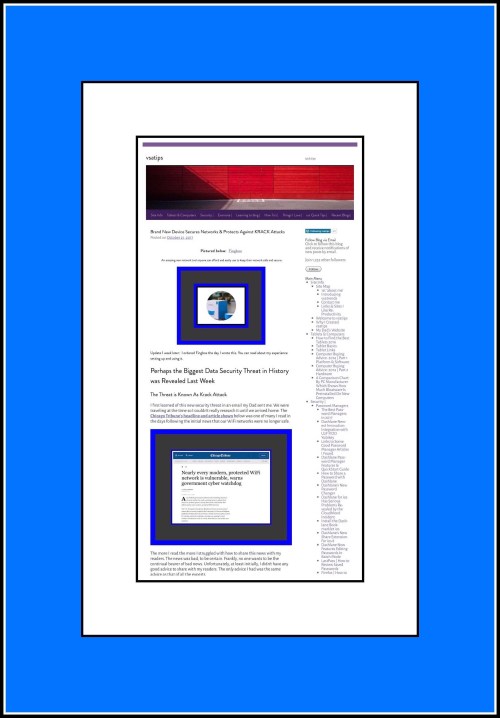
Perhaps the Biggest Data Security Threat in History was Revealed Last Week
The Threat is Known As Krack Attack
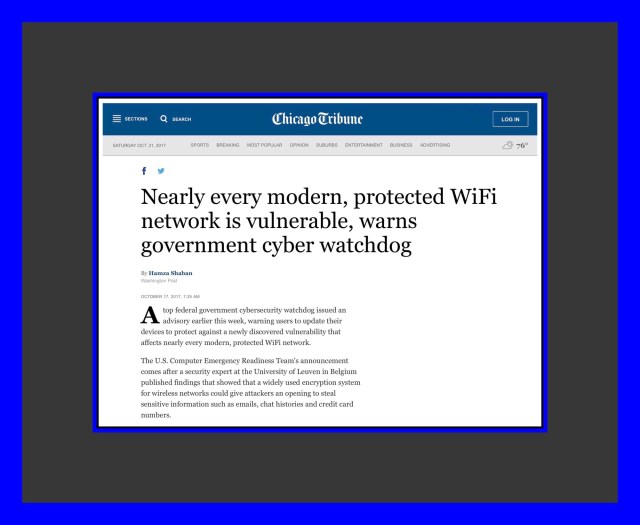
I first learned of this new security threat in an email my Dad sent me. We were traveling at the time so I couldn’t really research it until we arrived home. The Chicago Tribune’s headline and article shown below was one of many I read in the days following the initial news that our WiFi networks were no longer safe.
The more I read the more I struggled with how to share this news with my readers. The news was bad, to be certain. Frankly, no one wants to be the continual bearer of bad news. Unfortunately, at least initially, I didn’t have any good advice to share with my readers. The only advice I had was the same advice as that of all the experts.
Best Advice to Follow to Prevent Krack Attacks
Make sure that you keep all your devices up to date with security patches and general updates.
Because the advice that’s given in literally every source I found didn’t seem to offer much in terms of really useful information, and because I didn’t feel I had anything new to add to the equation…I ended up not saying anything at all.
I Began Educating Myself so That I Really Understood the Threat
As I continued reading and learning I finally began to understand the crux of the problem much more concretely. Ultimately that learning process has been very worthwhile…so worthwhile in fact that I want to share one resource. This article was extremely helpful for improving my understanding of the problem. In it the author describes what an ‘Evil Twin Access Point Is.‘
The ‘evil twin AP’ concept lies at the heart of the Krack Attack threat…so while the author describes this in the context of public Wifi’s…it pertains to private, or home Wifi’s too. I think the author has done an amazing job of explaining a really complex concept in a way that’s easy to understand!
What led me to the ‘Evil Twin’ article was an email I received today about the development of a product I’ve been monitoring for a long time now. I was really excited to discover that not only was this long awaited product now available…it’s a network scanning device for everyday people…but it may be the answer to mine and many other people’s prayers to address the problem of how to stay safe following the Krack Attack news.
Therefore I finally feel as if I have some good, if not great advice to share in addressing this scary sounding situation. But before a get into the details of that, there were a few more realizations I’d arrived at which put the Krack Attack news into better perspective. So first, here are a couple of general observations which mitigate the significance of the overall threat quite a bit. Most of these were taken from this Krebs on Security article.
The likelihood of an individual of family’s network to be attacked using Krack Attack is very small.
The reason for this is because an attack can’t be done remotely…the attacker needs to be in close proximity to the network he/she is attacking. Therefore in the case of residences…there’s a good chance that you’d notice any strangers hanging around your home. Especially if they were there long enough to employ their nefarious tactics and then wait around even longer to take advantage of them and capture people’s data while you’re engaged in online activity. Because it’s a real time situation they would need to be present the whole time.
When the Threat was Announced There Were Already Some Solutions Immediately Available
That’s because the researchers who discovered the vulnerability first took their information to the tech world…so that equipment manufacturers could begin working on fixing their hardware immediately to prevent this vulnerability from gaining too much ground in harming users. Therefore many users had already received the patches prior to even hearing the first reports of the very bad news.
This holds true primarily for Windows users…although I don’t know all the specifics, I’d guess that it’s probably Windows 10 users who are safest. Another huge hardware provider, Apple, said they would be releasing this fix very soon.
Once a devices software is updated with a fix, there’s no longer a vulnerability for that device.
There’s No Evidence Pointing to Any Actual Exploitation Using the Vulnerability
Since this vulnerability was discovered by good guys who immediately took the correct actions to address it’s very broad reach, no one has any knowledge of actual hacking incidents which may have taken advantage of the vulnerability to date. That’s probably one significant reason why the guys that found it brought it to the attention of those responsible for correcting situations in which the exploit could occur first. Even before announcing it to the general public. So that when the hacking community did learn of it, there would already be fixes well underway.
But There Still Remains a Larger Problem…Updating Network Devices
Things like routers and access points for sure need to be patched too. But patching those via updating their firmware isn’t necessarily an easy task. Each manufacturer has different procedures for this. Simply finding their information may not be easy and the actual firmware update can be even more challenging…yet, it needs to be done! I suspect that firmware updates for things like routers are orchestrated in a manner very similar to how I describe the process of securing your network’s router or modem in this post.
If Only There Were a Way to Tell if a Krack Attack was Actively Being Employed on a Network
In light of what I learned…this threat isn’t nearly as concerning as I’d once believed it to be. But it’s still present and will continue until network hardware makers release fixes for their products. That’s why I was really excited when I received an email today from a company I’d been watching with interest for several years as they worked on developing a new breed of hardware device that can aid greatly in administering smaller networks like those used in most home throughout the United States.
The Product I’ve Been Keeping Tabs on the Development of is Called Fingbox
I was watching it for so long because of the promise it held it for keeping our home network secure and managing our problematic bandwidth issues. I believed that if the Fingbox team could make the Fingbox a reality, and do it such a way that we could afford it (without monthly subscription fees) that would be the answer I’d been searching for. It turns out that’s exactly what they did! Moreover, the timing for Fingbox could not have been better!
How I Discovered Fingbox
I first heard about Fingbox when I took an action that I almost never take…I signed up to receive email updates from an app developer. The app was called Fing. I never sign up for email updates because I’m already overwhelmed with too many emails. The thought of receiving one more was far from appealing. But in the case of Fing….I was so intrigued that I broke my own rule.
Once I’d finally regained control of our network following an almost 2 year battle with a botnet, I wanted to keep very close tabs on all of our network traffic. I discovered Fing in that pursuit. While Fing didn’t let me do a lot of the things I longed for…it did let me do one thing very, very well. Fing let me see who or what was on my network at any given moment in time…just by using my iPhone or iPad!
The Fing App
In the early years following our botnet attack, we relied completely upon one device to help us feel secure…a hardware firewall…which had been installed and was maintained by a network consulting firm we hired. The firewall device was much too complicated for us to manage on our own. Even its management reporting features seemed far beyond our skill level. Sometimes they even seemed to be beyond our consultant’s level! Because it turns out that…
Networks are über complicated…and so are the firewall devices used to protect them.
Which is precisely why I was beyond thrilled when I discovered Fing! Apparently I wasn’t alone. Back then Fing was only available on ios…today it’s available on many different devices. I wasn’t even surprised to just learn that Fing has over 20 million users!
That’s because Fing does it’s one task exceedingly well. In fact, it really does a bit more than that too…it gives users tools to save their network and device information so that once a network is scan is completed, you can immediately spot the new devices on it. Those you’d scanned previously allow you to begin storing a bit of a history regarding their network usage.
I’m fairly certain that there is another key element that explains Fings overwhelming popularity. It’s the fact that Fing was and continues to remain a free app. I also think this says a lot about Fing’s developers. It would have been so easy to convert Fing into a paid app once it’s popularity grew. I have no doubt that even under that scenario Fing’s popularity would have continued to grow.
I can’t over emphasize the importance of the ‘peace of mind’ I gained by always knowing exactly what devices were on my network. But it wasn’t just me who was impressed. As we worked with various network consultants over the years, I found that almost all of them were equally impressed with Fing. Our expensive firewall appliance simply couldn’t provide us with that information in a quick and easy manner.
How Fingbox was Conceived
While I don’t know the exact answer to this…I do know that it was several years ago. I know this because I’d been following the company for that long. I watched as the Fingbox Team grew, the Fingbox device grew smarter and more robust, while it gradually went from concept to a finished reliable device. Early on the company seemed to struggle a little bit in coming up with the right form for their product…they tested out a subscription based service. Luckily they abandoned that concept and developed Fingbox instead. Fingbox is, at its core, a network scanner…but it’s unlike any network scanner I’ve ever seen.
The difference is that typically network scanners are employed by people who work with networks a lot and they understand all of the intricate details of networks. But this scanner is for everybody else. It’s strength is that it takes all this complex data and makes it super simple to understand and use.
What Does Fingbox Do?
The device itself is super easy to install by anyone…no network knowledge is required. Once Fingbox is connected to your network these are some of the safety features it provides you:
Fingbox Features
Internet Speed Tests and Historical Data
WiFi Speed and Streaming Quality Analysis in Real Time
Bandwidth Analysis and Isolation of Bandwidth Hogs
Gives Users the Ability to Block Devices from Accessing Their Network
Temporarily Pause Internet Usage on Kid’s Devices
Setup Digital Presences to Monitor Network Usage by Individuals or Groups
Setup and Receive Alerts for Various Events Such as When a New Device Joins Your Network
Logs Recent Events for Future Analysis
Internet Connection Security Check that Checks for Open Ports & Network Weaknesses
Monitor and Control Network Usage in Several Different Ways
See Virtually Everything Happening on Your Network
A Digital Fence Feature Displays WiFi Devices that are Within Range of Your Network, Even if they Haven’t Joined Your Network.
Alerts When ‘Evil Twin AP’s’ are Present
It’s those last 2 features that compelled me to order one today and to write this post. Whether or not firmware updates are made available for our network hardware, with Fingbox’es continual monitoring I won’t worry about Krack Attack Exploits.you can read more about how Fingbox accomplishes this in this article.
Watch This Video Demonstration of How Fingbox Digital Fence Detects a Malicious AP
Additional Information About Krack Attack & Some Important Fingbox Links
Fingbox was created to monitor entire small networks like those found in most homes. There’s no practical upper limit to the number of devices contained within a network although I did see mention of the number 256…so it’s quite possible that 256 devices is the maximum threshold for one Fingbox. But even if that’s true, it’s not really a concern for me. We have more devices than is the norm and last time I checked it, we were at 37 devices.Our network is quite complex because we have a hardware firewall, a mesh Wifi network and we use a gigabit switch. None of those factors will preclude us from using Fingbox, although in their literature they suggest tweaking some of the firewall’s settings to allow the Fingbox to,operate at its full potential. Further digging did reveal that there are some routers that don’t function well with Fingbox. You can read about those here.
When you arrive at the webpage in the link above you should see something like this:
If you don’t see all of the subcategories under the compatibility menu item, you just need to click or tap on it to expand the submenu.
Fingbox is really, really new. It was funded with an Indiegogo campaign that raised over 1.6 million and its backers just received their Fingboxes in August of this year. That means that the Fingbox team will continue to enhance and improve the device as greater numbers of user reviews start rolling in. You can read and see what Fingboxes initial backers had to say about it here. If you’d like you can also see what the Indiegogo campaign was all about.
One of the things I find most astonishing about Fingbox is how inexpensive it is…primarily because of how powerful the device is. I’ve spent a lot of time researching network hardware and the features Fingbox offers for the really low price nad low learning curve involved is truly hard to believe! Which is why I ordered one within hours of receiving that email I mentioned.
If you’re interested in getting your own FingBox, there are 2 different ways you can do so. In both cases the price is the same and free shipping is included. The first alternative is to order it from Amazon. I became an Amazon Associate a few months ago, so if you’d like to support my website by ordering it this way I’d recieve a small commission and I’d be really grateful too :-) The second method is to order it directly from Fing. Regardless of the method you use, Fingbox is covered by a generous 2 year warranty and is guaranteed to never require subscription fees.
Recent upgrades at Weebly have rendered methods my Dad previously used for posting new content on Weebly ineffective. His old methods appear to be broken and trying to figure out a new methodology has proven challenging for him because Weebly has added so many new features that it’s hard to find some of their most basic procedures amidst the fray.
So I’ve written this guide for him to describe a simple step-by-step method he can use to publish a new Page. I know there are a lot of other ways to post things on Weebly but this is what he needs so it’s what my guide is focusing on. The one aspect I have not addressed that he may also need is adding images. But I suspect once he understands the steps here that will be an easy matter for him as well.
My Dad is 91 3/4 years old! I mention that fact only because I’m really amazed by it. I’m also amazed that he still works on his website almost daily. It’s a huge part of his life!! I mention the 3/4’s part because when you’re in his age range…3/4’s of a year can make a big difference…heck even a 1/4 of a year can make a significant difference in managing virtually every aspect of life.
My Dad is the reason why I even have my own websites and YouTube channel. I write tips for everyday people to help them in using technology and also in learning how to stay safe online. Many years ago, when Dad retired from the corporate world, after consulting for a few years, then he really retired. That’s when he began to record important aspects of his life for his kids by writing about them.
The kinds of things he wrote about initially were things like when he first arrived in the USA following a long cruise on a ship which sailed from Germany…he was around 6 years old then. About 20 years later he served as a Marine in the Korean War. Roughly 35 years after that Dad wrote about the culmination of his corporate career and the years leading up to it. He also searched high and low for some favorite German children’s stories and translated them for us when he found them. These were all self-published into a series of ‘essays‘ if you will, that he hand-bound and distributed. By the time he’d accomplished those things he’d been bitten by the ‘writing bug.’ That’s when he decided to try his hand at fiction.
Shortly after Dad completed his first fiction compilation is when home computer use began to become fairly mainstream. Dad came up with the idea of publishing his work on a little website for his family. This would prove to be a much better means for him to distribute his work. It’s also what ignited a hidden passion in some other family members to do the same :-)
His Pioneering Work as a Blogger
Little did Dad or really did any of us know at the time, but Dad had created what essentially was a blog! Below is a screenshot of his website today.
I’m convinced that Dad was one of the first bloggers in existence!
Fast forward many years later and Dad is still writing his blog today. He even has a healthy if not surprising number of weekly visitors (on average around 200)! But the technical challenges aren’t as fun for him to tackle as they once were. Which is why I decided to try and help out a little by writing this guide. If you’d like to visit Dad’s website you can do so here. I should warn you however that Dad is a fairly prolific writer, and while it may not look it…he has a lot of content at his site!!!
If you’d like to read more of a ‘quick overview ‘of his site…(here ‘quick’ is a relative term!)…you can read the blog post I wrote in 2015 about why I love my Dad’s website and how it inspired me to create my own :-) In it I tried to provide a good overview of the kinds of things he writes about and how his site is organized.
A Little Background About Weebly
Weebly is a free (or it can be a paid) platform for regular people who have no coding background to use to build,their own websites. The site you’re reading this on, which is WordPress.com is similar. The way in which they differ is that WordPress relies more upon standard website creation tools whereas Weebly has come up with an ingenious ‘drag and drop’ type of engine to make website creation possible for someone with absolutely no technical background whatsoever.
When Dad began using Weebly it was very different from what it is today. I doubt that the Weebly staff even recognizes who Dad is or how unique he is in their universe of users. But Weebly needs to keep up with the times just like any good company that wants to survive should, and as they’ve added new features and tools the basics of web building have necessarily changed some. I recently learned that Dad wasn’t really utilizing the true ‘drag and drop’ nature of Weebly but had developed his own methods for publishing his work. He’d use Microsoft Word to write with and then copy/paste or drag his finished work into Weebly…with all the formatting and everything in finished form. Knowing how websites are constructed a little tells me that shouldn’t have worked…yet it did!
Dad’s methods survived for many years and it was only recently that they finally stopped working. So he needs a bit of a refresher course on how Weebly is supposed to work in order to keep writing and publishing. Therefore my guide will start with a few basic concepts and then go on to demonstrate how to use Weebly to publish a web page.
Anatomy of a Webpage in Weebly
In Weebly webpages are built using what I like to think of as page building blocks. While there are many different kinds of blocks (Weebly calls these blocks…elements) there are only 2 that you really need to concern yourself with right now.
The Title Element and the Text Element
Before you can add any content to your Page…you first need to add the proper container for it. I could be wrong, but I think the reason for this is that by placing content into containers, this ends up coding that content correctly for Weebly to render it properly onto a webpage.
Adding any kind of element is done in the same way…you just drag it from the tools menu to the editor.
A Little More Information About Pages
Adding Pages in Weebly is straightforward and easy. Pages are also one of the main organizational units in Weebly…and a page is equivalent to an actual webpage, in that pages become the webpages for your website.
Organizing pages is pretty easy too.
The only tricky thing about Pages is finding the URL or link to them after creation.
Brief Weebly Tutorial on Pages and How You Organize Them in a Website
Since everything on Dad’s website is centered around pages, I thought this Weebly video guide on managing your pages might be helpful too.
The Steps to:
Publish a New Page on Weebly
If you follow this set of steps each and every time you publish new content, the whole process should be easy for you. After you’ve done it a few times, these steps will become second nature to you.
Step 1 Add a New Page for Your New Content
When you open Weebly’s editor for the first time you’ll land at your homepage. Dad’s homepage looks like this.
To begin publishing a new page, you need to leave your homepage and go to the location in the editor where all of your pages are displayed.
To do this, click on the menu item ‘Pages‘ using the top horizontal menu, shown in the screenshot above. The screenshot below shows what you should see and do next.
Tap on the +sign at the top of the left side menu to add a brand new page. This is shown in the screenshot above.
Select Standard Page next.
If you’ve done this correctly, you’ll arrive at something which should look like the screenshot below. You may see your own theme’s default Header Image here which you’ll probably want to remove.
If you do want to remove this header image, the next thing you’ll do is click on the down pointing arrow next to ‘TallHeader‘ on the leftmenu.
When you do this several different types of page layouts will be displayed. You should select the option that says ‘NO Header.’
Now you’ll have a new blank page that’s all ready for you to add your new content too.
Step 2 Add a Title
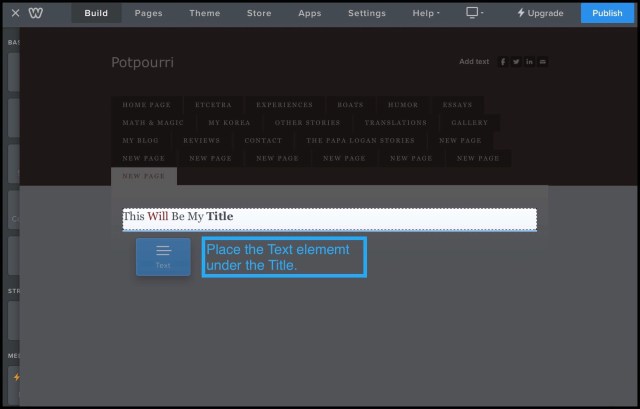
Adding a title is probably the easiest step. Just find and drag the Title element box from the left side menu onto you new document.
After the Title is complete you’re ready to move on to adding the most important part…the new content itself.
Step 3 Add the Text for the new page
There are a couple of ways you can go about adding your new content. You could just start typing it in right here…that’s what I do if I’m just adding something short. Or, you could have first created your new page somewhere else. In Dad’s case he was using Microsoft Word…but recently that ended up causing some problems for him so he’s been advised by Weebly staff to use something like Notepad in Windows or Apple Notes on Mac because those apps don’t let you add a lot of formatting.
So, I’ll assume that you have something already written in another app that you now want to import into your new page on Weebly. You can add it in one of 2 ways. You can either just drag it in or you can use copy/paste to add it into Weebly’s editor. In both instances it might help if you have 2 windows open on your desktop. I like to always keep the window that I’m copying from on the left and the window I’m copying to on the right…because I’m right-handed. Dragging something from left to right is easier for someone who’s right handed…if you’re left-handed you might want to do things the opposite of the way I do.
But Wait!!!
Before you drag or paste anything, remember that you need to add your container first! So, in this case, you need to add a new Text element to the page first. It will act as the ‘holding cell‘ for the text you’re about to add.
Below is an example of my container right after I added new text to it. In my example, rather than dragging or pasting some text, I’m just typed it directly into Weebly’s editor.
So, you need to find the Text box in the left-hand Menu, then drag it into your Document editor towards the right. Then either copy and paste your content into that text box, or drag it from your other open app. See my example:
(You may notice that when you begin dragging the Text element it’s a blue box…but as soon as you let go of it sort of morphs into the white text box shown below.)
Step 4 Make any Formatting Changes
You may have noticed that the title I entered already has some formatting. The word Will is in red and the word Title is bold. These are two of several different formatting changes you can make here.
Formatting Text in Weebly’s Editor
Formatting in Weebly is really straightforward. You just select the block of text that needs to be formatted and then use the toolbar that appears to make changes.
The only aspect that may prove slightly confusing is knowing what the various icons in the text formatting toolbar refer to. So I copied something from Weebly’s support Pages that describes what each menu item refers to.
Weebly’s formatting toolbar explained
Dad is especially interested in how text is justified. The menu icon for that is in the middle of the toolbar with 3 horizontal lines and a down arrow next to it.
Changing the color of fonts.
Step 5 Publish the Webpage
Once your page looks just the way you want it to click on Publish in the upper right hand corner. I believe that Weebly auto-saves your work while you’ve working on it…I know WordPress, my regular editor does. But if it doesn’t or if you often experience problems while posting something, you can do periodic ‘Publishes’ as you’re working …think of it as ‘interim saves.’
So, the purpose of the final Publish is to allow Weebly a chance to create an internal link for it. Basically so that,you’ll have something to link to in the next task…adding a link to a menu or table of contents.
The Final Steps Are Hard To Illustrate with Screenshots So I Made a Video Demonstration
Below are the last steps which I cover in the video.
Step 6 Go to Your Table of Contents & Add the New Title
Step 7 Convert the New Title Into a Link
Step 8 Publish Your Table of Contents Page
Step 9 Thank Your Lucky Stars You Have a Daughter Who’s Happy to Write Up a Step-by-Step Guide for You
Video Demonstration | How to Create a Link in a Different Location to Your New Page
Or You Can Find my YouTube Video Demonstration by Clicking Here .
Initially I couldn’t get WordPress to embed this video, which is why I had the link to it…because really, the video has over half of the most important information in this post within it. Finally towards the end of the day imposed this I was finally able to embed it! Yay! Btw, embedding it means that it runs right within my tutorial instead of having to use a link to go watch it at YouTube.
Below: My YouTube Video
Comments
Please feel free too leave me any comments by scrolling further down the page and looking for the little comments box.





















 vsatips