Learning About Google Page Ranks, Keywords & How They Might Relate to My WordPress Annual Report

I just found my 2015 WordPress report for vsatips & I want to share the results with my readers

I realize that it’s pretty late in the year to be discussing my annual report from WordPress.com. The fact that I found it pretty late and then forgot to actually look at it when I did, should hopefully explain why. If that explanation doesn’t fly, then how about this. As the end of the year is rapidly approaching, I’m looking at my progress and thinking about how to improve for next year?

I’m Still New Enough to WordPress.com to Have Been Surprised by Finding This Cool Annual Report They Make For Bloggers Each Year

You might be (secretly?) wondering why am I sharing my 2015 stats here…perhaps you’re even thinking…hmmm…other than vsajewel herself, does anyone really care about vsatip’s website stats from  2015?  My answer to you would have to be a resounding YES!…at least I think so.

Who Actually Cares About These Stats & How Do They Relate to Google Page Rank & Keywords?

I think I can state quite positively that my Dad will be interested in these stats. Because he’s either my #1 or #2 reader. Also because he writes his own blog on Weebly too. I wrote one of my most popular posts about his website here.   In addition I think my husband is interested…he (hopefully) occupies the alternative #1 or 2 spot that Dad does not. I could be wrong, but I think I have at least one very close friend who reads my blog too…possibly even 2!

Sadly, WordPress.coms stats aren’t very sophisticated so I really don’t have a clue if anyone that I actually know, reads anything that I write! Even more sad is that I still don’t have a clue as to how any of these stats might relate to Google page rank…or of they even do at all.  Unfortunately, while overall, the help and support and even the training opportunities within WordPress.com are really pretty great…nowhere around here is there anything pertaining to Page ranks or use of keywords. I’m not sure if that’s because these topics are too basic, or too advanced, or maybe too practical?

So, yah…I guess…that basically all the people I know for sure who are really interested are the previously mentioned solid 2. But for them,(and especially for my Dad) sharing my report this way is infinitely better than the alternatives. (You know what I’m referring to Dad…the ubiquitous shared Evernote note!)  I’m still new enough to WordPress and to blogging to not have a really great feel for if there’s anyone else in the world I know that will actually ever read this. But that’s OK too.

It turns out that I get a huge sense of satisfaction out of having random strangers find and read the things I write about. I think because they’re interested…whereas, if my family (excluding Dad and hubby of course) were to actually read my blog, it would be purely out of a sense of obligation…because no one in my family cares one iota about mobile technology and apple stuff!  And everyone knows that you definitely don’t want to be indebted for any reason at all to your annoying siblings!

Apple logo

vsatips is all about learning stuff…and I’m learning every moment of everyday!

So after reading my report and comparing the numbers to the prior year…which, btw, was the year I began this blog…I thought a little more about me and my goals.  After all, isn’t that what reports like this are intended to do…get you thinking?

Actually, I did A LOT of thinking today. In the upcoming days I’ll maybe be sharing more of those thoughts…seriously though…I probably won’t. Because, while I always intend on doing stuff like that. All it takes is for some shiny new idea to pop into my head and, well…you know the drill.

But for today and following a bit of additional research which was prompted by my report I’ve decided to focus on the 2 things that I learned about which can’t help but to improve my blogging and help other’s to find my blog.  So I’ve written sort of a review for myself of what I should keep in mind prior to beginning writing any future post or page.  Must Do Steps…I’ll call them. Because I really did learn some things that I think are sorta important to know if you want to be a successful blogger.

I would like to share that here in the hopes that someone else beyond the 2 special men in my life will ever read this.

Click here to see the complete report

THINGS TO KEEP IN MIND BEFORE I WRITE A NEW POST OR WEBPAGE | MUST DO STEPS

  •  Titles are REALLY IMPORTANT

I need to remember to always do a couple of Google searches before I begin to write to see what keywords pop up automatically…especially looking for the longtail ones…and then incorporate some of those into my title…where appropriate.

  •  Make sure I use my keywords correctly in all the right places

Keywords aren’t just important to use in my title…they absolutely should appear in my post too as well as in the descriptions I attach to the photos I use in each piece of writing.

Here’s the main places that Keywords should appear:

  • The top title or page name
  • The description of my page – that’s the little excerpt I need to write for each page or post that shows up in some search engines.
  • In headings…headings are essentially titles…keywords should absolutely be used with the h1 and h2 codes  (h1 is biggest title and h2 is second biggest)
  • Sprinkled throughout the paragraphs I write
  • The descriptions that I use for each photograph or screenshot…by the way…it’s really important to give each and every image you place on your website a name, a description and an alt description (the alt description is for visually impaired readers.)  If you end up using a caption, then a keyword in that is a good idea too!

Cool shot my husband took of a private plane somewhere...but I forget where...so no good keyword here...hopefully my Google Page Rank won't suffer due to my lousy memory!

This is a cool shot that my husband took of a private plane somewhere…but I forget where exactly…so I have no good keyword to use in this caption.  Hopefully my Google Page Rank won’t suffer due to my lousy memory!

Why are keywords so important?

Well, first off, to be frank…this concept isn’t entirely foreign to me.  Truthfully, I’ve kind of known about keywords for years. But, I don’t think that I actually understood why they are so important until today.

I watched this really interesting video on YouTube about keywords a little while ago. While it wasn’t the best explanation I’ve ever seen, and in fact there were certain places in the video that the creators seemed to stray pretty far off track (shocking, I know…I’d never do that!) That’s the main reason that I’m not linking to the video here.

I mean, it really could have been shorter and definitely more succinct. But here’s the thing. I finally really grasped a subject that had sort of eluded me up until this time…so who am I to criticize?

OK fine…I guilted myself into including the link to it!

I now understand that Google relies heavily on things like keywords.  If you learn to use them correctly they will  end up being effective for you. They can huge in helping people to find what you’ve written through their Google searches. And since that’s really where my primary audience comes from…knowing this information is even more important for me!

img_1011

That’s because I don’t write the kind of blog that’s creative or cool…my blog is all about sharing little tidbits of knowledge needed to solve problems. My situation seems to be unlike that of the many, many creative bloggers I’ve run across at WordPress.com. Most seem to rely a lot upon growing a network of readers. Oftentimes their readers share common interests with them.

While mine do too…it’s still a little different. Most people wouldn’t be interested in reading every post I write. Because they are so device, app, service, product or problem specific. Most readers find my blog because they searched for an answer to a problem that they are currently trying to solve. Or, in some instances, they are trying to learn more about a certain topic which I’ve also recently learned about myself. That’s because most of my posts are the result of me trying to solve my own problem, or sometimes, the problem of a friend or relative.

Incidentally, a while ago I participated in a WordPress University event called Blogging 201.

Much to my surprise, I learned that almost all of the several hundred bloggers who were taking the course alongside me, rarely gained new visitors to their blogs via Google searches. Apparently that’s almost unheard of for new blogs…so I’m really happy to be breaking the norm in at least one way! Right now my stats tell me that I have between 65 and 95 new visitors arriving to my site every day as a direct result of Google searches. Maybe another 5 arrive from my having shared my link on Facebook or Twitter.

Overall I think that you’ll agree that for me, the proper use of keywords will be critical to the future success of my blog. So, while on the surface it may not seem like a lot, I think that I really did learn a lot today.  Yet, I feel have much more to learn too :-)

Colorful mosaic I made on iPad

Pretty pictures are always a good thing…especially if you take the time to describe them to Google

On the Subject of Page Rank

Page Rank can be really confusing to new bloggers like me. So I’ll try to share the little bit that I’ve figured out so far. The biggest bit of news is that Page Rank isn’t really all that relevant or important anymore because Google doesn’t publish websites’ ranks anymore.  They used to, but they stopped for a myriad of reasons. So no one including yourself really knows what their Google Page Rank is anymore. Does Google still use it?  Apparently they do internally. But it’s used in such an extremely complex fashion that I suggest not even wasting your time worrying about it specifically.

What you should worry about are the factors that Google cares about too…the ones that they determine contribute towards making a website or blog ‘good.’ Of those, there are only a few that I understand well right now. If you want to watch a great video presentation given by a Google staffer at a Wordcamp which explains the basics really well visit How to Make a Blog’s ’24 Steps to Rank Your Blog on Google’s 1st Page’.

So far from what I can gather, using WordPress as your software or blogging platform does a ton of good stuff for you…ultimately making your site ‘highly rankable’. If you follow that up with writing great content, using keywords effectively and making your content easy to find…your probably 75% of the way there…if not more.

Why is Making Your Content Easy to Find Important?

It’s really common sense if you think about it. Blogs are generally really difficult to navigate. You go to someone’s blog and read something interesting then wonder how you can find more of the same. But most of the time you can’t!  It seems to me that the #1 thing most bloggers don’t get is that structure and organization are necessary if you want people to be able to find your great content easily. I’m not very good with this either…but I’m trying. I tend to error on the side of ‘tmi’…too much information.  I have menus galore….but they just keep getting longer and longer and aren’t really all that useful!  So I’m trying to figure out a better way myself.

All that I can say for certain is that if people can’t find your content, then neither can Google. And more of your content will be read and shared if it’s findable!

The cover to my WordPress report

The cover to my WordPress report

 I’ll Hopefully Write More About These Topics In Upcoming Posts

What exactly are longtail keywords and how should I incorporate those into my blog (I really need to figure this out soon!)

Is is possible for a blog like mine to be successful on a long term basis? How should I measure my success, or stated slightly differently, how should I evaluate the success of my blog?

Thanks so much for visiting and reading about my learning process.  Please don’t hesitate to ask me a question via the comments section below or just to say hi too :-)

The WordPress.com stats helper monkey prepared a 2015 annual report for this blog

Here’s an excerpt:

A New York City subway train holds 1,200 people. This blog was viewed about 5,800 times in 2015. If it were a NYC subway train, it would take about 5 trips to carry that many people.

Just In Case You Missed it Up Above…Below is a Link to the Infamous Report I’ve Been Referring to In This Post

Click here to see the whole report

Comments

← Back

Thank you for your response. ✨

Posted in A Little About Me, Blogging, Blogging 201, Google, learn to blog, Learning to blog, Tech Tips | Tagged , , , , , , | Leave a comment

Teach Siri Pronunciation in ios 10 & 11

Tweet

Updated October 23, 2017

Correct pronunciation has been one of the most sought after Siri enhancements since ’s initial launch of the virtual assistant

Introduction

It’s taken a few years but Apple has finally improved Siri’s functionality enough that ‘she’ can be used as a real productivity tool now. I use Siri almost every day to read things out loud to me as I multi-task. I’m beginning more and more to use Siri for dictation too. In this post I address several problems I’ve encountered while using Siri for these tasks. The first, getting Siri to properly pronounce certain words works 90% of the time. Another 5% is addressed in the dictation tip I recently added towards the bottom of this article.

But there’s still a few situations that continue to elude me. An example is when Siri reads out loud and encounters the word ‘read.’ Since this can be pronounced differently depending upon the tense…I haven’t yet figured out a way to get Siri to differentiate this pronunciation correctly.  So, if anyone reading this knows the answer to this problem…I’d be forever grateful if you’d leave the answer in the comment section way down at the bottom of this page!

Another update I just added for 2017 is something else that has frustrated me in the past. How to get Siri to spell out a word while dictating. The solution isn’t really a simple one…but it’s a work-around that does work. You’ll find that answer down towards the bottom too in the October 2017 Update section.

Siri Can Finally Learn to Speak Words Properly

User’s Can Finally Correct Siri’s Pronunciations

ios 10 includes a much desired feature update that’s received almost no press so I decided to write a short post about it. For years Siri has been mispronouncing words. Everything from proper names to plain old simple words like ‘magazine’…but there hasn’t been a good way to teach her the correct pronunciations up until now.  When ios 7 first came out, Siri received a minor upgrade which allowed users to teach ‘her’ how to pronounce proper names.  I guess for people with unusual names this was great!  But for the other 90% of the world this upgrade was pretty insignificant.  Not only that, but it wasn’t easy to accomplish! Try as I may, I couldn’t figure out how to use that enhancement on a larger scale…with regular words.

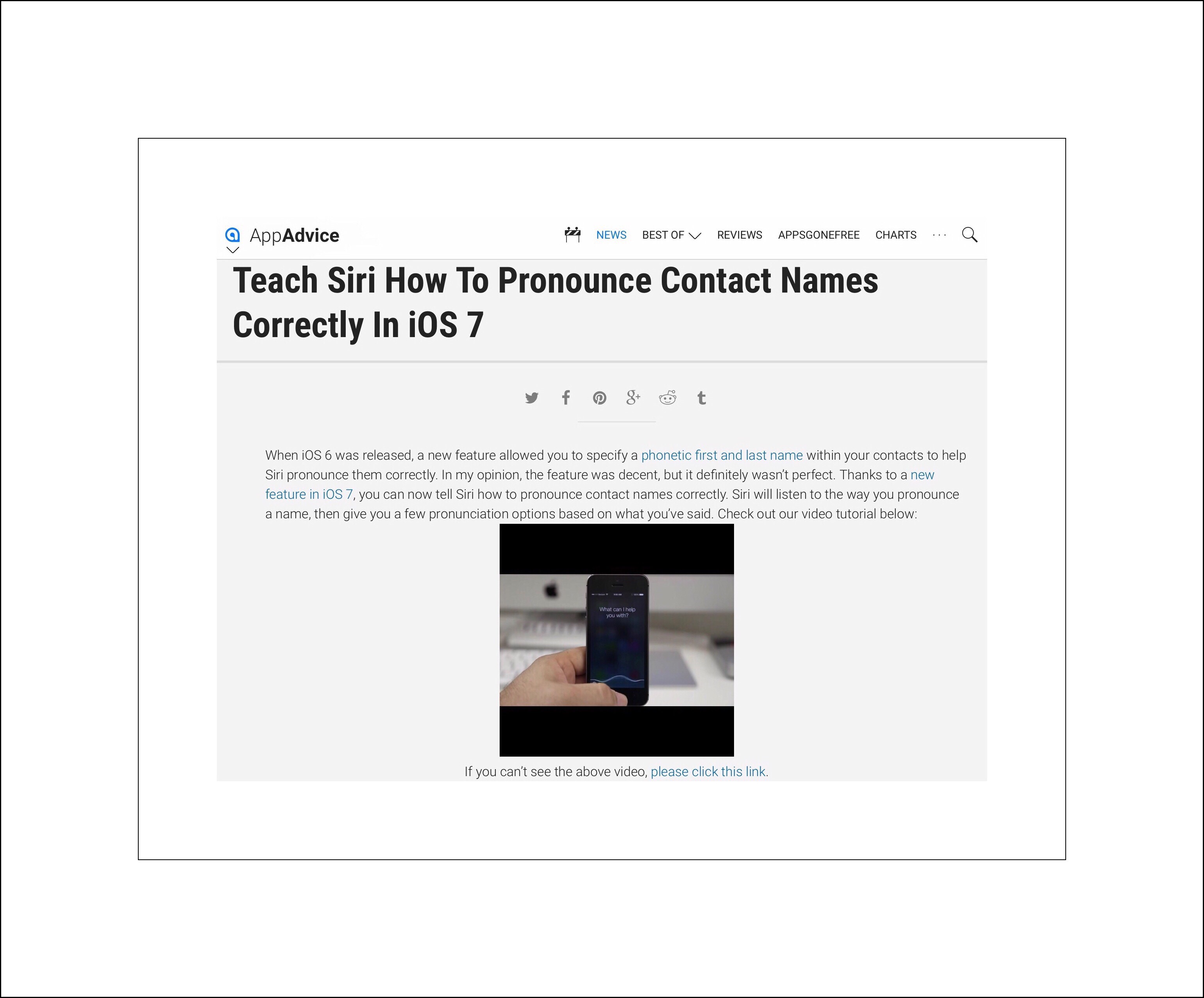
Here’s a link to a good article that describes how to teach Siri to learn to speak proper names correctly.

Who Might Benefit the Most From This New Feature?

Well certainly anyone who uses ios’es accessibility features will…especially those with visual impairments. As I’ve written about a couple times previously, I use Siri a lot to read things out loud to me. I think that this is where there’s a much larger audience for this feature enhancement.

As Apple has continued to improve Siri’s voice, making her sound more and more natural, I’ve noticed that more and more people have begun using Siri for both typing (dictation) and reading hands free. I suspect that anyone who uses tts or ‘text-to-speech’ by having their ios devices read things out loud to them will love this new feature. Nothing is more annoying than listening to Siri reading something to you and consistently mispronouncing the same word over and over again. Why do I use tts so much?  It’s a great way to multi-task by getting boring chores done while keeping up with tech news, proof reading posts…you name it.  It’s a feature that like Evernote, has changed my life!  My husband uses Siri to read things out loud to himself while he’s driving…which is a lot!  He’s slowly warmed up to Siri as her voice has grown to sound more natural…but those mispronunciations really bug him!

How to Correct Siri’s Pronunciation

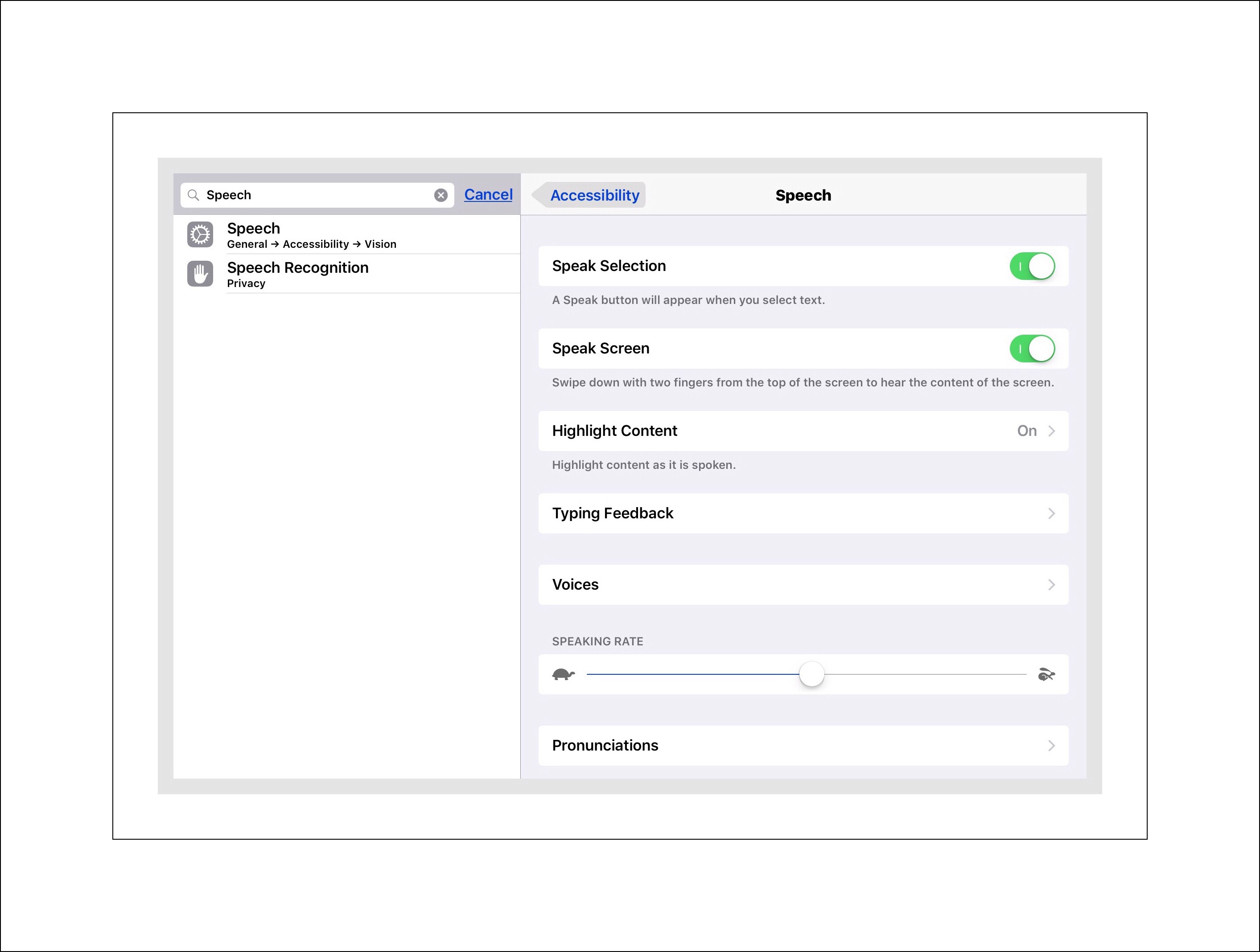
Go to SettingsGeneralAccessibilitySpeech (under the top category Vision) and scroll to the bottom of the screen to see Pronunciation.


Or you can just type ‘Speech‘ into the search bar in Settings and select the top search result.

Tap on ‘Pronunciation‘ and you’ll be taken to this screen:


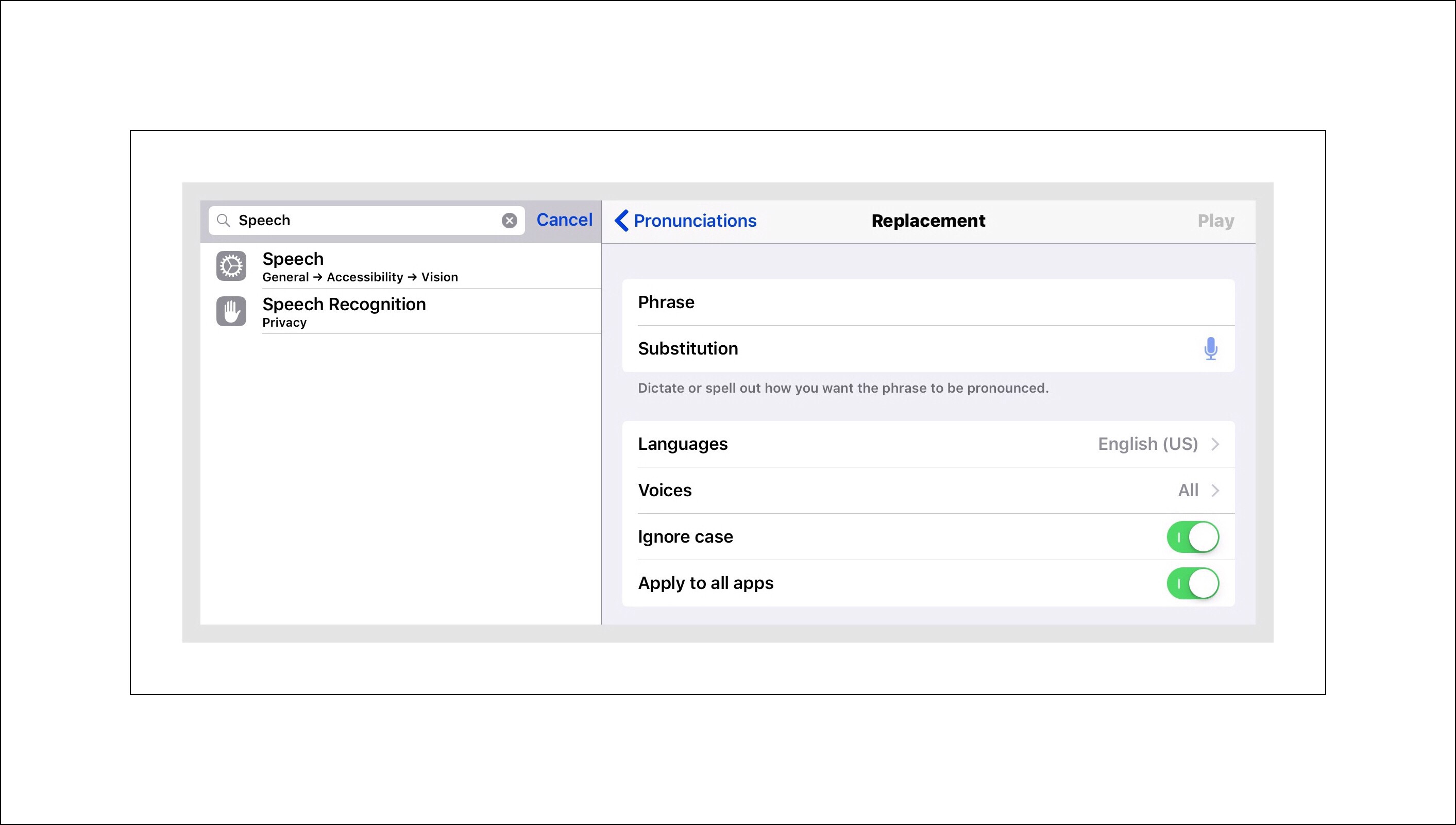
Tap on the +
in the upper righthand corner and you’ll arrive here:


Type the word you want to correct
in the field labeled ‘Phrase‘ then tap on the microphone and say the word correctly.

Sometimes Siri will immediately repeat the word and other times you’ll need to tap on the word ‘Play‘ also in the upper right-hand corner.  This is your opportunity to see if Siri pronounces the word correctly now.  If she does…great!  You’re all done!  If she doesn’t a little tweaking might be necessary.

How to Tweak the Pronunciation

You can do this one of 2 ways…or try both if the first try doesn’t work. The first method is to try and just tap on the incorrect syllable and speak it again. It can take a couple of tries for Siri to get it…but oftentimes this method works.  If it doesn’t, you can try typing in the phonetic pronunciation of the syllable.  This too might take several try’s…but between using a combinations n of these 2 methods so far at least, I’ve been successful getting Siri to speak the words that bother me more accurately.  It’s not a perfect system yet…which may be why even Apple hasn’t highlighted this new feature to the world yet…but it generally works for me!

Update October 2017 | Using Siri for Dictation

With the advent of ios 11 Siri now has a new, more natural sounding voice and cadence. But some of the old frustrations in using Siri remain. I’ve begun using Siri more frequently to dictate things. While this can be a big time saver in some instances…other times it can become an exercise in futility. I’ve often thought that if I could just spell out certain words all my problems would be solved. But I’ve never been able to figure out how to do that. As luck would have it I just accidentally found one piece to the puzzle today, and while adding that to my notes, found another missing piece which, when combined with the first will make my life much easier when dictating.

How to Get Siri to Spell a Name Correctly When Dictating

I ran across this blog post which includes a great video demonstration on  how to get Siri to spell a dictated name correctly. 

F6998065-4BC4-4424-A079-5F1023A078DE

How to Get Siri to Spell a Word Letter by Letter

If you want a word spelled out instead of having the actual word appear in your text while dictating, try this. Right before you spell out the word say:

“no caps on, no space on”

      then spell the word

then say “no caps off, no space off”

This tells Siri to start a forced lower-case mode without spaces. You then spell out the word in question. At the end, you return to normal dictation mode by disabling that mode. I found this tip in my notes but have no URL accompanying it. However I did credit the source as being from Steve Sande and someone else who together, were writing an ebook that would be in the Kindle format entitled ‘Talking to Siri.’

A Few Other Siri Tips

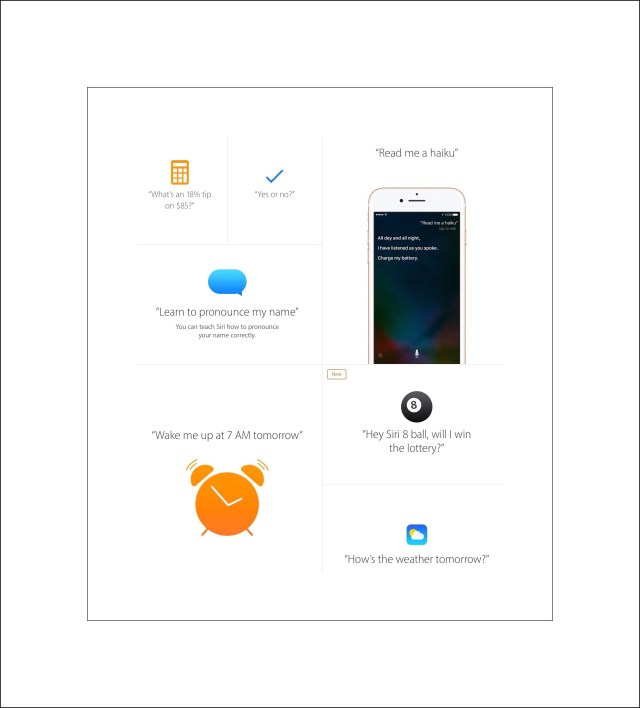
Last year I wrote a short post about some of the new things Siri could do. Apple included more in ios 10. The screenshot below shows some of Siri’s new features and ways to use Siri as your virtual assistant at the  website.

ios 10 includes another useful Siri feature…the ability to use Siri to announce phone callers. You can read my short post on how to set that up.

 Siri features

Here’s a link to one other good post I found that describes this new feature as well as a few more cool new accessibility features too.

A Cool Cookie Monster Video About Siri

Sometime after ‘Hey Siri‘ became popular I had a rude awakening…TV commercials could set off Siri…usually scaring me in the process. I made this short YouTube video about it.

Comments

← Back

Thank you for your response. ✨

Posted in ios, ios apps, iPad, iPhone | Tagged , , , , , | 6 Comments

Google’s Historic Acquisition of YouTube Was 10 Years Ago

October 9, 2016 Marked the 10 Year Anniversary of Google’s Purchase of YouTube for $1.65 Billion

Coldfusion TV's 'Surprising History of YouTube' video

The Quote above is from YouTube Channel Coldfusion TV’s ‘ The Surprising History of YouTube’

How it All Began

Do the combined names of Elon Musk, Janet Jackson, PayPal and Jawed Karim make you think of anything? Perhaps they make you think of YouTube’s origins?

If not. If, like me, you find these associations to be puzzling, it might interest you to learn a little bit more about the surprising history of YouTube. That’s exactly what this post aims to do. I was taken a bit by surprise when I first read on Twitter that Sunday marked the day of that historic anniversary in VentureBeats’s great article  about it. But I was even more surprised to not find any more good commemorations of such a historic day. I began to wonder if perhaps I wasn’t inuring more significance upon this milestone than most regular people would…maybe because I have a  fledgling YouTube channel or because my most popular post to date is about discovering who your YouTube followers are.

So I began to research in earnest.  What I found reassured me that I wasn’t alone in recognizing the importance of YouTube and today’s historic significance.  So, I culled through my notes and have included here only the ‘best of the best’ resources to quickly bring you up-to-speed.

If you’re really pressed for time and can only take one of my suggestions, I’d recommend watching YouTube Channel Coldfusion TV’s ‘ The Surprising History of YouTube‘ created by Dagogo Altraid. Dagogo’s 11+ minute video is innovative, enthusiastic and surprisingly uplifting.

Coldfusion TV's Dagogo Altraid

Coldfusion TV’s Dagogo Altraid

YouTube’s Founders

If you have a little more time you should watch Jawed Karim, YouTube’s least interviewed founder giving a touching keynote address at the University of Illinois in January of this year. As a former student there, his moving 14 minute address is perhaps one the most insightful looks into YouTube’s roots that I’ve encountered.

image
Jawed Karim’s Keynote Address at the University of Illinois in January 2016

Jawed’s life has been a fascinating one..primarily I think because of the unusual choices he’s made in which paths to follow.  Maybe I’m just a little biased because as I read this 2006 NY Time’s detailed history of his life, I saw so many parallels to my own life.

His birth in Germany (also my Dad’s birthplace) occurred at almost the same time that I graduated from college. His family’s move to Minnesota in 1992 (where several of my family members reside) coincided date-wise with my son’s birth. He attended the University of Illinois Urbana-Champaign which is where that same son took 2nd place in the nation for competing in the Kindergarten division of the National Grade School Chess Championships. The coincidences continue, but I’ll stop here :-)

I find it ironic that Jawed’s idea formed the nucleus of today’s YouTube following his frustration while attempting to find a video of Janet Jackson’s infamous ‘wardrobe malfunction’ video. Even more ironic is the fact that the first video ever to be uploaded to the site was also his (Me at the Zoo)…yet he consciously chose to take a lessor role in molding YouTube early on.  He chose instead to attend graduate school at Stanford in computer science. This at least explains why he’s less often recognized as one of YouTube’s original founders.

YouTube founders Chad Hurley and Steven Chen

I was also surprised to discover that he, along with YouTube’s more recognized founders, Chad Hurley and Steven Chen, were also extremely instrumental in creating Paypal.  In fact this is where the 3 became close friends. It’s also where the 3 earned their first million when EBay acquired PayPal around 2004.

So, YouTube’s 2 main founders Chad Hurley and Steven Chen have really dominated the internet’s coverage of both YouTube’s meteoric rise as well as they’ve both been cast as the primary benefactors of Google’s purchase decision. To learn more about their roles and perspectives, watch Charlie Rose’s interview from 2009.

Watch the YouTube Video A Message from Chad & Steve YouTube’s creators Oct. 9, 2006

Historical Timeline and Early Milestones

Much of my ‘Milestone Data’ below has been taken from the 2013 Business Insider’s ‘The History of YouTube 2013‘ Video. It’s a great 3rd video to watch if you have time because it places YouTube’s history on a historical timeline while discussing all of its major milestones.

Some of the earliest milestones include:

  • Feb 14, 2005 Hurley registers YouTube’s domain, trademark and logo.
  • April 2005 Jawed Karin uploaded the first YouTube video ‘Me at the Zoo
  • May 2005 YouTube’s beta site launched
  • Sept 2005 YouTube’s first viral video received 1M views…it was a commercial video made for Nike by their ad agency
  • Dec 2005 YouTube launched officially out of beta
  • Oct 2006 Less than a year later Google purchased YouTube in its first billion dollar acquisition.

Viral Videos

The phrase ‘viral videos’ came into existence as a direct result of YouTube. So much so in fact that there are are literally hundreds of ‘best of’ compilations of viral YouTube videos.  I think Watch Mojo’s is one the best.

Watch Mojo YouTube Channel Logo
Watch Mojo’s 2014 Top 10 Viral Videos of All Time 

In 2010 Time Magazine published one of those annoying list articles…(you know the kind I’m referring to that forces readers to click on a different page link for each list item in order to somewhat deceptively inflate their popularity ranking)…which lists the top 50 most popular YouTube videos of all time (as of 2010.)

Time Magazines Top 50 YouTube Videos in 2010

Without YouTube The Popular Concept of ‘RickRolling’ Wouldn’t Exist

If You’re Unfamiliar With What ‘RickRolling’ Is Techopedia’s Explanation Follows

While RickRolling may have fallen from popularity in recent years, the term came back with a vengeance in July when Melania Trump gave a speech which garnered headlines claiming she was ‘RickRolling’ Trump.
image

Here’s a link to The Hill’s explanation of the incident:

What Does the Melania Trump ‘RickRoll’ Mean?

Or, for a shorter version, watch the Swog Blog’s YouTube video.

More Resources:

  • In 2006 Time Magazine named YouTube as the Best Innovation of the Year. Here’s one of several 2006 Time Magazine  Article’s about that…’The YouTube Gurus.’

Comments

← Back

Thank you for your response. ✨

Posted in Google, Tech Tips, YouTube, YouTube Channel | Tagged , , , | Leave a comment

Add Your Own Emojis to ios

Trick Out Your Emojis By Adding Your Favorites Individually

Apple has given us a cool way to add our own emojis using a lesser know keyboard feature called ‘text replacement.’  It’s really easy to use and there’s no end to the creative uses that you can use this feature for.

How to Find Emojis That You Want to Add for Free

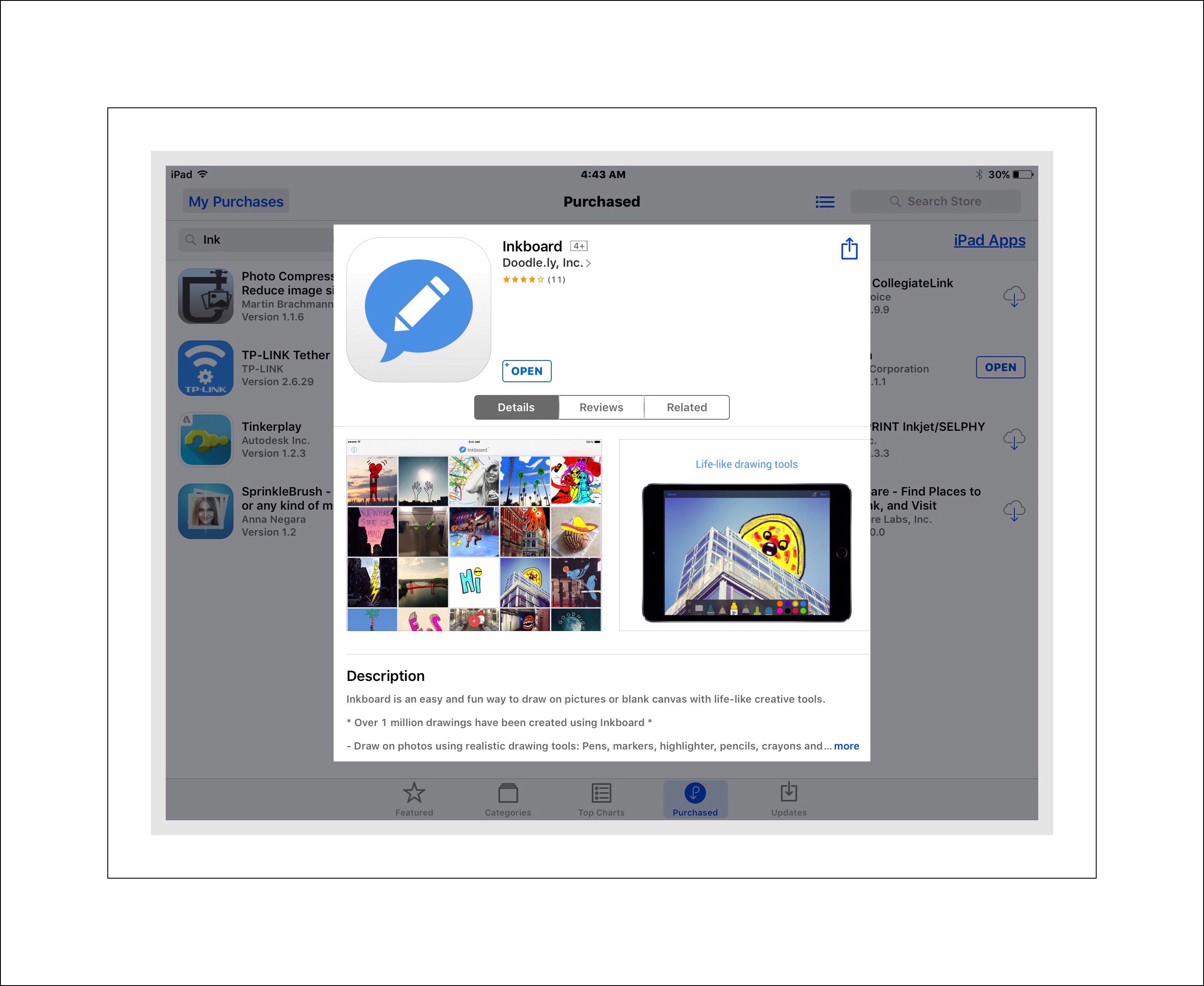
You can find a lot of great resources to use for custom emojis right in the App Store. Look for free apps that provide interesting and useful Unicode or Emoji characters.  Two that I can recommend and I use personally I’ve included examples to here.  They are  Uniconsole keyboard and a quick sketch app called Inkboard.  Inkboard  also includes a keyboard with some less used characters that can make great emojis.

img_4198img_4205

Adding New Emojis to ios Settings

Once you’ve installed and explored those apps or others which have helped you to find some Emojis or special characters that you’d like to use, you’re ready to learn how to add those individual characters into the ‘Text Replacement‘ area in Settings. Incidentally, what you’ll be doing may also be referred to as shortcuts or snippets.

Each emoji that you add needs to have a ‘shortcut‘ word that you’ll associate with it.  When you type that shortcut word using the ios keyboard, that will trigger ios to replace the actual word you typed with the special character or emoji you’d like to save.  I’ll use an example here in which I’ll add an infinity symbol.  Let’s get started.

Step 1

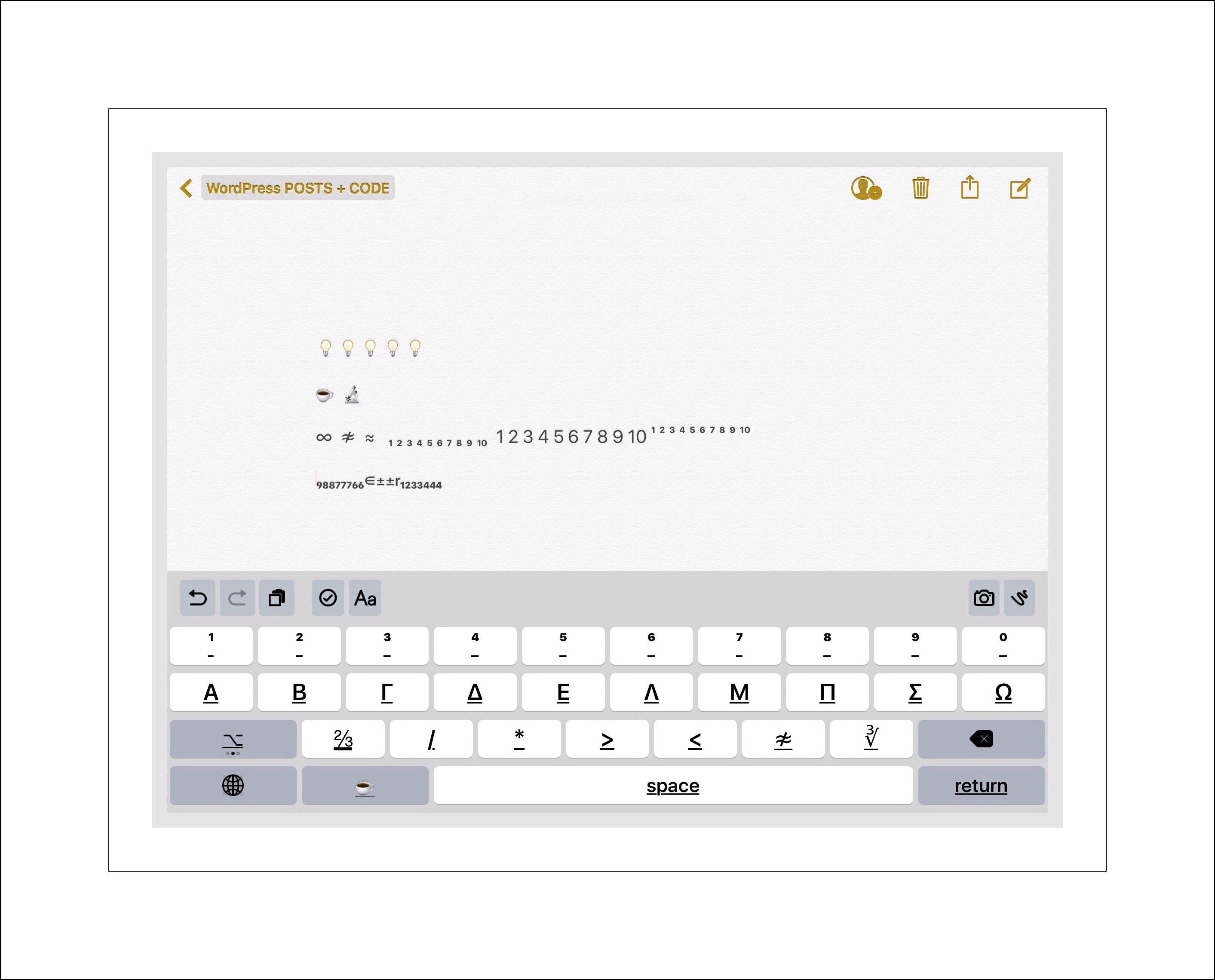
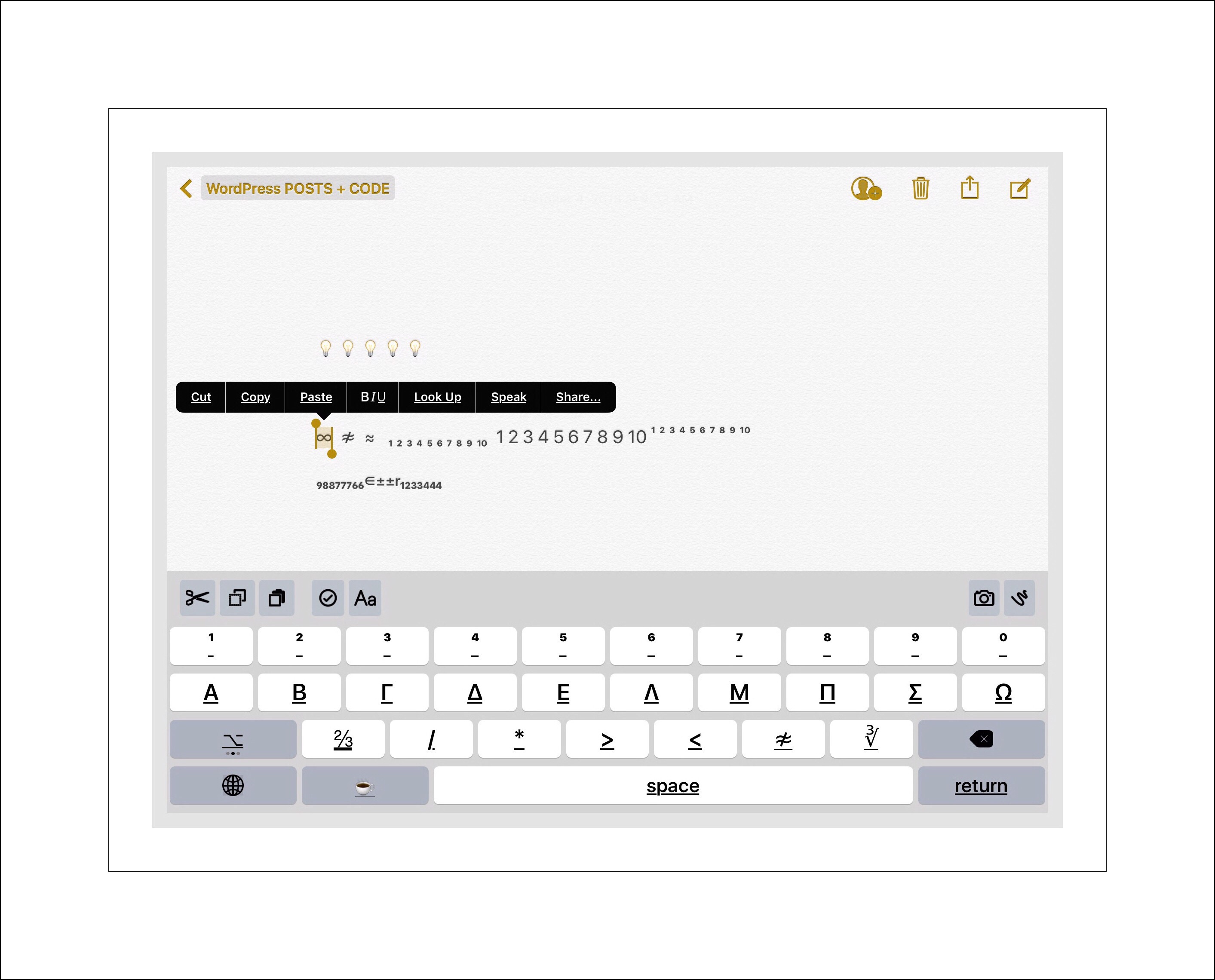
First, type or paste the symbol or emoji into a temparay note using the Apple note app.  Then select it and copy it.

Below is an  Note with several possible emojis I might use…btw the  is one emoji I added with these steps!

img_4199

Above I’ve selected the ∞ symbol to add.

Step 2

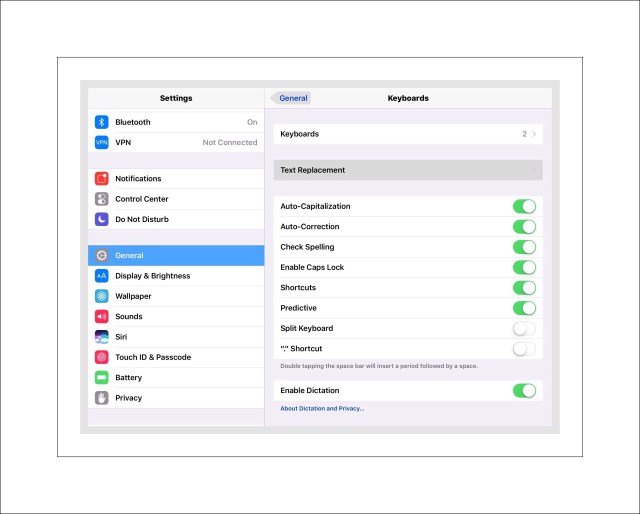
Now, go to SettingsGeneralKeyboard – Text Replacement
img_4203

img_4204

Step 3

In the ‘Phrase‘ field type the shortcut phrase that you’ll enter everytime you want to add that emoji.  In the ‘Shortcut‘ field paste in the emoji that you copied from  notes.

Below are some of my text replacement entries.
Here,s a list f some of my text replacements

Text Replacement Can Be Used to Improve Productivity too…

If you look at some of my ‘text replacement’ entries in the screenshot above, you might be wondering what they mean.  For example, ‘bsatips‘ and vsatips. You can used ‘text replacement’ to fix errors you might make  repeatedly.  In this example…I’m constantly missing the ‘v’ key when I type the name of my website…vsatips. I always hit the ‘b’ key instead.  By entering ‘vsatips’ and a shortcut (bsatips) ios will automatically convert bsatips to vsatips while I’m typing.  This is a great productivity tool!

Below I’ve just added the ∞ symbol as a new emoji.

Here I'm adding the ∞ symbol

What’s Next?

Now, anytime you’d like to use that emoji, just type your shortcut word and the emoji will replace the word itself.  What happens if you want to type the actual word ∞ and don’t want the emoji to replace it?  If you have predictive text turned on and the predictive shortcut bar on the Apple ios keyboard pulled up for use…you can just type the word infinity and you’ll see it displayed in the left hand predictive box at the top of your keyboard.  Just tap on it and the word will be entered instead of the symbol.  See the screenshot below.

image

Comments

Please leave any comments using the form below.

← Back

Thank you for your response. ✨


Posted in Apple, ios, Tech Tips | Tagged , , , | Leave a comment